> ## Documentation Index
> Fetch the complete documentation index at: https://cometchat-22654f5b-docs-rn-guide-message-privately.mintlify.site/llms.txt
> Use this file to discover all available pages before exploring further.

# Conversation List + Message View

> Build a two-panel conversation list + message view layout in Next.js (App Router) with CometChat UI Kit.

<Accordion title="AI Integration Quick Reference">
  | Field        | Value                                                                                                  |
  | ------------ | ------------------------------------------------------------------------------------------------------ |
  | Package      | `@cometchat/chat-uikit-react`                                                                          |
  | Framework    | Next.js (App Router)                                                                                   |
  | Components   | `CometChatConversations`, `CometChatMessageHeader`, `CometChatMessageList`, `CometChatMessageComposer` |
  | Layout       | Two-panel — conversation list (left) + message view (right)                                            |
  | Prerequisite | Complete [Next.js Integration](/ui-kit/react/integration-nextjs) first                                 |
  | SSR          | Component loaded with `dynamic(() => import(...), { ssr: false })`                                     |
  | Pattern      | WhatsApp Web, Slack, Microsoft Teams                                                                   |
</Accordion>

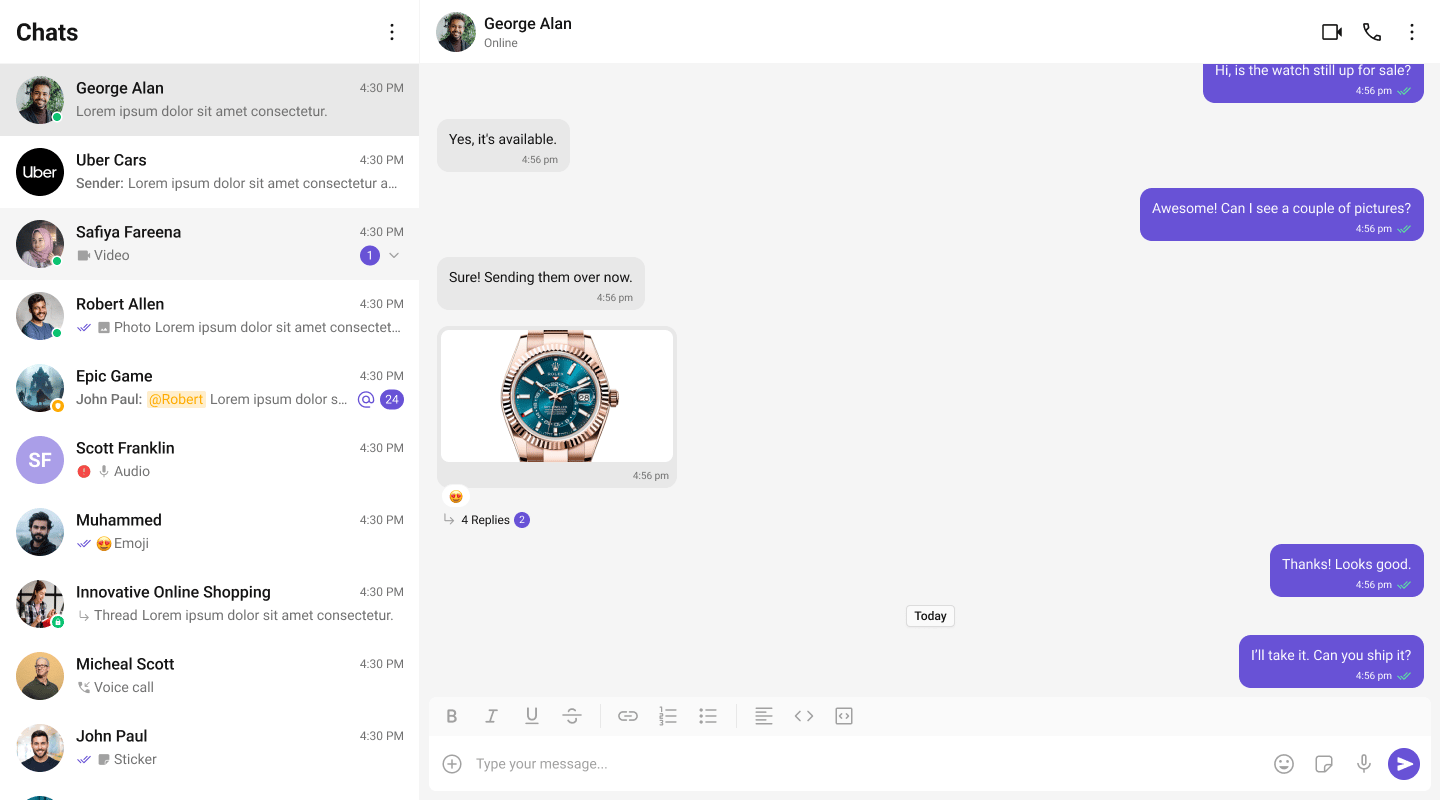
This guide builds a two-panel chat layout — conversation list on the left, messages on the right. Users click a conversation to open it.

This assumes you've already completed [Next.js Integration](/ui-kit/react/integration-nextjs) (project created, UI Kit installed, init + login working).

<Frame>
  <img src="https://mintcdn.com/cometchat-22654f5b-docs-rn-guide-message-privately/9bgr-iIAUJixmNKk/images/two_panel_layout_without_tabs_react_v7.png?fit=max&auto=format&n=9bgr-iIAUJixmNKk&q=85&s=a9bc1857634b0c3d6451293ade1cba41" width="1440" height="800" data-path="images/two_panel_layout_without_tabs_react_v7.png" />
</Frame>

***

## What You're Building

Three sections working together:

1. **Sidebar (conversation list)** — shows all active conversations (users and groups)
2. **Message view** — displays chat messages for the selected conversation in real time
3. **Message composer** — text input with support for media, emojis, and reactions

***

## Full Code

Create the client component with the chat UI, then import it dynamically in your page. Init and login happen in a `useEffect` before the provider mounts.

```tsx title="app/chat/CometChatClient.tsx" theme={null}
'use client';

import { useEffect, useState } from "react";
import { CometChat } from "@cometchat/chat-sdk-javascript";
import {
  CometChatUIKit,
  UIKitSettingsBuilder,
  CometChatProvider,
  CometChatConversations,
  CometChatMessageHeader,
  CometChatMessageList,
  CometChatMessageComposer,
} from "@cometchat/chat-uikit-react";

export default function CometChatClient() {
  const [ready, setReady] = useState(false);
  const [selectedUser, setSelectedUser] = useState<CometChat.User | undefined>(undefined);
  const [selectedGroup, setSelectedGroup] = useState<CometChat.Group | undefined>(undefined);

  useEffect(() => {
    const settings = new UIKitSettingsBuilder()
      .setAppId("YOUR_APP_ID")
      .setRegion("YOUR_REGION")
      .setAuthKey("YOUR_AUTH_KEY")
      .subscribePresenceForAllUsers()
      .build();

    CometChatUIKit.init(settings).then(async () => {
      await CometChatUIKit.login("cometchat-uid-1");
      setReady(true);
    });
  }, []);

  if (!ready) return <div>Loading chat...</div>;

  const handleConversationClick = (conversation: CometChat.Conversation) => {
    const entity = conversation.getConversationWith();
    if (conversation.getConversationType() === "user") {
      setSelectedUser(entity as CometChat.User);
      setSelectedGroup(undefined);
    } else {
      setSelectedGroup(entity as CometChat.Group);
      setSelectedUser(undefined);
    }
  };

  return (
    <CometChatProvider>
      <div className="conversations-with-messages">
        <div className="conversations-wrapper">
          <CometChatConversations onItemClick={handleConversationClick} />
        </div>

        {selectedUser || selectedGroup ? (
          <div className="messages-wrapper">
            <CometChatMessageHeader user={selectedUser} group={selectedGroup} />
            <CometChatMessageList user={selectedUser} group={selectedGroup} />
            <CometChatMessageComposer user={selectedUser} group={selectedGroup} />
          </div>
        ) : (
          <div className="empty-conversation">
            Select a conversation to start chatting
          </div>
        )}
      </div>
    </CometChatProvider>
  );
}
```

```css title="app/chat/chat.css" theme={null}
.conversations-with-messages {
  display: flex;
  height: 100vh;
  width: 100%;
}

.conversations-wrapper {
  width: 360px;
  height: 100%;
  border-right: 1px solid #eee;
  overflow: hidden;
  display: flex;
  flex-direction: column;
}

.messages-wrapper {
  flex: 1;
  height: 100%;
  display: flex;
  flex-direction: column;
}

.empty-conversation {
  flex: 1;
  display: flex;
  justify-content: center;
  align-items: center;
  background: var(--cometchat-background-color-03, #f5f5f5);
  color: var(--cometchat-text-color-secondary, #727272);
  font: var(--cometchat-font-body-regular, 400 14px Roboto);
}
```

```tsx title="app/chat/page.tsx" theme={null}
import dynamic from 'next/dynamic';

const CometChatClient = dynamic(() => import('./CometChatClient'), { ssr: false });

export default function ChatPage() {
  return <CometChatClient />;
}
```

***

## How It Works

1. **`'use client'`** marks the component as a Client Component — required because CometChat uses browser APIs.
2. **`dynamic(() => import(...), { ssr: false })`** prevents the component from rendering on the server, avoiding `window is not defined` errors.
3. **CometChatProvider** wraps the entire tree — it supplies theme, locale, and event context to all CometChat components.
4. **CometChatConversations** renders the sidebar list. When a user clicks a conversation, `onItemClick` fires with the `Conversation` object.
5. **handleConversationClick** extracts the `User` or `Group` from the conversation and stores it in state.
6. **Message components** (`MessageHeader`, `MessageList`, `MessageComposer`) receive either `user` or `group` as a prop — never both at the same time.

***

## Run

```bash theme={null}
npm run dev
```

Open `http://localhost:3000/chat`. You should see the conversation list on the left. Click any conversation to load messages on the right.

***

## Next Steps

<CardGroup cols={2}>
  <Card title="One-to-One / Group Chat" icon="message" href="/ui-kit/react/next-one-to-one-chat">
    Single chat window without a sidebar
  </Card>

  <Card title="Tab-Based Chat" icon="table-columns" href="/ui-kit/react/next-tab-based-chat">
    Tabbed navigation with Chats, Calls, Users
  </Card>

  <Card title="Components Overview" icon="grid-2" href="/ui-kit/react/components-overview">
    Browse all prebuilt UI components
  </Card>

  <Card title="Theming" icon="paintbrush" href="/ui-kit/react/theming">
    Customize colors, fonts, and styles
  </Card>
</CardGroup>
