> ## Documentation Index
> Fetch the complete documentation index at: https://cometchat-22654f5b-docs-rn-guide-message-privately.mintlify.site/llms.txt
> Use this file to discover all available pages before exploring further.
# Call
> Call — CometChat documentation.
You can integrate voice and video calling SDK to add calling functionality to your CometChat-enabled application.
To integrate, follow the below steps:
## Integration
First, make sure that you've correctly integrated the UI Kit library into your project. If you haven't done this yet or are facing difficulties, refer to our Getting Started guide. This guide will walk you through a step-by-step process of integrating our UI Kit into your React Native project.
Once you've successfully integrated the UI Kit, the next step is to add the CometChat Calls SDK to your project. This is necessary to enable the calling features in the UI Kit. Here's how you do it:
```sh theme={null}
npm install @cometchat/calls-sdk-react-native
```
After adding this dependency, the Android UI Kit will automatically detect it and activate the calling features. Now, your application supports both audio and video calling. You will see [CallButtons](/ui-kit/react-native/v4/call-buttons) component rendered in [MessageHeader](/ui-kit/react-native/v4/message-header) Component.

 ## Add necessary permissions
### Android:
Go to AndroidManifest.xml located in the react-native/app/src/main of your React Native project and add the following permissions:
```xml theme={null}
```
### iOS:
Open Info.plist located in the ios/\{appname} of your React Native project and add the following entries:
```xml theme={null}
NSCameraUsageDescription
Access camera
NSMicrophoneUsageDescription
Access Microphone
```
## Setup minimum Android and iOS versions
For Android go to app-level build.gradle and change minSdkVersion to 24 and the targetSdkVersion and compileSdkVersion to 33.
```gradle theme={null}
android {
namespace "com.org.name_of_your_app"
compileSdkVersion 33
defaultConfig {
minSdkVersion 24
targetSdkVersion 33
}
}
```
For iOS you can open xcworkspace in XCode modify the IPHONEOS\_DEPLOYMENT\_TARGETto 12.0
or you can specify it in the post\_install hook of the Podfile
```ruby theme={null}
post_install do |installer|
installer.pods_project.targets.each do |target|
flutter_additional_ios_build_settings(target)
target.build_configurations.each do |build_configuration|
build_configuration.build_settings['IPHONEOS_DEPLOYMENT_TARGET'] = '12.0'
build_configuration.build_settings['EXCLUDED_ARCHS[sdk=iphonesimulator*]'] = 'arm64 i386'
build_configuration.build_settings['ENABLE_BITCODE'] = 'NO'
end
end
end
```
**Apple Silicon (M1/M2/M3) users:** Excluding `arm64` from the simulator build prevents the app from running natively on Apple Silicon Macs. If you are developing on an Apple Silicon Mac, consider excluding only `i386` instead of `arm64 i386` to enable native simulator builds.
## Add the Call Listeners
Apart from Call Buttons, the Calls UI Kit also provides fully functional UI components for Incoming, Outgoing and Ongoing Calls.
Wherever you wish to receive the call events in, you need to register the CallListener listener using the addCallListener() method. onIncomingCallReceived() event will receive when you receive a call.
```sh theme={null}
import { CometChat } from "@cometchat/chat-sdk-react-native";
import { CometChatIncomingCall } from "@cometchat/chat-uikit-react-native";
const incomingCall = useRef(null);
var listnerID: string = "UNIQUE_LISTENER_ID";
CometChat.addCallListener(
listnerID,
new CometChat.CallListener({
onIncomingCallReceived: (call: CometChat.Call) => {
console.log("Incoming call:", call);
incomingCall.current = call;
},
onOutgoingCallAccepted: (call: CometChat.Call) => {
console.log("Outgoing call accepted:", call);
},
onOutgoingCallRejected: (call: CometChat.Call) => {
console.log("Outgoing call rejected:", call);
},
onIncomingCallCancelled: (call: CometChat.Call) => {
console.log("Incoming call calcelled:", call);
},
onCallEndedMessageReceived: (call: CometChat.Call) => {
console.log("CallEnded Message:", call);
},
})
);
return (
{callRecevied && (
{
setCallReceived(false);
}}
incomingCallStyle={{
backgroundColor: "white",
titleColor: "black",
subtitleColor: "gray",
titleFont: {
fontSize: 20,
fontWeight: "bold",
},
}}
/>
)}
);
```
## Features
### Incoming Call
The [Incoming Call](/ui-kit/react-native/v4/incoming-call) component of the CometChat UI Kit provides the functionality that lets users receive real-time audio and video calls in the app.
When a call is made to a user, the Incoming Call component triggers and displays a call screen. This call screen typically displays the caller information and provides the user with options to either accept or reject the incoming call.
## Add necessary permissions
### Android:
Go to AndroidManifest.xml located in the react-native/app/src/main of your React Native project and add the following permissions:
```xml theme={null}
```
### iOS:
Open Info.plist located in the ios/\{appname} of your React Native project and add the following entries:
```xml theme={null}
NSCameraUsageDescription
Access camera
NSMicrophoneUsageDescription
Access Microphone
```
## Setup minimum Android and iOS versions
For Android go to app-level build.gradle and change minSdkVersion to 24 and the targetSdkVersion and compileSdkVersion to 33.
```gradle theme={null}
android {
namespace "com.org.name_of_your_app"
compileSdkVersion 33
defaultConfig {
minSdkVersion 24
targetSdkVersion 33
}
}
```
For iOS you can open xcworkspace in XCode modify the IPHONEOS\_DEPLOYMENT\_TARGETto 12.0
or you can specify it in the post\_install hook of the Podfile
```ruby theme={null}
post_install do |installer|
installer.pods_project.targets.each do |target|
flutter_additional_ios_build_settings(target)
target.build_configurations.each do |build_configuration|
build_configuration.build_settings['IPHONEOS_DEPLOYMENT_TARGET'] = '12.0'
build_configuration.build_settings['EXCLUDED_ARCHS[sdk=iphonesimulator*]'] = 'arm64 i386'
build_configuration.build_settings['ENABLE_BITCODE'] = 'NO'
end
end
end
```
**Apple Silicon (M1/M2/M3) users:** Excluding `arm64` from the simulator build prevents the app from running natively on Apple Silicon Macs. If you are developing on an Apple Silicon Mac, consider excluding only `i386` instead of `arm64 i386` to enable native simulator builds.
## Add the Call Listeners
Apart from Call Buttons, the Calls UI Kit also provides fully functional UI components for Incoming, Outgoing and Ongoing Calls.
Wherever you wish to receive the call events in, you need to register the CallListener listener using the addCallListener() method. onIncomingCallReceived() event will receive when you receive a call.
```sh theme={null}
import { CometChat } from "@cometchat/chat-sdk-react-native";
import { CometChatIncomingCall } from "@cometchat/chat-uikit-react-native";
const incomingCall = useRef(null);
var listnerID: string = "UNIQUE_LISTENER_ID";
CometChat.addCallListener(
listnerID,
new CometChat.CallListener({
onIncomingCallReceived: (call: CometChat.Call) => {
console.log("Incoming call:", call);
incomingCall.current = call;
},
onOutgoingCallAccepted: (call: CometChat.Call) => {
console.log("Outgoing call accepted:", call);
},
onOutgoingCallRejected: (call: CometChat.Call) => {
console.log("Outgoing call rejected:", call);
},
onIncomingCallCancelled: (call: CometChat.Call) => {
console.log("Incoming call calcelled:", call);
},
onCallEndedMessageReceived: (call: CometChat.Call) => {
console.log("CallEnded Message:", call);
},
})
);
return (
{callRecevied && (
{
setCallReceived(false);
}}
incomingCallStyle={{
backgroundColor: "white",
titleColor: "black",
subtitleColor: "gray",
titleFont: {
fontSize: 20,
fontWeight: "bold",
},
}}
/>
)}
);
```
## Features
### Incoming Call
The [Incoming Call](/ui-kit/react-native/v4/incoming-call) component of the CometChat UI Kit provides the functionality that lets users receive real-time audio and video calls in the app.
When a call is made to a user, the Incoming Call component triggers and displays a call screen. This call screen typically displays the caller information and provides the user with options to either accept or reject the incoming call.

 ### Outgoing Call
The [Outgoing Call](/ui-kit/react-native/v4/incoming-call) component of the CometChat UI Kit is designed to manage the outgoing call process within your application. When a user initiates an audio or video call to another user or group, this component displays an outgoing call screen, showcasing information about the recipient and the call status.
Importantly, the Outgoing Call component is smartly designed to transition automatically into the ongoing call screen once the receiver accepts the call. This ensures a smooth flow from initiating the call to engaging in a conversation, without any additional steps required from the user.
### Outgoing Call
The [Outgoing Call](/ui-kit/react-native/v4/incoming-call) component of the CometChat UI Kit is designed to manage the outgoing call process within your application. When a user initiates an audio or video call to another user or group, this component displays an outgoing call screen, showcasing information about the recipient and the call status.
Importantly, the Outgoing Call component is smartly designed to transition automatically into the ongoing call screen once the receiver accepts the call. This ensures a smooth flow from initiating the call to engaging in a conversation, without any additional steps required from the user.

 ### Ongoing Call
The [OngoingCall](/ui-kit/react-native/v4/ongoing-call) component is the user interface that displays during an ongoing call. For an audio call, this screen displays the participant's name, call duration, and buttons to mute the audio, enable or disable video, switch the camera, and end the call.
For a video call, the Call Screen might additionally display the video footage from both the user's camera and the recipient's camera.
### Ongoing Call
The [OngoingCall](/ui-kit/react-native/v4/ongoing-call) component is the user interface that displays during an ongoing call. For an audio call, this screen displays the participant's name, call duration, and buttons to mute the audio, enable or disable video, switch the camera, and end the call.
For a video call, the Call Screen might additionally display the video footage from both the user's camera and the recipient's camera.

 ### Call Logs
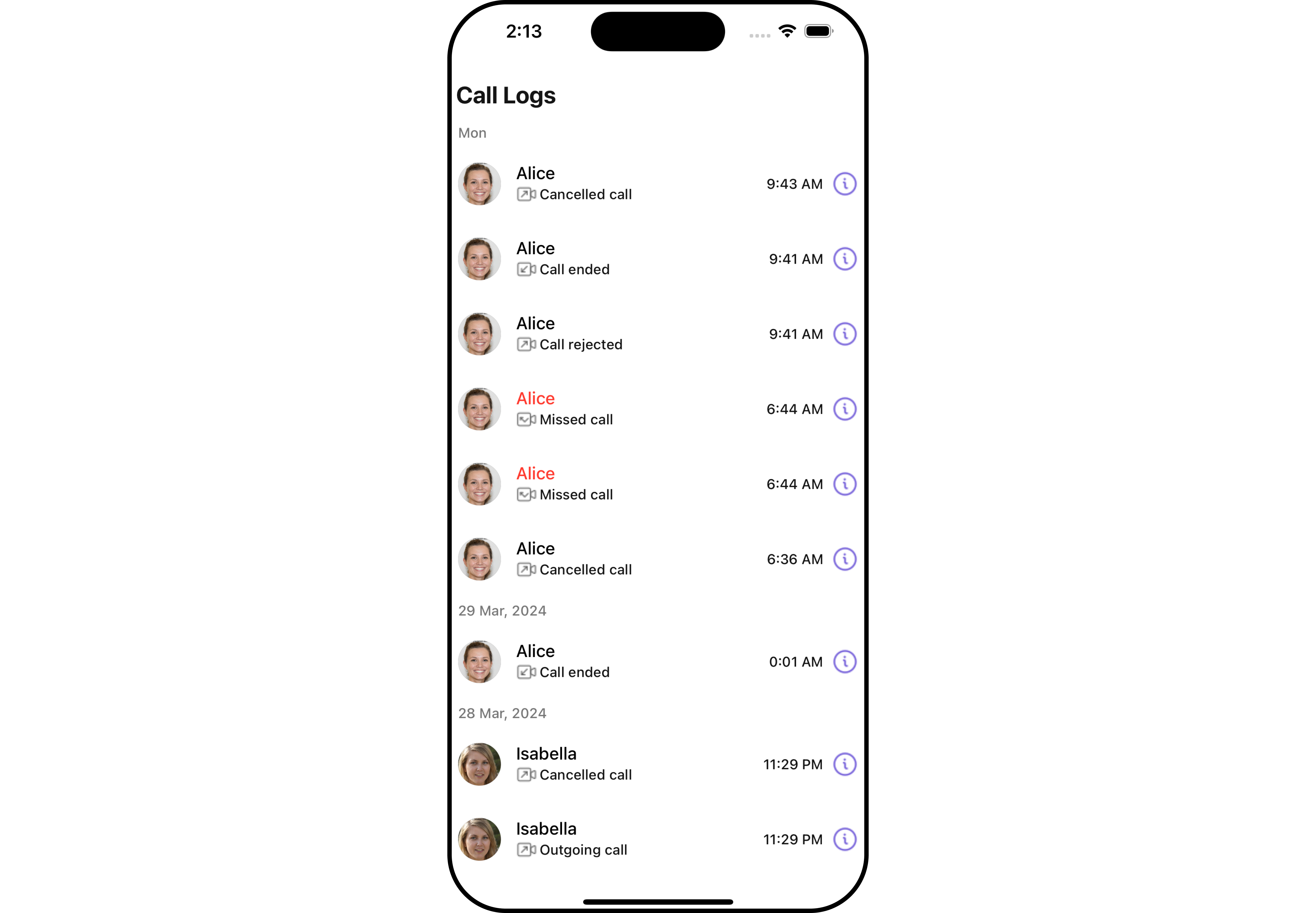
[Call Logs](/ui-kit/react-native/v4/call-log-with-details) component provides you with the records call events such as who called who, the time of the call, and the duration of the call. This information can be fetched from the CometChat server and displayed in a structured format for users to view their past call activities.
### Call Logs
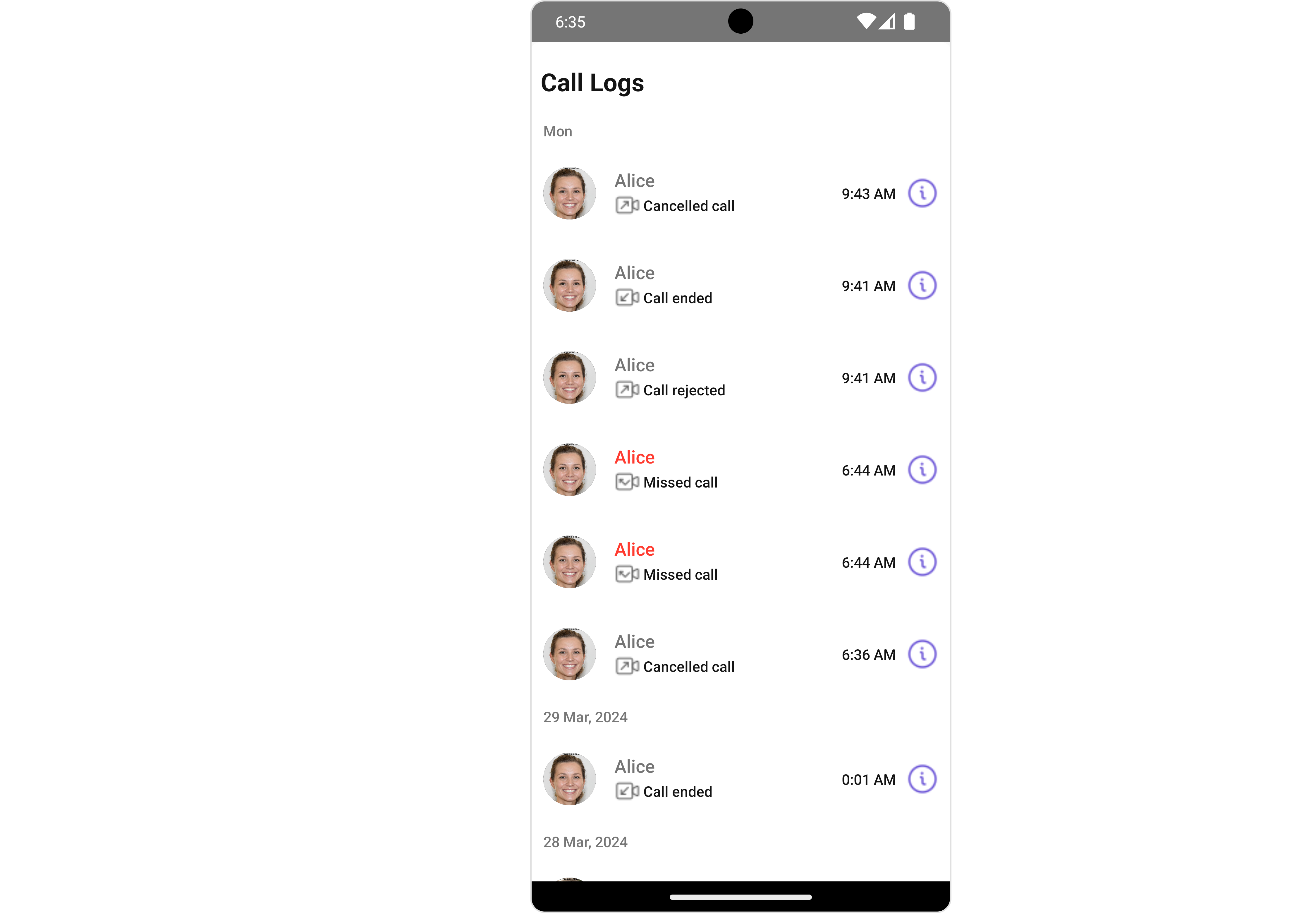
[Call Logs](/ui-kit/react-native/v4/call-log-with-details) component provides you with the records call events such as who called who, the time of the call, and the duration of the call. This information can be fetched from the CometChat server and displayed in a structured format for users to view their past call activities.