> ## Documentation Index
> Fetch the complete documentation index at: https://cometchat-22654f5b-docs-rn-guide-message-privately.mintlify.site/llms.txt
> Use this file to discover all available pages before exploring further.
# React Native CLI Integration
> Integrate CometChat React Native UI Kit with React Native CLI using app credentials, package setup, initialization, login, and rendering.
| Field | Value |
| ---------------- | ------------------------------------------------------------------------------------- |
| Package | `@cometchat/chat-uikit-react-native` |
| Peer deps | `react-native` >=0.77.0, `@cometchat/chat-sdk-react-native` |
| Init | `CometChatUIKit.init(UIKitSettings)` — must resolve before `login()` |
| Login | `CometChatUIKit.login({ uid })` — must resolve before rendering components |
| Order | `init()` → `login()` → render. Breaking this order = blank screen |
| Auth Key | Dev/testing only. Use Auth Token in production |
| Calling | Optional. Install `@cometchat/calls-sdk-react-native` to enable |
| Other frameworks | [Expo](/ui-kit/react-native/expo-integration) |
| AI Skills | `npx @cometchat/skills add` — [GitHub](https://github.com/cometchat/cometchat-skills) |
This guide walks you through adding CometChat to a React Native CLI app. By the end you'll have a working chat UI.
***
## Integrate with AI Coding Agents
Skip the manual steps — use [CometChat Skills](https://github.com/cometchat/cometchat-skills) to integrate via your AI coding agent. Your agent has a short conversation with you to understand your project and chat requirements, then writes production-grade integration code tailored to the files you already have.
```bash theme={null}
npx @cometchat/skills add
```
Use `--ide ` to target a specific IDE (e.g. `--ide cursor`), or `--ide all` for all supported IDEs.
Then in your IDE:
```
/cometchat add chat to my app
```
The skill detects your React Native setup, navigation library, and existing auth system. It onboards you to CometChat directly in the terminal — signup, login, and app creation all via the CLI. It reads your screens, nav, and components before proposing a placement (stack, tab, modal, or bottom sheet), shows the plan, and waits for your approval before writing code.
After the first integration, re-run `/cometchat` to access the iteration menu: theme presets, 40+ features, component customization, push notifications, production auth, user management, and diagnostics.
Works with Claude Code, Cursor, Codex, VS Code Copilot, Windsurf, Cline, Kiro, and [30+ more agents](https://github.com/cometchat/cometchat-skills).
***
## Prerequisites
You need three things from the [CometChat Dashboard](https://app.cometchat.com/):
| Credential | Where to find it |
| ---------- | ---------------------------------------------------------- |
| App ID | Dashboard → Your App → Credentials |
| Auth Key | Dashboard → Your App → Credentials |
| Region | Dashboard → Your App → Credentials (e.g. `us`, `eu`, `in`) |
You also need:
* Node.js (v16+) and npm/yarn installed
* React Native development environment set up ([React Native CLI Quickstart](https://reactnative.dev/docs/environment-setup))
* Xcode (for iOS) and Android Studio (for Android)
Auth Key is for development only. In production, generate Auth Tokens server-side via the [REST API](/rest-api/chat-apis) and use [`loginWithAuthToken()`](/ui-kit/react-native/methods#how-to-login-a-user-with-auth-token). Never ship Auth Keys in client code.
***
## Step 1 — Create a React Native Project
```bash theme={null}
npx @react-native-community/cli init MyApp
cd MyApp
```
The CometChat React Native UI Kit is officially built and tested with React Native version 0.77.0 and above. While it may work with older versions, they are not officially supported.
***
## Step 2 — Install the UI Kit
```bash theme={null}
npm install @cometchat/chat-uikit-react-native
```
This installs the UI Kit. You also need to install the SDK and peer dependencies:
```bash theme={null}
npm install @cometchat/chat-sdk-react-native
npm install @react-native-community/datetimepicker
npm install @react-native-clipboard/clipboard
npm install react-native-svg
npm install react-native-video
npm install dayjs
npm install @react-native-async-storage/async-storage
npm install react-native-gesture-handler
npm install react-native-localize
npm install react-native-safe-area-context
```
### Android: Add Local Maven Repository for Async Storage
**Android only:** `@react-native-async-storage/async-storage` v3 ships a local Maven artifact. Add this to your `android/build.gradle` or the Android build will fail.
```gradle title="android/build.gradle" theme={null}
allprojects {
repositories {
google()
mavenCentral()
maven {
url = uri(project(":react-native-async-storage_async-storage").file("local_repo"))
}
}
}
```
### Add Permissions for Android
Open `android/app/src/main/AndroidManifest.xml` and add:
```xml theme={null}
```
### Install iOS Pods
```bash theme={null}
cd ios && pod install && cd ..
```
### Configure Gesture Handler
Add this import at the very top of your entry file (before any other imports):
```js title="index.js" theme={null}
import 'react-native-gesture-handler';
```
This import must be at the top of your entry file. Failing to do so may cause crashes in production.
### Optional: Install Calling SDK
To enable voice/video calling:
```bash theme={null}
npm install @cometchat/calls-sdk-react-native
npm install @react-native-community/netinfo
npm install react-native-background-timer
npm install react-native-callstats
npm install react-native-webrtc
```
Add iOS permissions to `ios/MyApp/Info.plist`:
```xml theme={null}
NSCameraUsageDescription
Camera access for video calls
NSMicrophoneUsageDescription
Microphone access for voice/video calls
```
***
## Step 3 — Initialize CometChat
`init()` must resolve before you call `login()`. If you call `login()` before init completes, it will fail silently.
```tsx theme={null}
import { CometChatUIKit, UIKitSettings } from "@cometchat/chat-uikit-react-native";
import { CometChat } from "@cometchat/chat-sdk-react-native";
const COMETCHAT_CONSTANTS = {
APP_ID: "APP_ID", // Replace with your App ID
REGION: "REGION", // Replace with your Region
AUTH_KEY: "AUTH_KEY", // Replace with your Auth Key (dev only)
};
const uiKitSettings: UIKitSettings = {
appId: COMETCHAT_CONSTANTS.APP_ID,
authKey: COMETCHAT_CONSTANTS.AUTH_KEY,
region: COMETCHAT_CONSTANTS.REGION,
subscriptionType: CometChat.AppSettings.SUBSCRIPTION_TYPE_ALL_USERS as UIKitSettings["subscriptionType"],
};
CometChatUIKit.init(uiKitSettings)
.then(() => {
console.log("CometChat UI Kit initialized successfully.");
})
.catch((error) => {
console.error("CometChat UI Kit initialization failed:", error);
});
```
```jsx theme={null}
import { CometChatUIKit } from "@cometchat/chat-uikit-react-native";
import { CometChat } from "@cometchat/chat-sdk-react-native";
const COMETCHAT_CONSTANTS = {
APP_ID: "APP_ID", // Replace with your App ID
REGION: "REGION", // Replace with your Region
AUTH_KEY: "AUTH_KEY", // Replace with your Auth Key (dev only)
};
const uiKitSettings = {
appId: COMETCHAT_CONSTANTS.APP_ID,
authKey: COMETCHAT_CONSTANTS.AUTH_KEY,
region: COMETCHAT_CONSTANTS.REGION,
subscriptionType: CometChat.AppSettings.SUBSCRIPTION_TYPE_ALL_USERS,
};
CometChatUIKit.init(uiKitSettings)
.then(() => {
console.log("CometChat UI Kit initialized successfully.");
})
.catch((error) => {
console.error("CometChat UI Kit initialization failed:", error);
});
```
***
## Step 4 — Login
After init resolves, log the user in. For development, use one of the pre-created test UIDs:
`cometchat-uid-1` · `cometchat-uid-2` · `cometchat-uid-3` · `cometchat-uid-4` · `cometchat-uid-5`
```tsx theme={null}
const UID = "cometchat-uid-1"; // Replace with your actual UID
CometChatUIKit.login({ uid: UID })
.then((user: CometChat.User) => {
console.log("Login Successful:", user.getName());
})
.catch((error) => {
console.error("Login failed:", error);
});
```
```jsx theme={null}
const UID = "cometchat-uid-1"; // Replace with your actual UID
CometChatUIKit.login({ uid: UID })
.then((user) => {
console.log("Login Successful:", user.getName());
})
.catch((error) => {
console.error("Login failed:", error);
});
```
For production, use [`loginWithAuthToken()`](/ui-kit/react-native/methods#how-to-login-a-user-with-auth-token) instead of Auth Key. Generate tokens server-side via the REST API.
***
## Step 5 — Choose a Chat Experience
Integrate a conversation view that suits your app's UX. Each option below includes a step-by-step guide.
### Conversation List + Message View
List of conversations on one screen, tap to open messages. Standard mobile chat pattern.
* Conversation list with real-time updates
* Tap-to-view — tapping a conversation opens the message view
* Switch between one-to-one and group conversations
* Back navigation to return to the list
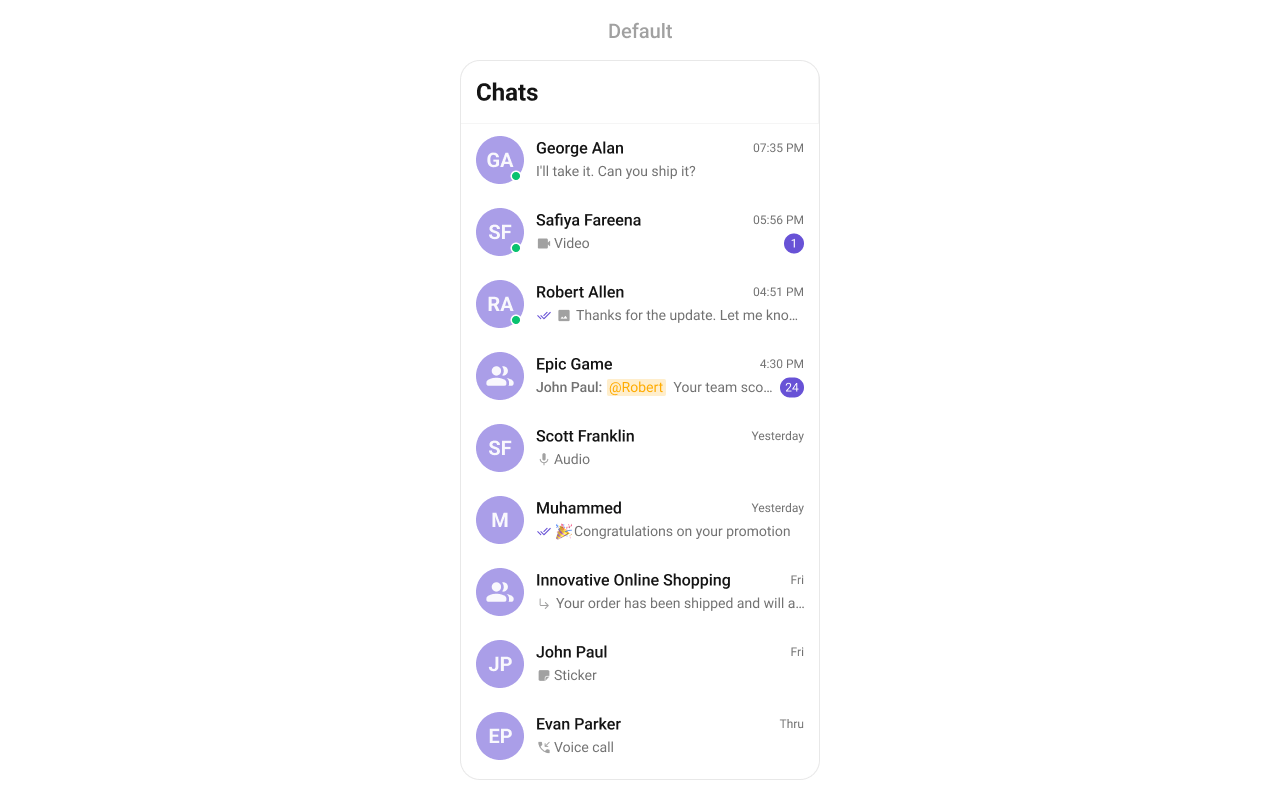 Step-by-step guide to build this layout
***
### One-to-One / Group Chat
Single chat window — no conversation list. Good for support chat, embedded widgets, or focused messaging.
* Dedicated chat window for one-on-one or group messaging
* No conversation list — users go directly into the chat
* Full-screen experience
* Ideal for support chat or community messaging
Step-by-step guide to build this layout
***
### One-to-One / Group Chat
Single chat window — no conversation list. Good for support chat, embedded widgets, or focused messaging.
* Dedicated chat window for one-on-one or group messaging
* No conversation list — users go directly into the chat
* Full-screen experience
* Ideal for support chat or community messaging
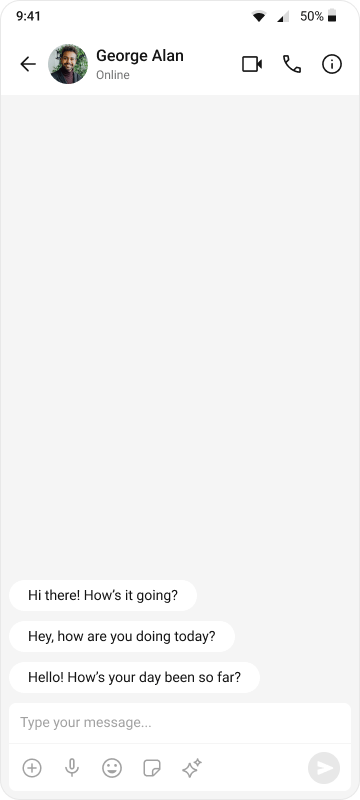 Step-by-step guide to build this layout
***
### Tab-Based Chat
Tabbed navigation — Chats, Users, Groups, Calls in separate tabs. Good for full-featured apps.
* Tab navigation between Chats, Users, Groups, and Calls
* Full-screen messaging within each tab
* Uses React Navigation bottom tabs
* Scales well for adding future features
Step-by-step guide to build this layout
***
### Tab-Based Chat
Tabbed navigation — Chats, Users, Groups, Calls in separate tabs. Good for full-featured apps.
* Tab navigation between Chats, Users, Groups, and Calls
* Full-screen messaging within each tab
* Uses React Navigation bottom tabs
* Scales well for adding future features
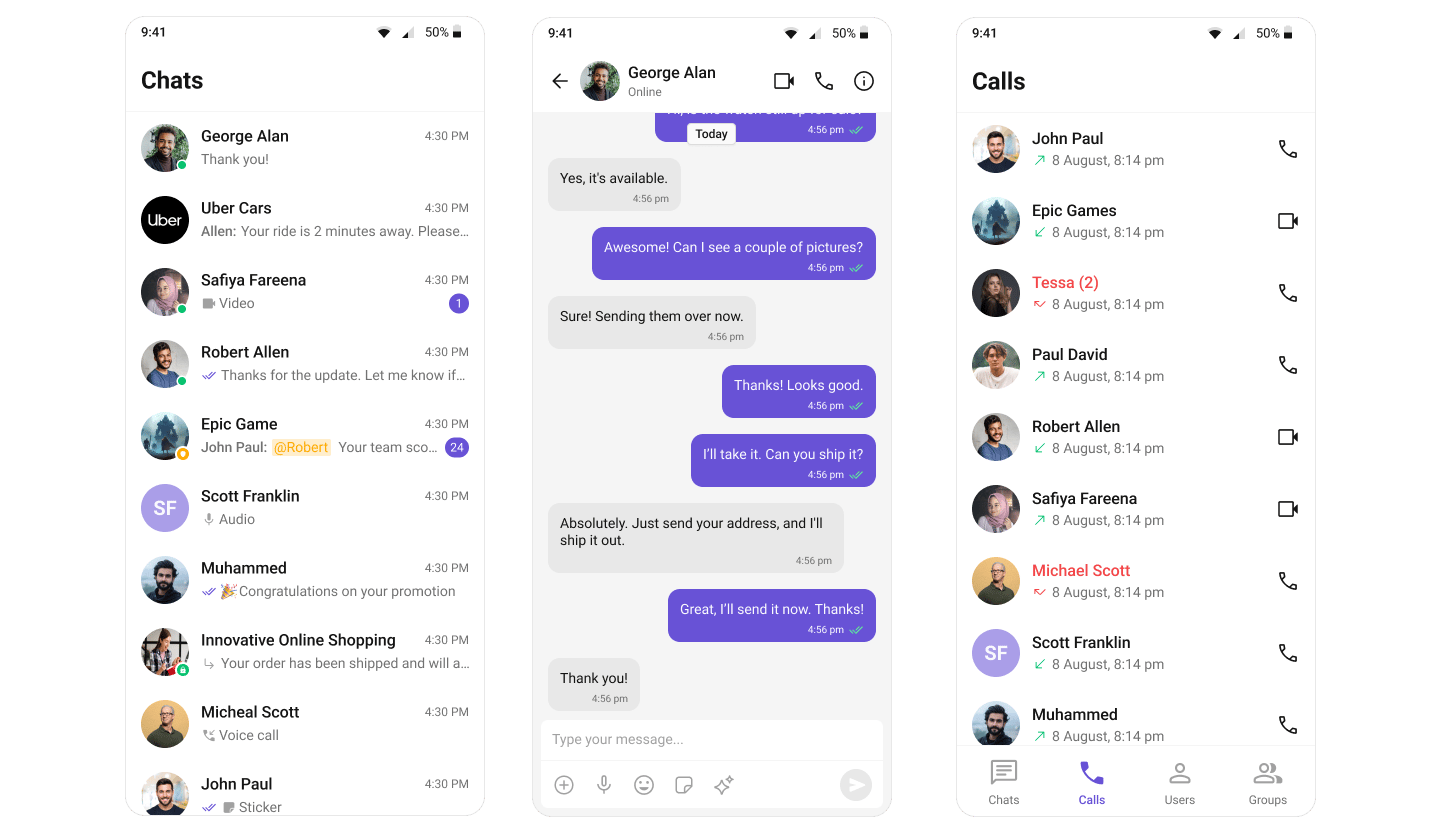 Step-by-step guide to build this layout
***
## Build Your Own Chat Experience
Need full control over the UI? Use individual components, customize themes, and wire up your own layouts.
* [Sample App](https://github.com/cometchat/cometchat-uikit-react-native) — Working reference app to compare against
* [Components](/ui-kit/react-native/components-overview) — All prebuilt UI elements with props and customization options
* [Core Features](/ui-kit/react-native/core-features) — Messaging, real-time updates, and other capabilities
* [Theming](/ui-kit/react-native/theme) — Colors, fonts, dark mode, and custom styling
***
## Next Steps
Browse all prebuilt UI components
Customize colors, fonts, and styles
Chat features included out of the box
Common issues and fixes
Step-by-step guide to build this layout
***
## Build Your Own Chat Experience
Need full control over the UI? Use individual components, customize themes, and wire up your own layouts.
* [Sample App](https://github.com/cometchat/cometchat-uikit-react-native) — Working reference app to compare against
* [Components](/ui-kit/react-native/components-overview) — All prebuilt UI elements with props and customization options
* [Core Features](/ui-kit/react-native/core-features) — Messaging, real-time updates, and other capabilities
* [Theming](/ui-kit/react-native/theme) — Colors, fonts, dark mode, and custom styling
***
## Next Steps
Browse all prebuilt UI components
Customize colors, fonts, and styles
Chat features included out of the box
Common issues and fixes