> ## Documentation Index
> Fetch the complete documentation index at: https://cometchat-22654f5b-docs-rn-guide-message-privately.mintlify.site/llms.txt
> Use this file to discover all available pages before exploring further.
# AI Agent Integration
> Enable intelligent conversational AI capabilities in your React Native app using CometChat UI Kit v5 with AI Agent integration.
| Field | Value |
| -------------- | ----------------------------------------------------------------------------------------------------------------------------------------------------------------- |
| Package | `@cometchat/chat-uikit-react-native` |
| Key components | `CometChatMessageHeader`, `CometChatMessageList`, `CometChatMessageComposer`, `CometChatAIAssistantChatHistory` |
| Required setup | `CometChatUIKit.init(UIKitSettings)` then `CometChatUIKit.login("UID")` |
| Purpose | Enable intelligent conversational AI capabilities with AI Agent integration |
| Sample app | [GitHub](https://github.com/cometchat/cometchat-uikit-react-native/tree/v5/sample) |
| Related | [Message List](/ui-kit/react-native/message-list) · [Message Composer](/ui-kit/react-native/message-composer) · [All Guides](/ui-kit/react-native/guide-overview) |
Enable intelligent conversational AI capabilities in your React Native app using CometChat UIKit v5 with AI Agent integration:
* **AI Assistant Chat History**
* **Chat History Management**
* **Contextual Responses**
* **Agent Detection**
* **Seamless Handoffs**
Transform your chat experience with AI-powered assistance that provides intelligent responses and offers seamless integration with your existing chat infrastructure.
**1:1 conversations only.** AI Agents currently respond only in one-on-one conversations between an end user and the agent user. They do not respond to messages sent in groups, even if the agent user is added as a member or owner. Group support is on the roadmap — share your use case on [feedback.cometchat.com](https://feedback.cometchat.com).
## Overview
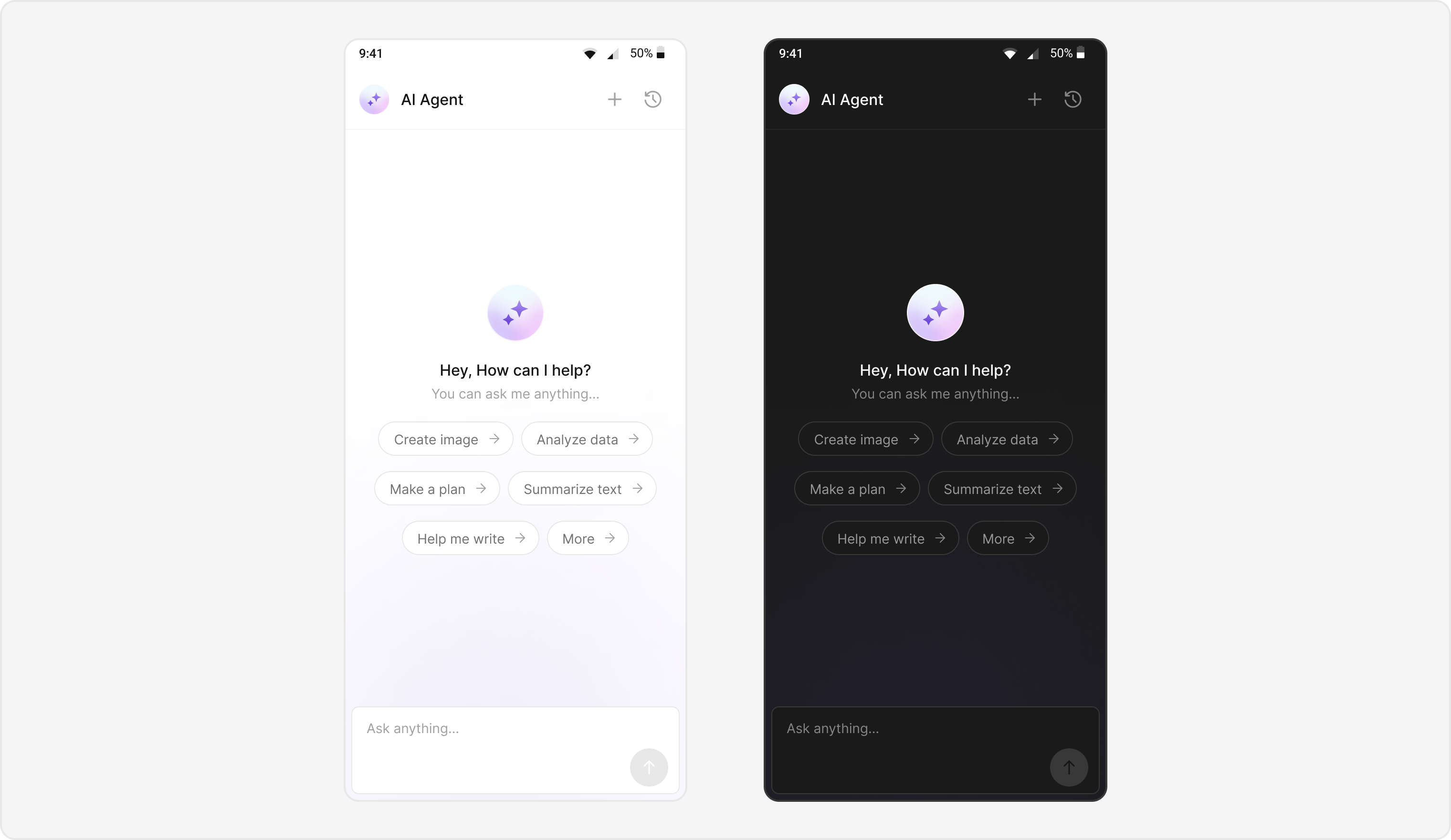
Users can interact with AI agents through a dedicated chat interface that:
* Provides intelligent responses based on conversation context.
* Maintains chat history for continuity.
* Seamlessly integrates with your existing user chat system.
The AI Agent chat interface provides a familiar messaging experience enhanced with AI capabilities, accessible through your main chat flow or as a standalone feature.
 ## Prerequisites
* React Native project with **@cometchat/chat-uikit-react-native** and **@cometchat/chat-sdk-react-native** installed.
* Valid CometChat **App ID**, **Region**, and **Auth Key** configured via `CometChatUIKit.init()`.
* User logged in with `CometChatUIKit.login()`.
* AI Agent configured in your CometChat dashboard.
## Components
| Component / Class | Role |
| :-------------------------------- | :----------------------------------------- |
| `AIAssistantChatScreen` | Main screen for AI agent chat. |
| `CometChatAIAssistantChatHistory` | Displays previous AI conversation history. |
| `CometChatMessageList` | Shows AI messages with threading support. |
| `CometChatMessageComposer` | Input interface for AI conversations. |
| `CometChatMessageHeader` | Header with AI agent info and controls. |
## Integration Steps
### Step 1 - Screen Setup
Create the AI Assistant chat screen with proper navigation and component configuration.
```tsx theme={null}
import React, { useState, useEffect } from 'react';
import { SafeAreaView, View } from 'react-native';
import {
CometChatMessageHeader,
CometChatMessageList,
CometChatMessageComposer,
CometChatThemeProvider,
} from '@cometchat/chat-uikit-react-native';
import { CometChat } from '@cometchat/chat-sdk-react-native';
interface AIAssistantChatScreenProps {
route: {
params: {
user: CometChat.User;
parentMessage?: CometChat.BaseMessage;
};
};
navigation: any;
}
const AIAssistantChatScreen: React.FC = ({
route,
navigation,
}) => {
const { user, parentMessage } = route.params;
const [currentUser, setCurrentUser] = useState(user);
useEffect(() => {
initializeComponents();
}, []);
const initializeComponents = () => {
// Set up AI-specific configurations
console.log('Initializing AI Assistant Chat for user:', currentUser.getName());
};
const handleNewChatClick = () => {
// Navigate to new AI chat
navigation.replace('AIAssistantChat', { user: currentUser });
};
const handleChatHistoryClick = () => {
// Navigate to chat history
navigation.navigate('AIAssistantChatHistory', { user: currentUser });
};
return (
}
streamingSpeed={50}
aiAssistantSuggestedMessages={[
'How can I help you today?',
'What would you like to know?',
'Ask me anything!',
]}
/>
);
};
// Custom AI Greeting Component
const AIGreetingView = () => (
Welcome to AI Assistant
I'm here to help! Ask me anything or choose from the suggested prompts below.
);
export default AIAssistantChatScreen;
```
### Step 2 - Navigation Setup
Configure React Navigation to handle AI Assistant chat screens.
```tsx theme={null}
// App.tsx or your main navigation file
import React from 'react';
import { NavigationContainer } from '@react-navigation/native';
import { createNativeStackNavigator } from '@react-navigation/native-stack';
import AIAssistantChatScreen from './screens/AIAssistantChatScreen';
import AIAssistantChatHistoryScreen from './screens/AIAssistantChatHistoryScreen';
import MainChatScreen from './screens/MainChatScreen';
const Stack = createNativeStackNavigator();
const App = () => {
return (
);
};
export default App;
```
### Step 3 - Theme Customization
Define custom themes for the message list and composer to differentiate AI agent chats.
```tsx theme={null}
// AITheme.ts
import { CometChatTheme } from '@cometchat/chat-uikit-react-native';
export const aiAssistantTheme: Partial = {
light: {
messageComposerStyles: {
containerStyle: {
backgroundColor: '#F8F9FA',
borderTopWidth: 1,
borderTopColor: '#E0E0E0',
},
inputStyle: {
backgroundColor: '#FFFFFF',
borderRadius: 8,
borderWidth: 1,
borderColor: '#E0E0E0',
paddingHorizontal: 12,
paddingVertical: 8,
},
sendIconContainerStyle: {
backgroundColor: '#007AFF',
borderRadius: 20,
width: 40,
height: 40,
justifyContent: 'center',
alignItems: 'center',
},
},
messageListStyles: {
containerStyle: {
backgroundColor: '#F8F9FA',
},
outgoingMessageBubbleStyles: {
containerStyle: {
backgroundColor: '#E3F2FD',
borderRadius: 12,
padding: 12,
marginVertical: 4,
},
textBubbleStyles: {
textStyle: {
color: '#1976D2',
fontSize: 16,
lineHeight: 20,
},
},
},
incomingMessageBubbleStyles: {
assistantBubbleStyles: {
containerStyle: {
backgroundColor: '#FFFFFF',
borderRadius: 12,
padding: 12,
marginVertical: 4,
borderWidth: 1,
borderColor: '#E0E0E0',
},
textStyle: {
color: '#333333',
fontSize: 16,
lineHeight: 20,
},
placeholderTextStyle: {
color: '#666666',
fontSize: 16,
opacity: 0.7,
},
copyButtonStyle: {
backgroundColor: '#007AFF',
borderRadius: 6,
paddingHorizontal: 8,
paddingVertical: 4,
},
errorContainerStyle: {
backgroundColor: '#FFEBEE',
borderColor: '#F44336',
borderWidth: 1,
borderRadius: 8,
padding: 8,
marginTop: 4,
},
errorTextStyle: {
color: '#F44336',
fontSize: 14,
},
},
},
},
messageHeaderStyles: {
containerStyle: {
backgroundColor: '#FFFFFF',
borderBottomWidth: 1,
borderBottomColor: '#E0E0E0',
paddingHorizontal: 16,
paddingVertical: 12,
},
titleTextStyle: {
fontSize: 18,
fontWeight: '600',
color: '#333333',
},
avatarStyle: {
containerStyle: {
width: 40,
height: 40,
borderRadius: 20,
backgroundColor: '#007AFF',
},
},
},
},
};
```
### Step 4 - AI Assistant Tools Configuration
Configure AI Assistant tools and suggested messages for an enhanced user experience.
```tsx theme={null}
// AIAssistantConfig.ts
import { CometChat } from '@cometchat/chat-sdk-react-native';
export const aiTools = new CometChatAIAssistantTools({
getCurrentWeather: (args: any) => {
console.log('Weather tool called with:', args);
// Handle weather tool action
},
getLocationInfo: (args: any) => {
console.log('Location tool called with:', args);
// Handle location tool action
},
sendEmail: (args: any) => {
console.log('Email tool called with:', args);
// Handle email tool action
}
});
export const suggestedMessages = [
'How can I help you today?',
'What would you like to know?',
'Tell me about your project',
'Need help with something specific?',
'Ask me anything!',
];
// Enhanced AI Assistant Chat Screen with tools
export const EnhancedAIAssistantChatScreen: React.FC = ({
route,
navigation,
}) => {
const { user, parentMessage } = route.params;
return (
{
navigation.replace('AIAssistantChat', { user });
}}
onChatHistoryButtonClick={() => {
navigation.navigate('AIAssistantChatHistory', { user });
}}
/>
}
streamingSpeed={50}
aiAssistantSuggestedMessages={suggestedMessages}
aiAssistantTools={aiTools}
/>
);
};
```
### Step 5 - Create AI Assistant Chat History Screen
Create a screen to host the `CometChatAIAssistantChatHistory` component and handle its interactions.
```tsx theme={null}
// AIAssistantChatHistoryScreen.tsx
import React, { useState, useEffect } from 'react';
import { SafeAreaView, Alert } from 'react-native';
import {
CometChatAIAssistantChatHistory,
CometChatThemeProvider,
} from '@cometchat/chat-uikit-react-native';
import { CometChat } from '@cometchat/chat-sdk-react-native';
interface AIAssistantChatHistoryScreenProps {
route: {
params: {
user: CometChat.User;
};
};
navigation: any;
}
const AIAssistantChatHistoryScreen: React.FC = ({
route,
navigation,
}) => {
const { user } = route.params;
const [currentUser, setCurrentUser] = useState(user);
useEffect(() => {
console.log('Loading AI Assistant Chat History for:', currentUser.getName());
}, [currentUser]);
const handleItemClick = (message: CometChat.BaseMessage) => {
const receiver = message.getReceiver();
if (receiver instanceof CometChat.User) {
// Navigate to specific chat thread
navigation.navigate('AIAssistantChat', {
user: receiver,
parentMessage: message,
});
}
};
const handleNewChatClick = () => {
// Navigate to new AI chat
navigation.navigate('AIAssistantChat', { user: currentUser });
};
const handleCloseClick = () => {
// Navigate back or close
navigation.goBack();
};
return (
);
};
export default AIAssistantChatHistoryScreen;
```
### Step 6 - Launching AI Chat
Create navigation functions to launch AI Assistant chat from your main application.
```tsx theme={null}
// MainChatScreen.tsx or your main component
import React from 'react';
import { View, TouchableOpacity, Text } from 'react-native';
import { CometChat } from '@cometchat/chat-sdk-react-native';
interface MainChatScreenProps {
navigation: any;
}
const MainChatScreen: React.FC = ({ navigation }) => {
const launchAIAssistantChat = async (aiUser: CometChat.User, parentMessage?: CometChat.BaseMessage) => {
try {
// Verify the user has @agentic role for AI agent
if (aiUser.getRole() === '@agentic') {
navigation.navigate('AIAssistantChat', {
user: aiUser,
parentMessage: parentMessage,
});
} else {
console.warn('User is not an AI agent');
}
} catch (error) {
console.error('Error launching AI chat:', error);
}
};
const createAIUser = () => {
// Create or fetch AI user with @agentic role
const aiUser = new CometChat.User('ai-assistant-001');
aiUser.setName('AI Assistant');
aiUser.setRole('@agentic'); // Important: Set role to @agentic for AI agents
return aiUser;
};
return (
{
const aiUser = createAIUser();
launchAIAssistantChat(aiUser);
}}
>
Start AI Chat
{
const aiUser = createAIUser();
navigation.navigate('AIAssistantChatHistory', { user: aiUser });
}}
>
View Chat History
);
};
export default MainChatScreen;
```
## Implementation Flow Summary
| Step | Action |
| :--- | :------------------------------------------------------------------------- |
| 1 | User selects AI agent from chat list |
| 2 | `AIAssistantChatScreen` navigates and renders |
| 3 | Parse route params and detect agent chat (Role of user must be "@agentic") |
| 4 | Initialize UI with AI-specific theming |
| 5 | Configure chat history and navigation handlers |
| 6 | Launch chat with AI agent |
## Customization Options
* **Custom AI Assistant Empty Chat View:** Customize the empty state view using `emptyChatGreetingView` prop.
* **Streaming Speed:** Adjust AI response streaming speed via `streamingSpeed` prop.
* **AI Assistant Suggested Messages:** Create custom list of suggested messages using `aiAssistantSuggestedMessages` prop.
* **AI Assistant Tools:** Set tools for the AI agent using `aiAssistantTools` prop.
## Feature Matrix
| Feature | Implementation | UI Component |
| :---------------- | :-------------------------------- | :------------------ |
| AI Chat Interface | `AIAssistantChatScreen` | Full chat screen |
| Chat History | `CometChatAIAssistantChatHistory` | Chat history screen |
Explore this feature in the CometChat React Native Sample:
[GitHub → React Native Sample](https://github.com/cometchat/cometchat-uikit-react-native/tree/v5/sample)
Learn more about React Native UI Kit components:
[GitHub → React Native UIKit](https://github.com/cometchat/cometchat-uikit-react-native)
***
## Next Steps
Display and manage messages in a conversation
Compose and send messages with rich input options
Browse all feature and formatter guides
Explore all available components
## Prerequisites
* React Native project with **@cometchat/chat-uikit-react-native** and **@cometchat/chat-sdk-react-native** installed.
* Valid CometChat **App ID**, **Region**, and **Auth Key** configured via `CometChatUIKit.init()`.
* User logged in with `CometChatUIKit.login()`.
* AI Agent configured in your CometChat dashboard.
## Components
| Component / Class | Role |
| :-------------------------------- | :----------------------------------------- |
| `AIAssistantChatScreen` | Main screen for AI agent chat. |
| `CometChatAIAssistantChatHistory` | Displays previous AI conversation history. |
| `CometChatMessageList` | Shows AI messages with threading support. |
| `CometChatMessageComposer` | Input interface for AI conversations. |
| `CometChatMessageHeader` | Header with AI agent info and controls. |
## Integration Steps
### Step 1 - Screen Setup
Create the AI Assistant chat screen with proper navigation and component configuration.
```tsx theme={null}
import React, { useState, useEffect } from 'react';
import { SafeAreaView, View } from 'react-native';
import {
CometChatMessageHeader,
CometChatMessageList,
CometChatMessageComposer,
CometChatThemeProvider,
} from '@cometchat/chat-uikit-react-native';
import { CometChat } from '@cometchat/chat-sdk-react-native';
interface AIAssistantChatScreenProps {
route: {
params: {
user: CometChat.User;
parentMessage?: CometChat.BaseMessage;
};
};
navigation: any;
}
const AIAssistantChatScreen: React.FC = ({
route,
navigation,
}) => {
const { user, parentMessage } = route.params;
const [currentUser, setCurrentUser] = useState(user);
useEffect(() => {
initializeComponents();
}, []);
const initializeComponents = () => {
// Set up AI-specific configurations
console.log('Initializing AI Assistant Chat for user:', currentUser.getName());
};
const handleNewChatClick = () => {
// Navigate to new AI chat
navigation.replace('AIAssistantChat', { user: currentUser });
};
const handleChatHistoryClick = () => {
// Navigate to chat history
navigation.navigate('AIAssistantChatHistory', { user: currentUser });
};
return (
}
streamingSpeed={50}
aiAssistantSuggestedMessages={[
'How can I help you today?',
'What would you like to know?',
'Ask me anything!',
]}
/>
);
};
// Custom AI Greeting Component
const AIGreetingView = () => (
Welcome to AI Assistant
I'm here to help! Ask me anything or choose from the suggested prompts below.
);
export default AIAssistantChatScreen;
```
### Step 2 - Navigation Setup
Configure React Navigation to handle AI Assistant chat screens.
```tsx theme={null}
// App.tsx or your main navigation file
import React from 'react';
import { NavigationContainer } from '@react-navigation/native';
import { createNativeStackNavigator } from '@react-navigation/native-stack';
import AIAssistantChatScreen from './screens/AIAssistantChatScreen';
import AIAssistantChatHistoryScreen from './screens/AIAssistantChatHistoryScreen';
import MainChatScreen from './screens/MainChatScreen';
const Stack = createNativeStackNavigator();
const App = () => {
return (
);
};
export default App;
```
### Step 3 - Theme Customization
Define custom themes for the message list and composer to differentiate AI agent chats.
```tsx theme={null}
// AITheme.ts
import { CometChatTheme } from '@cometchat/chat-uikit-react-native';
export const aiAssistantTheme: Partial = {
light: {
messageComposerStyles: {
containerStyle: {
backgroundColor: '#F8F9FA',
borderTopWidth: 1,
borderTopColor: '#E0E0E0',
},
inputStyle: {
backgroundColor: '#FFFFFF',
borderRadius: 8,
borderWidth: 1,
borderColor: '#E0E0E0',
paddingHorizontal: 12,
paddingVertical: 8,
},
sendIconContainerStyle: {
backgroundColor: '#007AFF',
borderRadius: 20,
width: 40,
height: 40,
justifyContent: 'center',
alignItems: 'center',
},
},
messageListStyles: {
containerStyle: {
backgroundColor: '#F8F9FA',
},
outgoingMessageBubbleStyles: {
containerStyle: {
backgroundColor: '#E3F2FD',
borderRadius: 12,
padding: 12,
marginVertical: 4,
},
textBubbleStyles: {
textStyle: {
color: '#1976D2',
fontSize: 16,
lineHeight: 20,
},
},
},
incomingMessageBubbleStyles: {
assistantBubbleStyles: {
containerStyle: {
backgroundColor: '#FFFFFF',
borderRadius: 12,
padding: 12,
marginVertical: 4,
borderWidth: 1,
borderColor: '#E0E0E0',
},
textStyle: {
color: '#333333',
fontSize: 16,
lineHeight: 20,
},
placeholderTextStyle: {
color: '#666666',
fontSize: 16,
opacity: 0.7,
},
copyButtonStyle: {
backgroundColor: '#007AFF',
borderRadius: 6,
paddingHorizontal: 8,
paddingVertical: 4,
},
errorContainerStyle: {
backgroundColor: '#FFEBEE',
borderColor: '#F44336',
borderWidth: 1,
borderRadius: 8,
padding: 8,
marginTop: 4,
},
errorTextStyle: {
color: '#F44336',
fontSize: 14,
},
},
},
},
messageHeaderStyles: {
containerStyle: {
backgroundColor: '#FFFFFF',
borderBottomWidth: 1,
borderBottomColor: '#E0E0E0',
paddingHorizontal: 16,
paddingVertical: 12,
},
titleTextStyle: {
fontSize: 18,
fontWeight: '600',
color: '#333333',
},
avatarStyle: {
containerStyle: {
width: 40,
height: 40,
borderRadius: 20,
backgroundColor: '#007AFF',
},
},
},
},
};
```
### Step 4 - AI Assistant Tools Configuration
Configure AI Assistant tools and suggested messages for an enhanced user experience.
```tsx theme={null}
// AIAssistantConfig.ts
import { CometChat } from '@cometchat/chat-sdk-react-native';
export const aiTools = new CometChatAIAssistantTools({
getCurrentWeather: (args: any) => {
console.log('Weather tool called with:', args);
// Handle weather tool action
},
getLocationInfo: (args: any) => {
console.log('Location tool called with:', args);
// Handle location tool action
},
sendEmail: (args: any) => {
console.log('Email tool called with:', args);
// Handle email tool action
}
});
export const suggestedMessages = [
'How can I help you today?',
'What would you like to know?',
'Tell me about your project',
'Need help with something specific?',
'Ask me anything!',
];
// Enhanced AI Assistant Chat Screen with tools
export const EnhancedAIAssistantChatScreen: React.FC = ({
route,
navigation,
}) => {
const { user, parentMessage } = route.params;
return (
{
navigation.replace('AIAssistantChat', { user });
}}
onChatHistoryButtonClick={() => {
navigation.navigate('AIAssistantChatHistory', { user });
}}
/>
}
streamingSpeed={50}
aiAssistantSuggestedMessages={suggestedMessages}
aiAssistantTools={aiTools}
/>
);
};
```
### Step 5 - Create AI Assistant Chat History Screen
Create a screen to host the `CometChatAIAssistantChatHistory` component and handle its interactions.
```tsx theme={null}
// AIAssistantChatHistoryScreen.tsx
import React, { useState, useEffect } from 'react';
import { SafeAreaView, Alert } from 'react-native';
import {
CometChatAIAssistantChatHistory,
CometChatThemeProvider,
} from '@cometchat/chat-uikit-react-native';
import { CometChat } from '@cometchat/chat-sdk-react-native';
interface AIAssistantChatHistoryScreenProps {
route: {
params: {
user: CometChat.User;
};
};
navigation: any;
}
const AIAssistantChatHistoryScreen: React.FC = ({
route,
navigation,
}) => {
const { user } = route.params;
const [currentUser, setCurrentUser] = useState(user);
useEffect(() => {
console.log('Loading AI Assistant Chat History for:', currentUser.getName());
}, [currentUser]);
const handleItemClick = (message: CometChat.BaseMessage) => {
const receiver = message.getReceiver();
if (receiver instanceof CometChat.User) {
// Navigate to specific chat thread
navigation.navigate('AIAssistantChat', {
user: receiver,
parentMessage: message,
});
}
};
const handleNewChatClick = () => {
// Navigate to new AI chat
navigation.navigate('AIAssistantChat', { user: currentUser });
};
const handleCloseClick = () => {
// Navigate back or close
navigation.goBack();
};
return (
);
};
export default AIAssistantChatHistoryScreen;
```
### Step 6 - Launching AI Chat
Create navigation functions to launch AI Assistant chat from your main application.
```tsx theme={null}
// MainChatScreen.tsx or your main component
import React from 'react';
import { View, TouchableOpacity, Text } from 'react-native';
import { CometChat } from '@cometchat/chat-sdk-react-native';
interface MainChatScreenProps {
navigation: any;
}
const MainChatScreen: React.FC = ({ navigation }) => {
const launchAIAssistantChat = async (aiUser: CometChat.User, parentMessage?: CometChat.BaseMessage) => {
try {
// Verify the user has @agentic role for AI agent
if (aiUser.getRole() === '@agentic') {
navigation.navigate('AIAssistantChat', {
user: aiUser,
parentMessage: parentMessage,
});
} else {
console.warn('User is not an AI agent');
}
} catch (error) {
console.error('Error launching AI chat:', error);
}
};
const createAIUser = () => {
// Create or fetch AI user with @agentic role
const aiUser = new CometChat.User('ai-assistant-001');
aiUser.setName('AI Assistant');
aiUser.setRole('@agentic'); // Important: Set role to @agentic for AI agents
return aiUser;
};
return (
{
const aiUser = createAIUser();
launchAIAssistantChat(aiUser);
}}
>
Start AI Chat
{
const aiUser = createAIUser();
navigation.navigate('AIAssistantChatHistory', { user: aiUser });
}}
>
View Chat History
);
};
export default MainChatScreen;
```
## Implementation Flow Summary
| Step | Action |
| :--- | :------------------------------------------------------------------------- |
| 1 | User selects AI agent from chat list |
| 2 | `AIAssistantChatScreen` navigates and renders |
| 3 | Parse route params and detect agent chat (Role of user must be "@agentic") |
| 4 | Initialize UI with AI-specific theming |
| 5 | Configure chat history and navigation handlers |
| 6 | Launch chat with AI agent |
## Customization Options
* **Custom AI Assistant Empty Chat View:** Customize the empty state view using `emptyChatGreetingView` prop.
* **Streaming Speed:** Adjust AI response streaming speed via `streamingSpeed` prop.
* **AI Assistant Suggested Messages:** Create custom list of suggested messages using `aiAssistantSuggestedMessages` prop.
* **AI Assistant Tools:** Set tools for the AI agent using `aiAssistantTools` prop.
## Feature Matrix
| Feature | Implementation | UI Component |
| :---------------- | :-------------------------------- | :------------------ |
| AI Chat Interface | `AIAssistantChatScreen` | Full chat screen |
| Chat History | `CometChatAIAssistantChatHistory` | Chat history screen |
Explore this feature in the CometChat React Native Sample:
[GitHub → React Native Sample](https://github.com/cometchat/cometchat-uikit-react-native/tree/v5/sample)
Learn more about React Native UI Kit components:
[GitHub → React Native UIKit](https://github.com/cometchat/cometchat-uikit-react-native)
***
## Next Steps
Display and manage messages in a conversation
Compose and send messages with rich input options
Browse all feature and formatter guides
Explore all available components