> ## Documentation Index
> Fetch the complete documentation index at: https://cometchat-22654f5b-docs-rn-guide-message-privately.mintlify.site/llms.txt
> Use this file to discover all available pages before exploring further.
# Calling Integration
> Add voice and video calling to CometChat iOS UI Kit with Calls SDK installation, CocoaPods or Swift Package Manager, and verification.
## Overview
This guide walks you through adding voice and video calling capabilities to your iOS application using the CometChat UI Kit.
Make sure you've completed the [Getting Started](/ui-kit/ios/getting-started) guide before proceeding.
## Add the Calls SDK
You can install the CometChat Calls SDK using either CocoaPods or Swift Package Manager.
* CometChatCallsSDK supports iOS 13 and above
* CometChatCallsSDK supports Swift 5.0+
### Option 1: CocoaPods
Open a terminal window, navigate to your project directory, and create a Podfile:
```ruby theme={null}
$ pod init
```
Add the following lines to the Podfile:
```ruby theme={null}
platform :ios, '13.0'
use_frameworks!
target 'YourApp' do
pod 'CometChatUIKitSwift', '4.3.15'
pod 'CometChatCallsSDK', '4.0.6'
end
```
Install the dependencies:
```ruby theme={null}
$ pod install
```
If you encounter issues, try:
```ruby theme={null}
$ pod install --repo-update
```
To update to the latest version:
```ruby theme={null}
$ pod update CometChatCallsSDK
```
Always open the `.xcworkspace` file after adding the dependencies.
### Option 2: Swift Package Manager
1. Go to File → Add Packages in Xcode
2. Add the CometChat Calls SDK repository:
```
https://github.com/cometchat/calls-sdk-ios.git
```
3. Select Version Rules, enter the version (e.g., 4.0.5), and click Next
Make sure you have completed the Chat UI Kit integration before adding the Calls SDK.
## Verify Integration
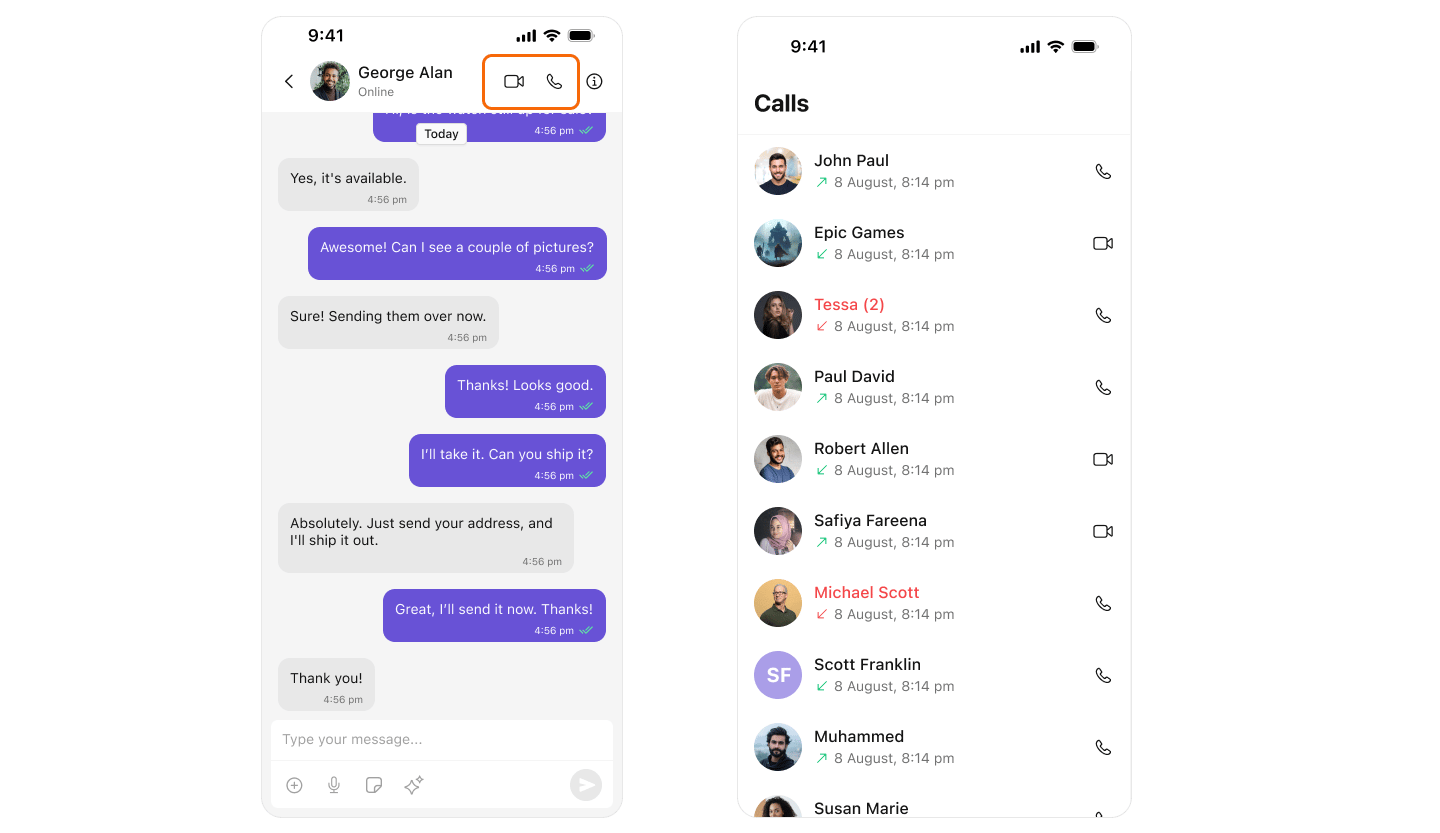
After adding the dependency, the iOS UI Kit will automatically detect it and activate calling features. You will see [CallButtons](/ui-kit/ios/call-buttons) rendered in the [MessageHeader](/ui-kit/ios/message-header) component.