> ## Documentation Index
> Fetch the complete documentation index at: https://cometchat-22654f5b-docs-rn-guide-message-privately.mintlify.site/llms.txt
> Use this file to discover all available pages before exploring further.
# Getting Started
> Add CometChat to a Flutter app in 5 steps: create project, install, init, login, render.
| Field | Value |
| --------- | ------------------------------------------------------------------------------------- |
| Package | `cometchat_chat_uikit` |
| Init | `CometChatUIKit.init(uiKitSettings)` — must resolve before `login()` |
| Login | `CometChatUIKit.login("UID")` — must resolve before rendering widgets |
| Order | `init()` → `login()` → render. Breaking this order = blank screen |
| Auth Key | Dev/testing only. Use Auth Token in production |
| Calling | Optional. Install `cometchat_calls_uikit` to enable |
| Platforms | iOS 13.0+, Android API 24+ (with calling) |
| AI Skills | `npx @cometchat/skills add` — [GitHub](https://github.com/cometchat/cometchat-skills) |
This guide walks you through adding CometChat to a Flutter app. By the end you'll have a working chat UI.
***
## Integrate with AI Coding Agents
Skip the manual steps — use [CometChat Skills](https://github.com/cometchat/cometchat-skills) to integrate via your AI coding agent. Your agent has a short conversation with you to understand your project and chat requirements, then writes production-grade integration code tailored to the files you already have.
```bash theme={null}
npx @cometchat/skills add
```
Use `--ide ` to target a specific IDE (e.g. `--ide cursor`), or `--ide all` for all supported IDEs.
Then in your IDE:
```
/cometchat add chat to my app
```
The skill detects your Flutter project structure, navigation setup, and existing auth system. It onboards you to CometChat directly in the terminal — signup, login, and app creation all via the CLI. It reads your routes, screens, and widgets before proposing a placement (route, modal sheet, or tab), shows the plan, and waits for your approval before writing code. Credentials are saved as a Dart const file or via `--dart-define`.
After the first integration, re-run `/cometchat` to access the iteration menu: theme presets, 40+ features, component customization, production auth, user management, and diagnostics.
Works with Claude Code, Cursor, Codex, VS Code Copilot, Windsurf, Cline, Kiro, and [30+ more agents](https://github.com/cometchat/cometchat-skills).
***
## Prerequisites
You need three things from the [CometChat Dashboard](https://app.cometchat.com/):
| Credential | Where to find it |
| ---------- | ---------------------------------------------------------- |
| App ID | Dashboard → Your App → Credentials |
| Auth Key | Dashboard → Your App → Credentials |
| Region | Dashboard → Your App → Credentials (e.g. `us`, `eu`, `in`) |
You also need Flutter 3.0+ installed with Android Studio or VS Code.
Auth Key is for development only. In production, generate Auth Tokens server-side via the [REST API](/rest-api/chat-apis) and use `loginWithAuthToken()`. Never ship Auth Keys in client code.
***
## Step 1 — Create a Flutter Project
```bash theme={null}
flutter create my_chat_app
cd my_chat_app
```
***
## Step 2 — Install the UI Kit
Add to your `pubspec.yaml`:
```yaml pubspec.yaml theme={null}
dependencies:
flutter:
sdk: flutter
cometchat_chat_uikit: ^5.2.16
cometchat_calls_uikit: ^5.0.16 # Optional: for voice/video calling
```
Then run:
```bash theme={null}
flutter pub get
```
**Android Setup** — Add the following to `android/gradle.properties`:
```properties gradle.properties theme={null}
android.enableJetifier=true
```
Then update `android/app/build.gradle`:
```gradle build.gradle theme={null}
android {
defaultConfig {
minSdk = 24 // Required for calling
}
}
```
**iOS Setup** — Update `ios/Podfile`:
```ruby Podfile theme={null}
platform :ios, '13.0'
```
Then run:
```bash theme={null}
cd ios && pod install && cd ..
```
***
## Step 3 — Initialize CometChat
Create a constants file and initialize the UI Kit before anything else.
```dart title="lib/cometchat_config.dart" theme={null}
class CometChatConfig {
static const String appId = "APP_ID"; // Replace with your App ID
static const String region = "REGION"; // Replace with your Region
static const String authKey = "AUTH_KEY"; // Replace with your Auth Key (dev only)
}
```
```dart title="lib/main.dart" theme={null}
import 'package:flutter/material.dart';
import 'package:cometchat_chat_uikit/cometchat_chat_uikit.dart';
import 'package:cometchat_calls_uikit/cometchat_calls_uikit.dart'; // Optional
import 'cometchat_config.dart';
void main() => runApp(const MyApp());
class MyApp extends StatelessWidget {
const MyApp({super.key});
@override
Widget build(BuildContext context) {
return MaterialApp(
title: 'CometChat Demo',
home: const InitializerScreen(),
);
}
}
class InitializerScreen extends StatelessWidget {
const InitializerScreen({super.key});
Future _initCometChat() async {
final settings = (UIKitSettingsBuilder()
..appId = CometChatConfig.appId
..region = CometChatConfig.region
..authKey = CometChatConfig.authKey
..subscriptionType = CometChatSubscriptionType.allUsers
..autoEstablishSocketConnection = true
..extensions = CometChatUIKitChatExtensions.getDefaultExtensions()
..callingExtension = CometChatCallingExtension() // Optional
).build();
await CometChatUIKit.init(uiKitSettings: settings);
}
@override
Widget build(BuildContext context) {
return FutureBuilder(
future: _initCometChat(),
builder: (context, snapshot) {
if (snapshot.connectionState != ConnectionState.done) {
return const Scaffold(
body: Center(child: CircularProgressIndicator()),
);
}
if (snapshot.hasError) {
return Scaffold(
body: Center(child: Text('Init failed: ${snapshot.error}')),
);
}
return const LoginScreen();
},
);
}
}
```
`init()` must resolve before you call `login()`. If you call `login()` before init completes, it will fail silently.
***
## Step 4 — Login
After init resolves, log the user in. For development, use one of the pre-created test UIDs:
`cometchat-uid-1` · `cometchat-uid-2` · `cometchat-uid-3` · `cometchat-uid-4` · `cometchat-uid-5`
```dart theme={null}
CometChatUIKit.login(
"cometchat-uid-1",
onSuccess: (user) {
debugPrint('Login successful: ${user.name}');
// Navigate to chat screen
},
onError: (error) {
debugPrint('Login failed: $error');
},
);
```
Key points:
* `getLoggedInUser()` checks for an existing session so you don't re-login unnecessarily.
* Widgets must not render until login resolves — use a state flag to gate rendering.
For production, use `loginWithAuthToken()` instead of Auth Key. Generate tokens server-side via the REST API.
***
## Step 5 — Choose a Chat Experience
Integrate a conversation view that suits your app's UX. Each option below includes a step-by-step guide.
### Conversation List + Message View
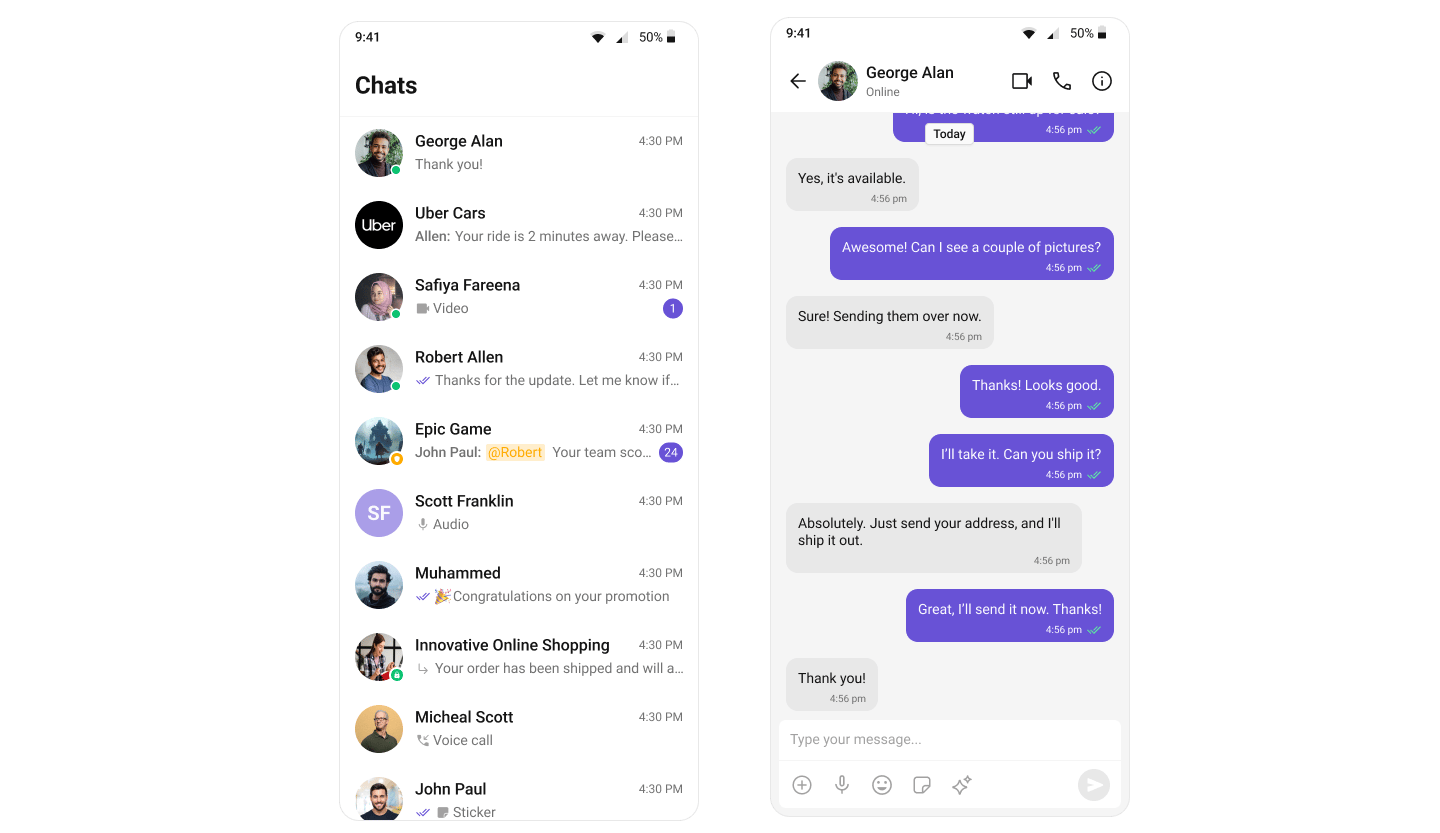
Two-panel layout — conversation list with navigation to messages. Think WhatsApp or Telegram.
* Stack-based navigation with `Navigator.push()`
* Switch between one-to-one and group conversations
* Real-time updates and message sync across sessions
Step-by-step guide to build this layout
***
### One-to-One / Group Chat
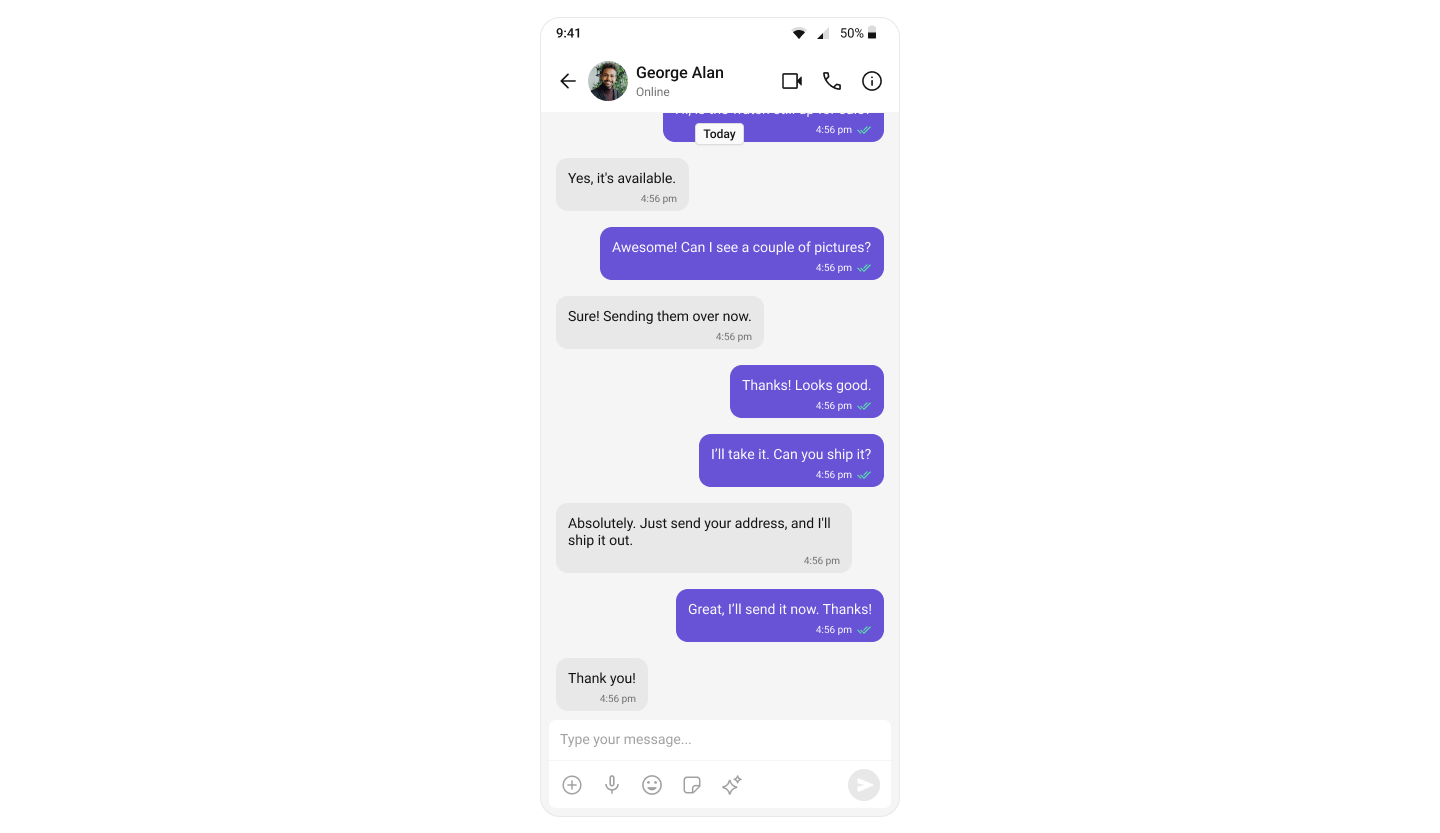
Single chat window — no conversation list. Good for support chat, embedded widgets, or focused messaging.
* Dedicated chat window for one-on-one or group messaging
* No conversation list — users go directly into the chat
* Ideal for support chat or contextual messaging
Step-by-step guide to build this layout
***
### Tab-Based Chat
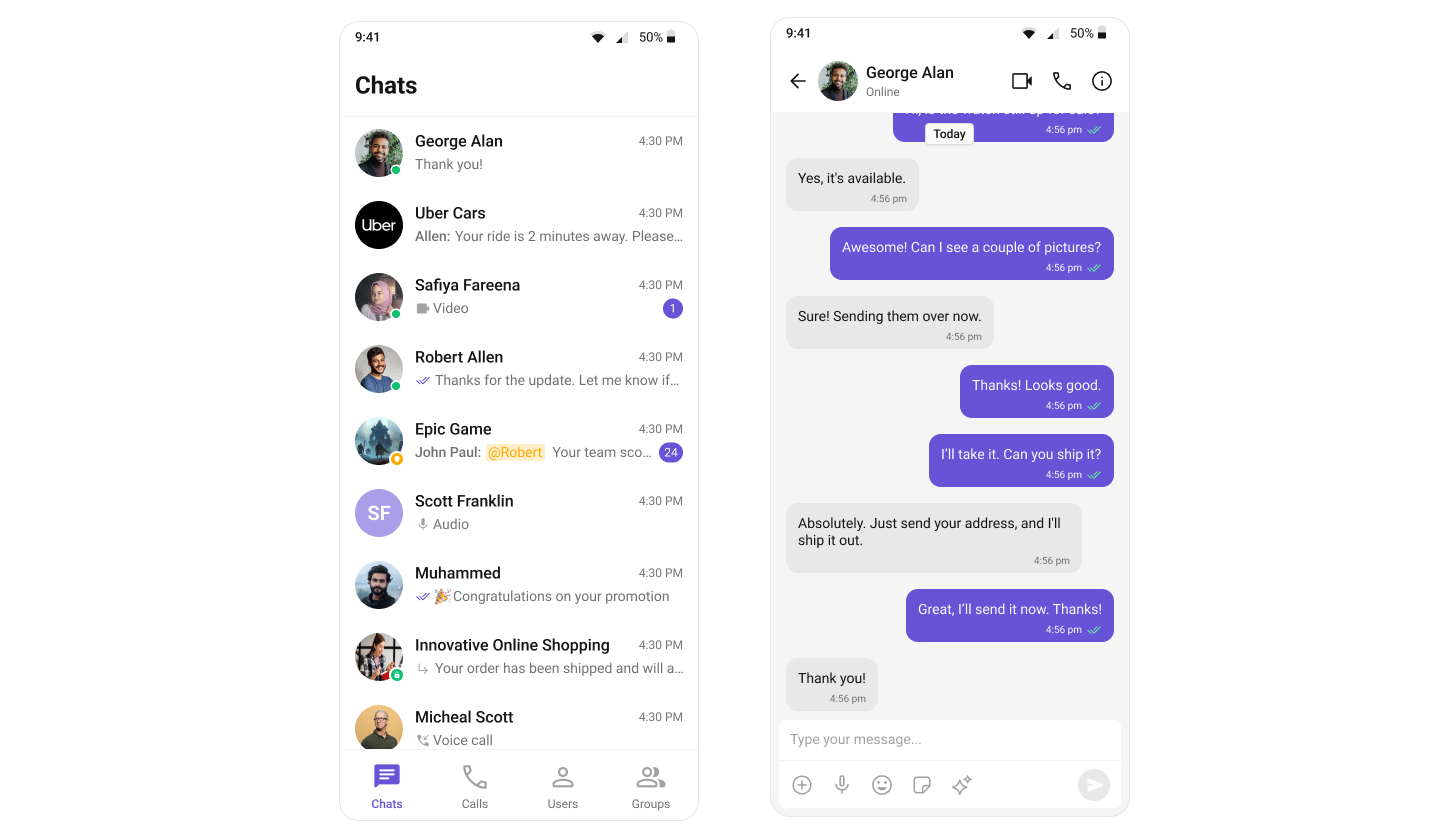
Tabbed navigation — Chat, Call Logs, Users, Groups in separate tabs. Good for full-featured apps.
* `BottomNavigationBar` with independent screens
* Unified experience for conversations, call history, and contacts
* Scales well for adding future features
Step-by-step guide to build this layout
***
## Build Your Own Chat Experience
Need full control over the UI? Use individual widgets, customize themes, and wire up your own layouts.
* [Sample App](https://github.com/cometchat/cometchat-uikit-flutter/tree/v5/sample_app) — Working reference app to compare against
* [Components](/ui-kit/flutter/v5/components-overview) — All prebuilt UI widgets with props and customization options
* [Core Features](/ui-kit/flutter/v5/core-features) — Messaging, real-time updates, and other capabilities
* [Theming](/ui-kit/flutter/v5/theme-introduction) — Colors, fonts, dark mode, and custom styling
* [Build Your Own UI](/sdk/flutter/overview) — Skip the UI Kit entirely and build on the raw SDK
***
## Next Steps
Browse all prebuilt UI widgets
Customize colors, fonts, and styles
Chat features included out of the box
Init, login, and other SDK methods