> ## Documentation Index
> Fetch the complete documentation index at: https://cometchat-22654f5b-docs-rn-guide-message-privately.mintlify.site/llms.txt
> Use this file to discover all available pages before exploring further.
# Conversation List + Message View
> Build a two-panel chat interface with conversation list and message view using Flutter UI Kit widgets.
| Field | Value |
| ------------ | ------------------------------------------------------------------------------------------------------ |
| Package | `cometchat_chat_uikit` |
| Framework | Flutter |
| Components | `CometChatConversations`, `CometChatMessageHeader`, `CometChatMessageList`, `CometChatMessageComposer` |
| Layout | Two-panel — conversation list + message view with Navigator push |
| Prerequisite | Complete [Getting Started](/ui-kit/flutter/v5/getting-started) Steps 1–4 first |
| Pattern | WhatsApp, Telegram, Slack |
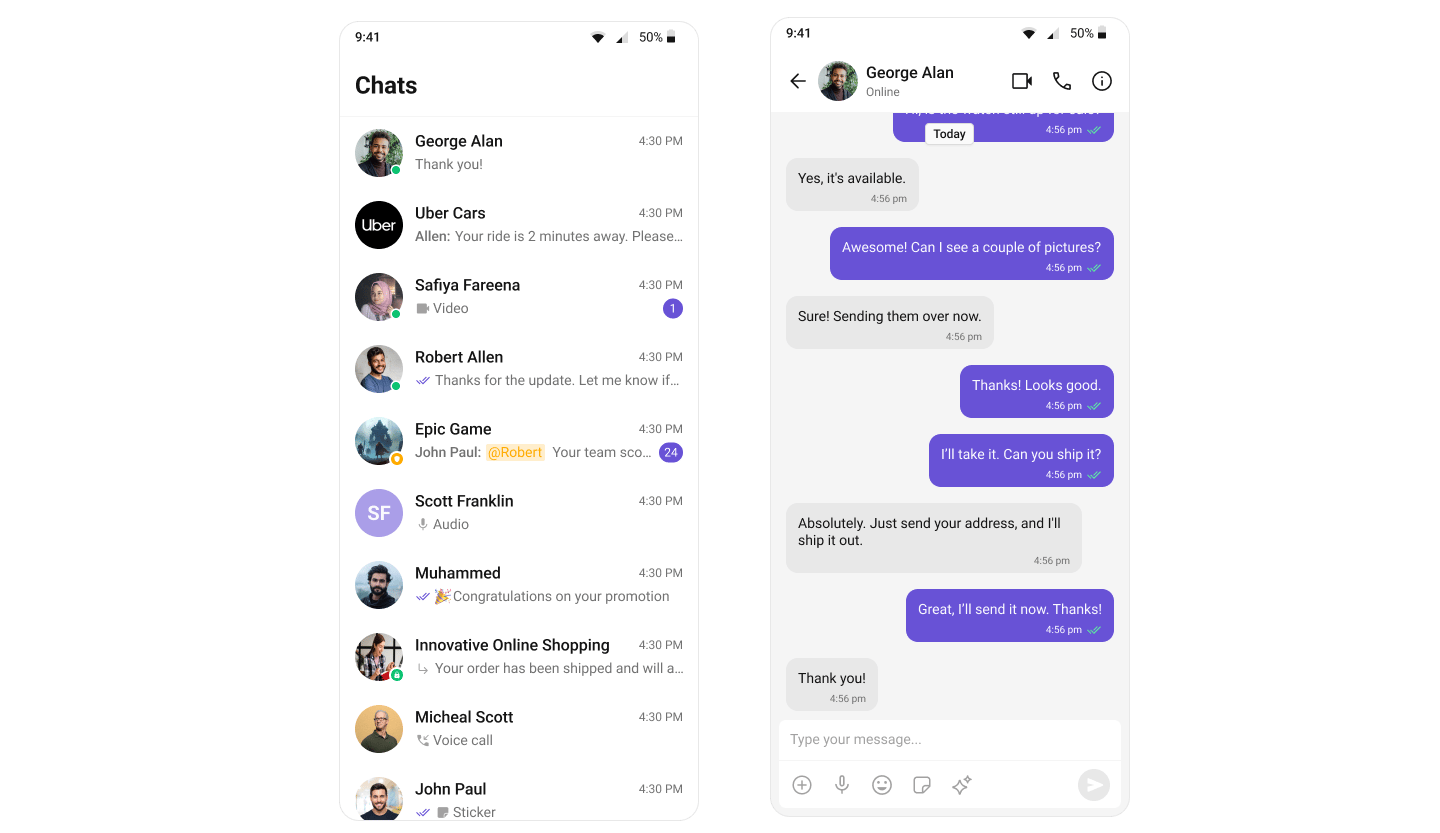
This guide builds a two-panel chat layout — conversation list that navigates to a message screen. Users tap a conversation to open it.
This assumes you've already completed [Getting Started](/ui-kit/flutter/v5/getting-started) (project created, UI Kit installed, init + login working).
 [View Sample App on GitHub](https://github.com/cometchat/cometchat-uikit-flutter/tree/v5/sample_app)
***
## What You're Building
Two screens working together:
1. **Conversation list** — shows all active conversations (users and groups)
2. **Message screen** — header + messages + composer for the selected conversation
***
## Step 1 — Create the Conversations Screen
The `CometChatConversations` widget displays all conversations. Tapping one navigates to the message screen.
```dart title="lib/conversations_page.dart" theme={null}
import 'package:flutter/material.dart';
import 'package:cometchat_chat_uikit/cometchat_chat_uikit.dart';
import 'messages_screen.dart';
class ConversationsPage extends StatelessWidget {
const ConversationsPage({super.key});
@override
Widget build(BuildContext context) {
return Scaffold(
body: SafeArea(
child: CometChatConversations(
onItemTap: (conversation) {
final target = conversation.conversationWith;
Navigator.push(
context,
MaterialPageRoute(
builder: (_) => MessagesScreen(
user: target is User ? target : null,
group: target is Group ? target : null,
),
),
);
},
),
),
);
}
}
```
Key points:
* `onItemTap` fires when a conversation is tapped, passing the `Conversation` object.
* `conversationWith` returns either a `User` or `Group` — pass the correct one to the message screen.
***
## Step 2 — Create the Messages Screen
The message screen combines header, message list, and composer.
```dart title="lib/messages_screen.dart" theme={null}
import 'package:flutter/material.dart';
import 'package:cometchat_chat_uikit/cometchat_chat_uikit.dart';
class MessagesScreen extends StatelessWidget {
final User? user;
final Group? group;
const MessagesScreen({super.key, this.user, this.group});
@override
Widget build(BuildContext context) {
return Scaffold(
appBar: CometChatMessageHeader(user: user, group: group),
body: SafeArea(
child: Column(
children: [
Expanded(
child: CometChatMessageList(user: user, group: group),
),
CometChatMessageComposer(user: user, group: group),
],
),
),
);
}
}
```
| Component | Purpose |
| -------------------------- | -------------------------------------------------- |
| `CometChatMessageHeader` | Shows conversation title, avatar, and call buttons |
| `CometChatMessageList` | Displays messages with real-time updates |
| `CometChatMessageComposer` | Input field for text, media, and attachments |
***
## Step 3 — Run the App
```bash theme={null}
flutter run
```
You should see the conversation list. Tapping a conversation navigates to the message screen.
***
## Next Steps
Customize the conversation list
Customize the message view
Customize colors and styles
Handle real-time events
[View Sample App on GitHub](https://github.com/cometchat/cometchat-uikit-flutter/tree/v5/sample_app)
***
## What You're Building
Two screens working together:
1. **Conversation list** — shows all active conversations (users and groups)
2. **Message screen** — header + messages + composer for the selected conversation
***
## Step 1 — Create the Conversations Screen
The `CometChatConversations` widget displays all conversations. Tapping one navigates to the message screen.
```dart title="lib/conversations_page.dart" theme={null}
import 'package:flutter/material.dart';
import 'package:cometchat_chat_uikit/cometchat_chat_uikit.dart';
import 'messages_screen.dart';
class ConversationsPage extends StatelessWidget {
const ConversationsPage({super.key});
@override
Widget build(BuildContext context) {
return Scaffold(
body: SafeArea(
child: CometChatConversations(
onItemTap: (conversation) {
final target = conversation.conversationWith;
Navigator.push(
context,
MaterialPageRoute(
builder: (_) => MessagesScreen(
user: target is User ? target : null,
group: target is Group ? target : null,
),
),
);
},
),
),
);
}
}
```
Key points:
* `onItemTap` fires when a conversation is tapped, passing the `Conversation` object.
* `conversationWith` returns either a `User` or `Group` — pass the correct one to the message screen.
***
## Step 2 — Create the Messages Screen
The message screen combines header, message list, and composer.
```dart title="lib/messages_screen.dart" theme={null}
import 'package:flutter/material.dart';
import 'package:cometchat_chat_uikit/cometchat_chat_uikit.dart';
class MessagesScreen extends StatelessWidget {
final User? user;
final Group? group;
const MessagesScreen({super.key, this.user, this.group});
@override
Widget build(BuildContext context) {
return Scaffold(
appBar: CometChatMessageHeader(user: user, group: group),
body: SafeArea(
child: Column(
children: [
Expanded(
child: CometChatMessageList(user: user, group: group),
),
CometChatMessageComposer(user: user, group: group),
],
),
),
);
}
}
```
| Component | Purpose |
| -------------------------- | -------------------------------------------------- |
| `CometChatMessageHeader` | Shows conversation title, avatar, and call buttons |
| `CometChatMessageList` | Displays messages with real-time updates |
| `CometChatMessageComposer` | Input field for text, media, and attachments |
***
## Step 3 — Run the App
```bash theme={null}
flutter run
```
You should see the conversation list. Tapping a conversation navigates to the message screen.
***
## Next Steps
Customize the conversation list
Customize the message view
Customize colors and styles
Handle real-time events