> ## Documentation Index
> Fetch the complete documentation index at: https://cometchat-22654f5b-docs-rn-guide-message-privately.mintlify.site/llms.txt
> Use this file to discover all available pages before exploring further.
# Getting Started
> Getting Started — CometChat documentation.
## Start Your First Conversation
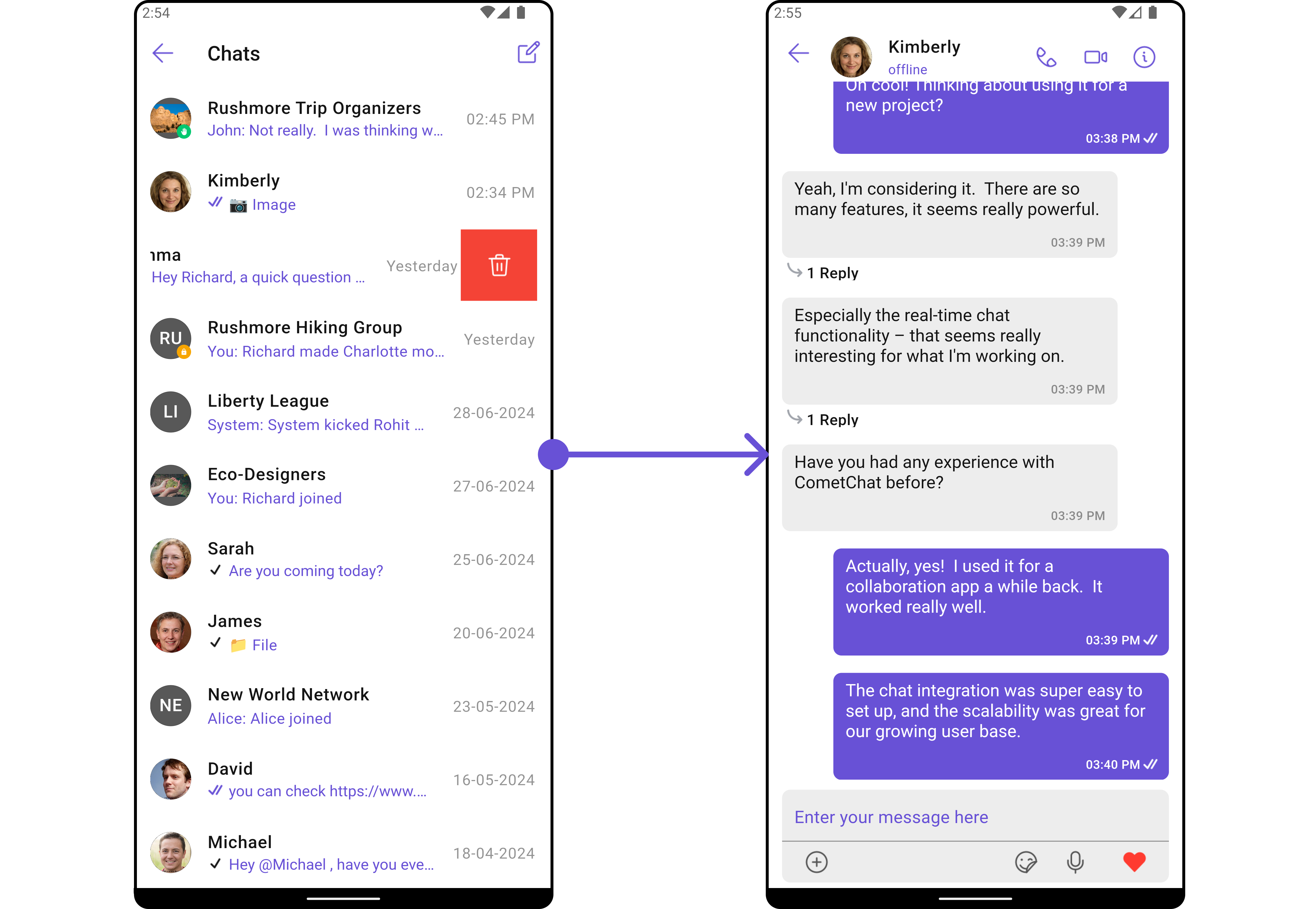
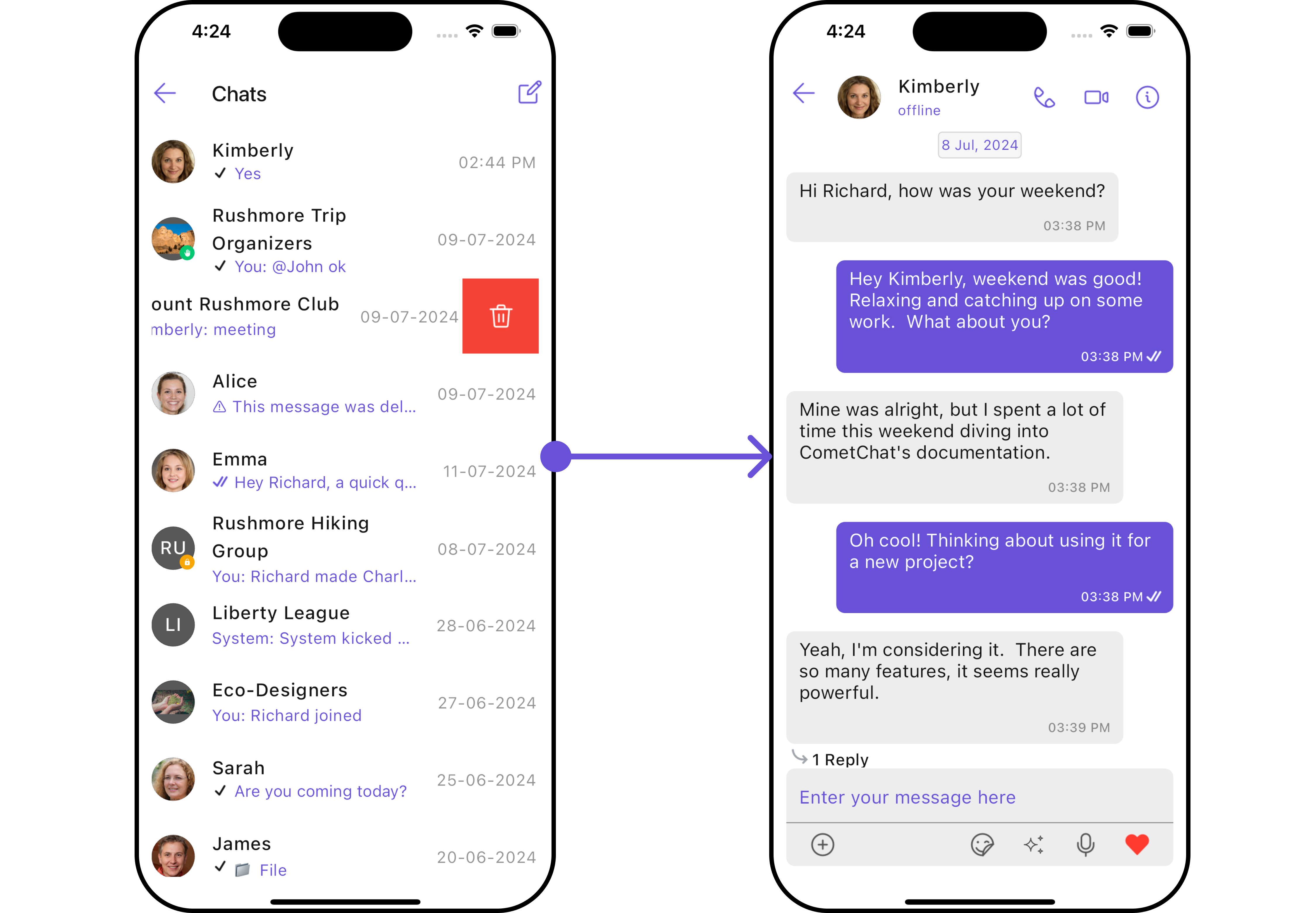
CometChat UI Kit for Flutter is a package of pre-assembled UI elements crafted to streamline the creation of an in-app chat equipped with essential messaging functionalities. Our UI Kit presents options for light and dark themes, diverse fonts, colors, and extra customization capabilities.
CometChat UI Kit supports both one-to-one and group conversations. Follow the guide below to initiate conversations from scratch using CometChat Flutter UI Kit.
 ## Prerequisites
Before installing the **UI Kit**, you need to create a CometChat application on the CometChat Dashboard, which includes all the necessary data for a chat service, such as users, groups, calls, and messages. You will require the `App ID`, `AuthKey`, and `Region` of your CometChat application when initializing the SDK.
**i. Register on CometChat**
* You need to register on the **CometChat Dashboard** first. [Click here to sign up](https://app.cometchat.com/login).
**ii. Get Your Application Keys**
* Create a **new app**
* Head over to the **QuickStart** or **API & Auth Keys section** and note the **App ID**, **Auth Key**, and **Region**.
> Each CometChat application can be integrated with a single client app. Within the same application, users can communicate with each other across all platforms, whether they are on mobile devices or on the web.
**iii. IDE Setup**
* XCode for iOS platform and Android Studio for Android platform
* Pod (CocoaPods) for iOS
* An iOS device or emulator with iOS 12.0 or above.
* Android device or emulator with Android version 5.0 or above.
## Getting Started
Step 1
### Create Flutter application project
To get started, create a new flutter application project.
***
Step 2
### Add Dependency
**1. Update Pubspec**
To use this UI Kit in your Flutter project, you'll need to add the following dependency to the dependencies section of your `pubspec.yaml` file:
```yaml pubspec.yaml theme={null}
dependencies:
cometchat_chat_uikit: ^4.5.13
```
For best results, make sure to use the latest version of the UI Kit.
Now in your Dart code, import it and you can use it:
```dart theme={null}
import 'package:cometchat_chat_uikit/cometchat_chat_uikit.dart';
```
***
**2. Update Android minSDK version**
If your Flutter project's minimum Android SDK version (minSdkVersion) is below API level 21, you should update it to at least 21. To achieve this, navigate to the `android/app/build.gradle` file and modify the `minSdkVersion` property within the `defaultConfig` section.
```gradle theme={null}
defaultConfig {
minSdkVersion 21
targetSdkVersion flutter.targetSdkVersion
versionCode flutterVersionCode.toInteger()
versionName flutterVersionName
}
```
If you want to use the Flutter UI Kit or enable calling support within it, you'll need to:
1. Set the `minSdkVersion` to 24 in your `android/app/build.gradle` file.
2. Add the `flutter_calling_ui_kit` dependency to your project's `pubspec.yaml` file.
***
**3. Update iOS Podfile**
In your Podfile located at `ios/Podfile`, update the minimum iOS version that your project supports to 12.
```
platform :ios, '12.0'
```
Step 3
***
### Initialize CometChatUIkit
To integrate and run CometChat UI Kit in your app, you need to initialize it beforehand.
The [Init](/ui-kit/flutter/v4/methods#init) method initializes the settings required for CometChat. Please ensure to call this method before invoking any other methods from CometChat UI Kit or CometChat SDK.
The Auth Key is an optional property of the `UIKitSettings` Class. It is intended for use primarily during proof-of-concept (POC) development or in the early stages of application development. You can use [Auth Token](/ui-kit/flutter/v4/methods#login-using-auth-token) method to login securely.
```dart theme={null}
UIKitSettings uiKitSettings = (UIKitSettingsBuilder()
..subscriptionType = CometChatSubscriptionType.allUsers
..autoEstablishSocketConnection = true
..region = "REGION"//Replace with your App Region
..appId = "APP_ID" //Replace with your App ID
..authKey = "AUTH_KEY" //Replace with your app Auth Key
..extensions = CometChatUIKitChatExtensions.getDefaultExtensions() //Replace this with empty array you want to disable all extensions
).build();
CometChatUIKit.init(uiKitSettings: uiKitSettings,onSuccess: (successMessage) {
// TODO("Not yet implemented")
}, onError: (e) {
// TODO("Not yet implemented")
});
```
> Make sure to replace the **APP\_ID** with your CometChat appId, **AUTH\_KEY** with your CometChat app auth key and **REGION** with your app region in the above code.
***
Step 4
### Login User
For login, you require a `UID`. You can create your own users on the CometChat Dashboard or via API. We have pre-generated test users: `cometchat-uid-1`, `cometchat-uid-2`, `cometchat-uid-3`, `cometchat-uid-4`, `cometchat-uid-5`.
The `login()` method returns the User object containing all the information of the logged-in user.
This straightforward authentication method is ideal for proof-of-concept (POC) development or during the early stages of application development. For production environments, however, we strongly recommend using an [Auth Token](/ui-kit/flutter/v4/methods#login-using-auth-token) instead of an Auth Key to ensure enhanced security.
```dart theme={null}
CometChatUIKit.login(uid, onSuccess: (s) {
// TODO("Not yet implemented")
}, onError: (e) {
// TODO("Not yet implemented")
});
```
***
Step 5
### Render Conversation with Message
[CometChatUsersWithMessages](/ui-kit/flutter/v4/conversations-with-messages) is a wrapper widget that offers functionality to render both the [Conversations](/ui-kit/flutter/v4/conversations) and [Messages](/ui-kit/flutter/v4/messages) widgets. It also enables opening the [Messages](/ui-kit/flutter/v4/messages) by tapping on any conversation rendered in the list of conversations.
```dart theme={null}
Navigator.push(context, MaterialPageRoute(builder: (context) => const CometChatUsersWithMessages()));
```
Example
```dart theme={null}
CometChatUIKit.login(uid, onSuccess: (s) {
Navigator.push(context, MaterialPageRoute(builder: (context) => const CometChatUsersWithMessages()));
}, onError: (e) {
// TODO("Not yet implemented")
});
```
## Prerequisites
Before installing the **UI Kit**, you need to create a CometChat application on the CometChat Dashboard, which includes all the necessary data for a chat service, such as users, groups, calls, and messages. You will require the `App ID`, `AuthKey`, and `Region` of your CometChat application when initializing the SDK.
**i. Register on CometChat**
* You need to register on the **CometChat Dashboard** first. [Click here to sign up](https://app.cometchat.com/login).
**ii. Get Your Application Keys**
* Create a **new app**
* Head over to the **QuickStart** or **API & Auth Keys section** and note the **App ID**, **Auth Key**, and **Region**.
> Each CometChat application can be integrated with a single client app. Within the same application, users can communicate with each other across all platforms, whether they are on mobile devices or on the web.
**iii. IDE Setup**
* XCode for iOS platform and Android Studio for Android platform
* Pod (CocoaPods) for iOS
* An iOS device or emulator with iOS 12.0 or above.
* Android device or emulator with Android version 5.0 or above.
## Getting Started
Step 1
### Create Flutter application project
To get started, create a new flutter application project.
***
Step 2
### Add Dependency
**1. Update Pubspec**
To use this UI Kit in your Flutter project, you'll need to add the following dependency to the dependencies section of your `pubspec.yaml` file:
```yaml pubspec.yaml theme={null}
dependencies:
cometchat_chat_uikit: ^4.5.13
```
For best results, make sure to use the latest version of the UI Kit.
Now in your Dart code, import it and you can use it:
```dart theme={null}
import 'package:cometchat_chat_uikit/cometchat_chat_uikit.dart';
```
***
**2. Update Android minSDK version**
If your Flutter project's minimum Android SDK version (minSdkVersion) is below API level 21, you should update it to at least 21. To achieve this, navigate to the `android/app/build.gradle` file and modify the `minSdkVersion` property within the `defaultConfig` section.
```gradle theme={null}
defaultConfig {
minSdkVersion 21
targetSdkVersion flutter.targetSdkVersion
versionCode flutterVersionCode.toInteger()
versionName flutterVersionName
}
```
If you want to use the Flutter UI Kit or enable calling support within it, you'll need to:
1. Set the `minSdkVersion` to 24 in your `android/app/build.gradle` file.
2. Add the `flutter_calling_ui_kit` dependency to your project's `pubspec.yaml` file.
***
**3. Update iOS Podfile**
In your Podfile located at `ios/Podfile`, update the minimum iOS version that your project supports to 12.
```
platform :ios, '12.0'
```
Step 3
***
### Initialize CometChatUIkit
To integrate and run CometChat UI Kit in your app, you need to initialize it beforehand.
The [Init](/ui-kit/flutter/v4/methods#init) method initializes the settings required for CometChat. Please ensure to call this method before invoking any other methods from CometChat UI Kit or CometChat SDK.
The Auth Key is an optional property of the `UIKitSettings` Class. It is intended for use primarily during proof-of-concept (POC) development or in the early stages of application development. You can use [Auth Token](/ui-kit/flutter/v4/methods#login-using-auth-token) method to login securely.
```dart theme={null}
UIKitSettings uiKitSettings = (UIKitSettingsBuilder()
..subscriptionType = CometChatSubscriptionType.allUsers
..autoEstablishSocketConnection = true
..region = "REGION"//Replace with your App Region
..appId = "APP_ID" //Replace with your App ID
..authKey = "AUTH_KEY" //Replace with your app Auth Key
..extensions = CometChatUIKitChatExtensions.getDefaultExtensions() //Replace this with empty array you want to disable all extensions
).build();
CometChatUIKit.init(uiKitSettings: uiKitSettings,onSuccess: (successMessage) {
// TODO("Not yet implemented")
}, onError: (e) {
// TODO("Not yet implemented")
});
```
> Make sure to replace the **APP\_ID** with your CometChat appId, **AUTH\_KEY** with your CometChat app auth key and **REGION** with your app region in the above code.
***
Step 4
### Login User
For login, you require a `UID`. You can create your own users on the CometChat Dashboard or via API. We have pre-generated test users: `cometchat-uid-1`, `cometchat-uid-2`, `cometchat-uid-3`, `cometchat-uid-4`, `cometchat-uid-5`.
The `login()` method returns the User object containing all the information of the logged-in user.
This straightforward authentication method is ideal for proof-of-concept (POC) development or during the early stages of application development. For production environments, however, we strongly recommend using an [Auth Token](/ui-kit/flutter/v4/methods#login-using-auth-token) instead of an Auth Key to ensure enhanced security.
```dart theme={null}
CometChatUIKit.login(uid, onSuccess: (s) {
// TODO("Not yet implemented")
}, onError: (e) {
// TODO("Not yet implemented")
});
```
***
Step 5
### Render Conversation with Message
[CometChatUsersWithMessages](/ui-kit/flutter/v4/conversations-with-messages) is a wrapper widget that offers functionality to render both the [Conversations](/ui-kit/flutter/v4/conversations) and [Messages](/ui-kit/flutter/v4/messages) widgets. It also enables opening the [Messages](/ui-kit/flutter/v4/messages) by tapping on any conversation rendered in the list of conversations.
```dart theme={null}
Navigator.push(context, MaterialPageRoute(builder: (context) => const CometChatUsersWithMessages()));
```
Example
```dart theme={null}
CometChatUIKit.login(uid, onSuccess: (s) {
Navigator.push(context, MaterialPageRoute(builder: (context) => const CometChatUsersWithMessages()));
}, onError: (e) {
// TODO("Not yet implemented")
});
```