> ## Documentation Index
> Fetch the complete documentation index at: https://cometchat-22654f5b-docs-rn-guide-message-privately.mintlify.site/llms.txt
> Use this file to discover all available pages before exploring further.
# Overview
> Overview of Overview in CometChat.
V4 UI kits offer modular design, extended functionality & customization for a tailored chat experience. Check out our new UIKits [here](/ui-kit/angular/overview).
The CometChat Angular Chat UI Kit lets developers easily add an Angular chat app with text, voice & video to your mobile or desktop web applications. Included are fully polished Angular chat UI components and the complete business logic.
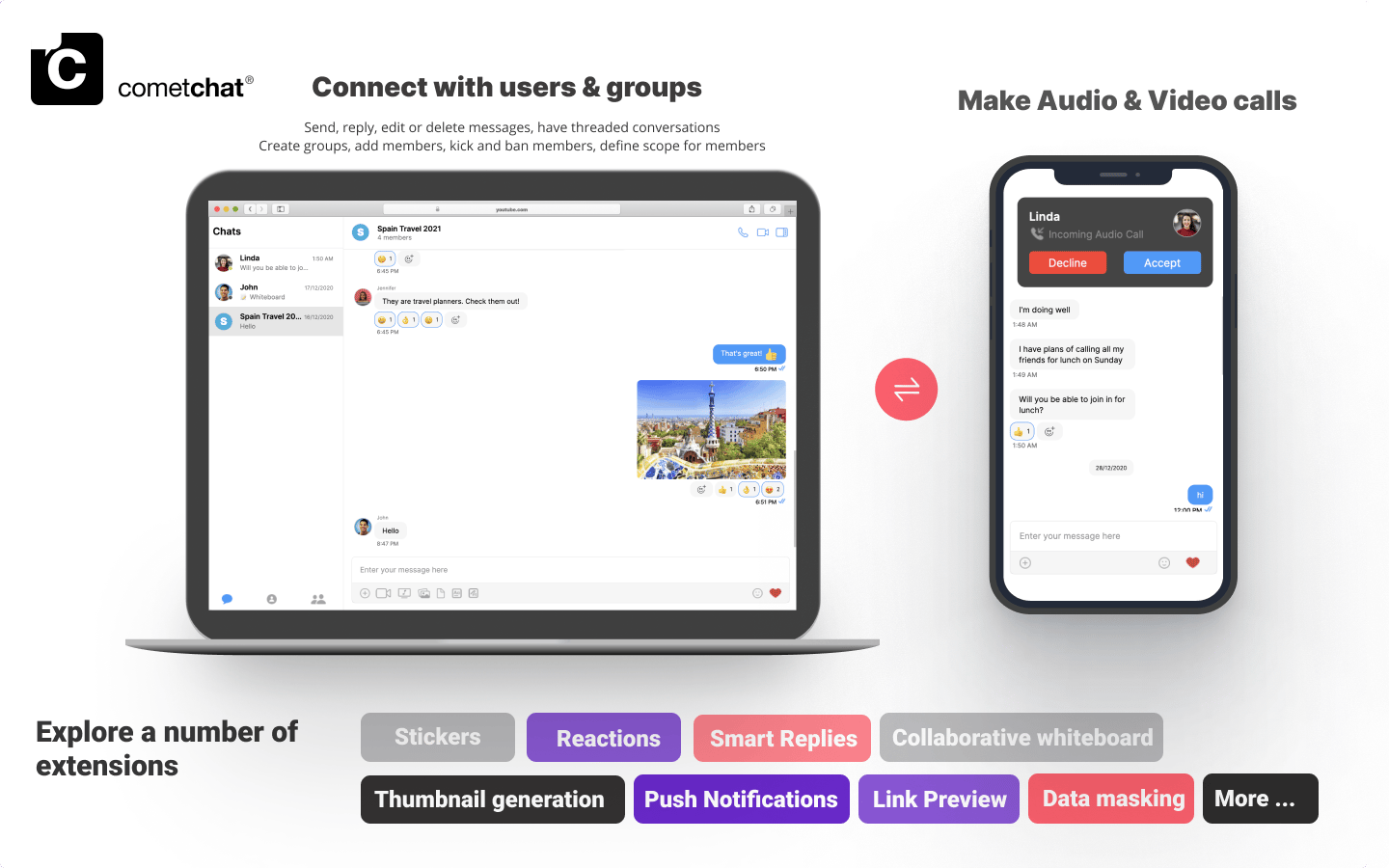 The UI Kit’s customizable Angular chat UI components simplify the process of integrating text chat and voice/video calling features to your website or mobile application in a few minutes.
#### I want to checkout Angular UI Kit
Follow the steps mentioned in the `README.md` file.
Kindly, click on below button to download our Angular UI Kit.
[Angular UI Kit](https://github.com/cometchat-pro/cometchat-pro-angular-ui-kit/archive/v3.zip)[View on Github](https://github.com/cometchat-pro/cometchat-pro-angular-ui-kit/tree/v3)
#### I want to explore the sample app
Kindly, click on below button to download our Angular Sample App.
[Angular Sample App](https://github.com/cometchat-pro/javascript-angular-chat-app/archive/v3.zip)[View on Github](https://github.com/cometchat-pro/javascript-angular-chat-app/tree/v3)
## Prerequisites
1. A text editor. (e.g. Visual Studio Code, Notepad++, Sublime Text, Atom, or VIM)
2. [Node](https://nodejs.org/en/)
3. [npm](https://www.npmjs.com/get-npm)
4. [Angular CLI](https://angular.io/cli)
```sh theme={null}
npm install -g @angular/cli
```
## Installing the Angular Chat UI Kit
Important
Please follow the steps provided in the [Key Concepts](/ui-kit/angular/3.0/key-concepts) to create V3 apps before you proceed.
### Setup
1. Register on CometChat a. To install the Angular Chat UI components, you need to first register on the CometChat Dashboard. Click [here](https://app.cometchat.com) to sign up
2. Get Your Application Keys 🔑
* Create a new app
* Head over to the QuickStart or API & Auth Keys section and note the App ID, Auth Key, and Region.
3. Add the CometChat Dependency
```sh theme={null}
npm install @cometchat-pro/chat@3.0.6 --save
```
Please install `postcss` package using the below command if the Angular version of your project is 11.
```sh theme={null}
npm install --save postcss@8.4.27
```
### Configure CometChat inside your Angular app
* Import CometChat SDK
```js theme={null}
import { CometChat } from "@cometchat-pro/chat";
```
* Initialize CometChat 🌟
The `init()` method initializes the settings required for CometChat. We suggest calling the `init()` method on app startup, i.e main.ts file of the application.
```js theme={null}
const appID = "APP_ID";
const region = "REGION";
const appSetting = new CometChat.AppSettingsBuilder()
.subscribePresenceForAllUsers()
.setRegion(region)
.build();
CometChat.init(appID, appSetting).then(
() => {
console.log("Initialization completed successfully");
// You can now call login function.
},
(error) => {
console.log("Initialization failed with error:", error);
// Check the reason for error and take appropriate action.
}
);
```
Replace APP\_ID and REGION with your CometChat App ID and Region in the above code
* Create user
This method takes a `User` object and the `Auth Key` as input parameters and returns the created `User` object if the request is successful.
```js theme={null}
let authKey = "AUTH_KEY";
var uid = "user1";
var name = "Kevin";
var user = new CometChat.User(uid);
user.setName(name);
CometChat.createUser(user, authKey).then(
user => {
console.log("user created", user);
},error => {
console.log("error", error);
}
)
```
Replace AUTH\_KEY with your CometChat Auth Key in the above code.
* Login your user 👤
This method takes UID and Auth Key as input parameters and returns the User object containing all the information of the logged-in user
```js theme={null}
const authKey = "AUTH_KEY";
const uid = "cometchat-uid-1";
CometChat.login(uid, authKey).then(
(user) => {
console.log("Login Successful:", { user });
},
(error) => {
console.log("Login failed with exception:", { error });
}
);
```
Replace AUTH\_KEY with your CometChat Auth Key in the above code.
We have set up 5 users for testing having UIDs: cometchat-uid-1, cometchat-uid-2, cometchat-uid-3, cometchat-uid-4, and cometchat-uid-5.\
\
We have used uid cometchat-uid-1 as an example here. You can create a User from CometChat Dashboard as well.
### Add the Angular Chat UI components to your project
* Clone the repository
```sh theme={null}
git clone https://github.com/cometchat-pro/cometchat-pro-angular-ui-kit.git
```
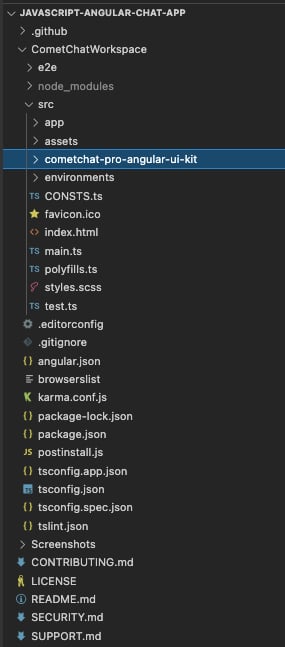
* Copy the cloned repository into your project src folder.
The UI Kit’s customizable Angular chat UI components simplify the process of integrating text chat and voice/video calling features to your website or mobile application in a few minutes.
#### I want to checkout Angular UI Kit
Follow the steps mentioned in the `README.md` file.
Kindly, click on below button to download our Angular UI Kit.
[Angular UI Kit](https://github.com/cometchat-pro/cometchat-pro-angular-ui-kit/archive/v3.zip)[View on Github](https://github.com/cometchat-pro/cometchat-pro-angular-ui-kit/tree/v3)
#### I want to explore the sample app
Kindly, click on below button to download our Angular Sample App.
[Angular Sample App](https://github.com/cometchat-pro/javascript-angular-chat-app/archive/v3.zip)[View on Github](https://github.com/cometchat-pro/javascript-angular-chat-app/tree/v3)
## Prerequisites
1. A text editor. (e.g. Visual Studio Code, Notepad++, Sublime Text, Atom, or VIM)
2. [Node](https://nodejs.org/en/)
3. [npm](https://www.npmjs.com/get-npm)
4. [Angular CLI](https://angular.io/cli)
```sh theme={null}
npm install -g @angular/cli
```
## Installing the Angular Chat UI Kit
Important
Please follow the steps provided in the [Key Concepts](/ui-kit/angular/3.0/key-concepts) to create V3 apps before you proceed.
### Setup
1. Register on CometChat a. To install the Angular Chat UI components, you need to first register on the CometChat Dashboard. Click [here](https://app.cometchat.com) to sign up
2. Get Your Application Keys 🔑
* Create a new app
* Head over to the QuickStart or API & Auth Keys section and note the App ID, Auth Key, and Region.
3. Add the CometChat Dependency
```sh theme={null}
npm install @cometchat-pro/chat@3.0.6 --save
```
Please install `postcss` package using the below command if the Angular version of your project is 11.
```sh theme={null}
npm install --save postcss@8.4.27
```
### Configure CometChat inside your Angular app
* Import CometChat SDK
```js theme={null}
import { CometChat } from "@cometchat-pro/chat";
```
* Initialize CometChat 🌟
The `init()` method initializes the settings required for CometChat. We suggest calling the `init()` method on app startup, i.e main.ts file of the application.
```js theme={null}
const appID = "APP_ID";
const region = "REGION";
const appSetting = new CometChat.AppSettingsBuilder()
.subscribePresenceForAllUsers()
.setRegion(region)
.build();
CometChat.init(appID, appSetting).then(
() => {
console.log("Initialization completed successfully");
// You can now call login function.
},
(error) => {
console.log("Initialization failed with error:", error);
// Check the reason for error and take appropriate action.
}
);
```
Replace APP\_ID and REGION with your CometChat App ID and Region in the above code
* Create user
This method takes a `User` object and the `Auth Key` as input parameters and returns the created `User` object if the request is successful.
```js theme={null}
let authKey = "AUTH_KEY";
var uid = "user1";
var name = "Kevin";
var user = new CometChat.User(uid);
user.setName(name);
CometChat.createUser(user, authKey).then(
user => {
console.log("user created", user);
},error => {
console.log("error", error);
}
)
```
Replace AUTH\_KEY with your CometChat Auth Key in the above code.
* Login your user 👤
This method takes UID and Auth Key as input parameters and returns the User object containing all the information of the logged-in user
```js theme={null}
const authKey = "AUTH_KEY";
const uid = "cometchat-uid-1";
CometChat.login(uid, authKey).then(
(user) => {
console.log("Login Successful:", { user });
},
(error) => {
console.log("Login failed with exception:", { error });
}
);
```
Replace AUTH\_KEY with your CometChat Auth Key in the above code.
We have set up 5 users for testing having UIDs: cometchat-uid-1, cometchat-uid-2, cometchat-uid-3, cometchat-uid-4, and cometchat-uid-5.\
\
We have used uid cometchat-uid-1 as an example here. You can create a User from CometChat Dashboard as well.
### Add the Angular Chat UI components to your project
* Clone the repository
```sh theme={null}
git clone https://github.com/cometchat-pro/cometchat-pro-angular-ui-kit.git
```
* Copy the cloned repository into your project src folder.
 * Import the Components in the respective module where the component will be used.
* Install @ctrl/ngx-emoji-mart according to the angular version of your project @ctrl/ngx-emoji-mart
* Add these styles to your angular.json
* Wrap all the selectors in a div with class=responsive as shown in the next step
```js theme={null}
"styles": [
"node_modules/@ctrl/ngx-emoji-mart/picker.css",
"src/cometchat-pro-angular-ui-kit/CometChatWorkspace/src/css/styles.scss"
]
```
### Launch CometChat
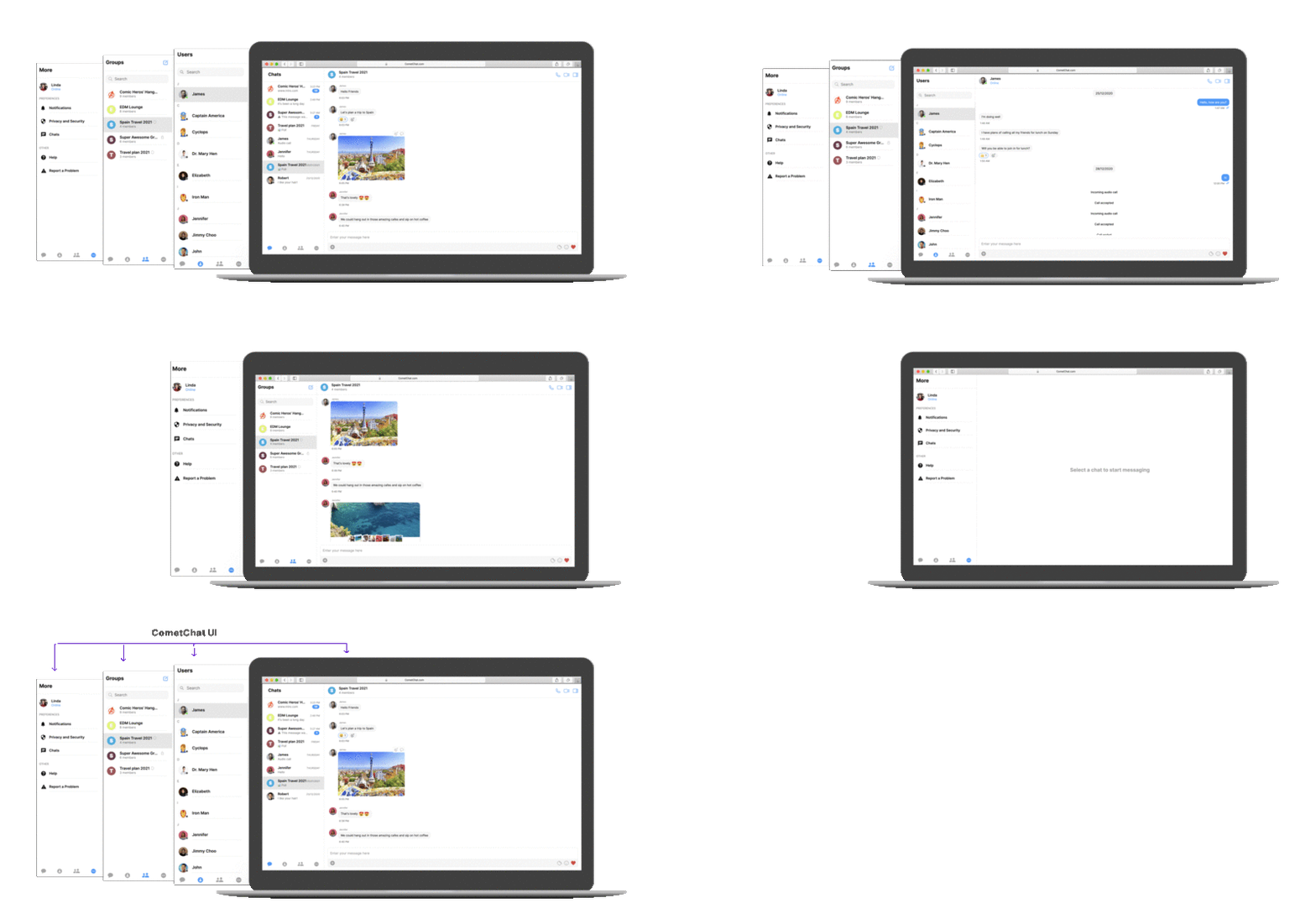
CometChatUI is an option to launch a fully functional chat application using the Angular Chat UI Kit. In UI Kit all the UI Components are interlinked and work together to launch a fully functional chat on your website/application.
* Import the Components in the respective module where the component will be used.
* Install @ctrl/ngx-emoji-mart according to the angular version of your project @ctrl/ngx-emoji-mart
* Add these styles to your angular.json
* Wrap all the selectors in a div with class=responsive as shown in the next step
```js theme={null}
"styles": [
"node_modules/@ctrl/ngx-emoji-mart/picker.css",
"src/cometchat-pro-angular-ui-kit/CometChatWorkspace/src/css/styles.scss"
]
```
### Launch CometChat
CometChatUI is an option to launch a fully functional chat application using the Angular Chat UI Kit. In UI Kit all the UI Components are interlinked and work together to launch a fully functional chat on your website/application.
 ### Usage
```js theme={null}
import { CometChatUI } from "../components/CometChatUI/CometChat-Ui/cometchat-ui.module";
#Use this selector in your html file
### Usage
```js theme={null}
import { CometChatUI } from "../components/CometChatUI/CometChat-Ui/cometchat-ui.module";
#Use this selector in your html file
```
## See our Angular Chat sample app
Visit our [Angular chat sample app](https://github.com/cometchat-pro/javascript-angular-chat-app) repo to see a UI with all the Angular chat components in action.