> ## Documentation Index
> Fetch the complete documentation index at: https://cometchat-22654f5b-docs-rn-guide-message-privately.mintlify.site/llms.txt
> Use this file to discover all available pages before exploring further.
# Messages
> Messages — CometChat documentation.
## Overview
The Messages is a [Composite Component](/ui-kit/android/v4/components-overview#composite-components) that manages messages for users and groups.
 The Messages component is composed of three individual components, [MessageHeader](/ui-kit/android/v4/message-header), [MessageList](/ui-kit/android/v4/message-list), and [MessageComposer](/ui-kit/android/v4/message-composer). In addition, the Messages component also navigates to the [Details](/ui-kit/android/v4/group-details) and [ThreadedMessages](/ui-kit/android/v4/threaded-messages) components.
| Components | Description |
| -------------------------------------------------------- | -------------------------------------------------------------------------------------------------------------------------------------------------------------------------------------------------------- |
| [MessageHeader](/ui-kit/android/v4/message-header) | `CometChatMessageHeader` displays the `User` or `Group` information using CometChat SDK's `User` or `Group object.` It also shows the typing indicator when the user starts typing in `MessageComposer`. |
| [MessageList](/ui-kit/android/v4/message-list) | `CometChatMessageList` is one of the core UI components. It displays a list of messages and handles real-time operations. |
| [MessageComposer](/ui-kit/android/v4/message-composer) | `CometChatMessageComposer` is an independent and critical component that allows users to compose and send various types of messages includes text, image, video and custom messages. |
| [Details](/ui-kit/android/v4/group-details) | `CometChatDetails` is a component that displays all the available options available for `Users` & `Groups` |
| [ThreadedMessages](/ui-kit/android/v4/threaded-messages) | `CometChatThreadedMessages` is a component that displays all replies made to a particular message in a conversation. |
## Usage
### Integration
The following code snippet illustrates how you can directly incorporate the Messages component into your `layout.xml` file.
```python theme={null}
```
The CometChatMessages is responsible for managing runtime permissions. To ensure the **ActivityResultLauncher** is properly initialized, its object should be created in the the **onCreate** state of an activity. To ensure that the CometChatMessages is loaded within the fragment, it is important to make sure that the fragment is loaded in the `onCreate` state of the activity.
### Actions
[Actions](/ui-kit/android/v4/components-overview#actions) dictate how a component functions. They are divided into two types: Predefined and User-defined. You can override either type, allowing you to tailor the behavior of the component to fit your specific needs.
The Messages component does not have its actions. However, since it's a [Composite Component](/ui-kit/android/v4/components-overview#composite-components), you can use the actions of its components by utilizing the [Configurations](#configuration) object of each component.
**Example**
In this example, we are employing the [ThreadRepliesClick](/ui-kit/android/v4/message-list#1-onthreadrepliesclick) action from the MessageList Component through the MessageListConfiguration object.
```java theme={null}
MessageListConfiguration configuration = new MessageListConfiguration();
configuration.setOnThreadRepliesClick((context, baseMessage, cometChatMessageTemplate cometChatMessageBubble) -> {
// You Custom Action
});
messages.setMessageListConfiguration(configuration);
```
```kotlin theme={null}
val configuration = MessageListConfiguration()
configuration.setOnThreadRepliesClick { context, baseMessage, cometChatMessageTemplate, cometChatMessageBubble ->
// Your Custom Action
}
messages.messageListConfiguration = configuration
```
The Messages component is composed of three individual components, [MessageHeader](/ui-kit/android/v4/message-header), [MessageList](/ui-kit/android/v4/message-list), and [MessageComposer](/ui-kit/android/v4/message-composer). In addition, the Messages component also navigates to the [Details](/ui-kit/android/v4/group-details) and [ThreadedMessages](/ui-kit/android/v4/threaded-messages) components.
| Components | Description |
| -------------------------------------------------------- | -------------------------------------------------------------------------------------------------------------------------------------------------------------------------------------------------------- |
| [MessageHeader](/ui-kit/android/v4/message-header) | `CometChatMessageHeader` displays the `User` or `Group` information using CometChat SDK's `User` or `Group object.` It also shows the typing indicator when the user starts typing in `MessageComposer`. |
| [MessageList](/ui-kit/android/v4/message-list) | `CometChatMessageList` is one of the core UI components. It displays a list of messages and handles real-time operations. |
| [MessageComposer](/ui-kit/android/v4/message-composer) | `CometChatMessageComposer` is an independent and critical component that allows users to compose and send various types of messages includes text, image, video and custom messages. |
| [Details](/ui-kit/android/v4/group-details) | `CometChatDetails` is a component that displays all the available options available for `Users` & `Groups` |
| [ThreadedMessages](/ui-kit/android/v4/threaded-messages) | `CometChatThreadedMessages` is a component that displays all replies made to a particular message in a conversation. |
## Usage
### Integration
The following code snippet illustrates how you can directly incorporate the Messages component into your `layout.xml` file.
```python theme={null}
```
The CometChatMessages is responsible for managing runtime permissions. To ensure the **ActivityResultLauncher** is properly initialized, its object should be created in the the **onCreate** state of an activity. To ensure that the CometChatMessages is loaded within the fragment, it is important to make sure that the fragment is loaded in the `onCreate` state of the activity.
### Actions
[Actions](/ui-kit/android/v4/components-overview#actions) dictate how a component functions. They are divided into two types: Predefined and User-defined. You can override either type, allowing you to tailor the behavior of the component to fit your specific needs.
The Messages component does not have its actions. However, since it's a [Composite Component](/ui-kit/android/v4/components-overview#composite-components), you can use the actions of its components by utilizing the [Configurations](#configuration) object of each component.
**Example**
In this example, we are employing the [ThreadRepliesClick](/ui-kit/android/v4/message-list#1-onthreadrepliesclick) action from the MessageList Component through the MessageListConfiguration object.
```java theme={null}
MessageListConfiguration configuration = new MessageListConfiguration();
configuration.setOnThreadRepliesClick((context, baseMessage, cometChatMessageTemplate cometChatMessageBubble) -> {
// You Custom Action
});
messages.setMessageListConfiguration(configuration);
```
```kotlin theme={null}
val configuration = MessageListConfiguration()
configuration.setOnThreadRepliesClick { context, baseMessage, cometChatMessageTemplate, cometChatMessageBubble ->
// Your Custom Action
}
messages.messageListConfiguration = configuration
```
 > The Messages Component overrides the [ThreadRepliesClick](/ui-kit/android/v4/message-list#1-onthreadrepliesclick) action to navigate to the [ThreadedMessages](/ui-kit/android/v4/threaded-messages) component. If you override `ThreadRepliesClick`, it will also override the default behavior of the Messages Component.
### Filters
**Filters** allow you to customize the data displayed in a list within a Component. You can filter the list based on your specific criteria, allowing for a more customized. Filters can be applied using RequestBuilders of Chat SDK.
The Messages component does not have its filters. But as it is a [Composite Component](/ui-kit/android/v4/components-overview#composite-components), you can use the filters of its components by using the [Configurations](#configuration) object of each component. For more details on the filters of its components, please refer to [MessageList Filters](/ui-kit/android/v4/message-list#filters).
**Example**
In this example, we're applying the MessageList Component filter to the Messages Component using `MessageListConfiguration`.
```java theme={null}
MessageListConfiguration configuration = new MessageListConfiguration();
MessagesRequest.MessagesRequestBuilder messagesRequest = new MessagesRequestMessagesRequestBuilder()
.setSearchKeyword("your search keyword")
.setUID("user uid");
configuration.setMessagesRequestBuilder(messagesRequest);
messages.setMessageListConfiguration(configuration);
```
```kotlin theme={null}
val configuration = MessageListConfiguration()
val messagesRequest = MessagesRequest.MessagesRequestBuilder()
.setSearchKeyword("your search keyword")
.setUID("user uid")
configuration.messagesRequestBuilder = messagesRequest
messages.setMessageListConfiguration(configuration)
```
### Events
[Events](/ui-kit/android/v4/components-overview#events) are emitted by a `Component`. By using event you can extend existing functionality. Being global events, they can be applied in Multiple Locations and are capable of being Added or Removed.
The list of events emitted by the Messages component is as follows.
| Event | Description |
| -------------------- | --------------------------------------------------------------------------------------------------------------------------------- |
| **ccMessageSent** | Triggers whenever a loggedIn user sends any message, it will have two states such as: inProgress & sent |
| **ccMessageEdited** | Triggers whenever a loggedIn user edits any message from the list of messages .it will have two states such as: inProgress & sent |
| **ccMessageDeleted** | Triggers whenever a loggedIn user deletes any message from the list of messages |
| **ccMessageRead** | Triggers whenever a loggedIn user reads any message. |
| **ccLiveReaction** | Triggers whenever a loggedIn clicks on live reaction |
Adding `CometChatMessageEvents` Listener's
```java theme={null}
CometChatMessageEvents.addListener("YOUR_LISTENER_TAG", new CometChatMessageEvents() {
@Override
public void ccMessageSent(BaseMessage baseMessage, int status) {
super.ccMessageSent(baseMessage, status);
}
@Override
public void ccMessageEdited(BaseMessage baseMessage, int status) {
super.ccMessageEdited(baseMessage, status);
}
@Override
public void ccMessageDeleted(BaseMessage baseMessage) {
super.ccMessageDeleted(baseMessage);
}
@Override
public void ccMessageRead(BaseMessage baseMessage) {
super.ccMessageRead(baseMessage);
}
@Override
public void ccLiveReaction(int icon) {
super.ccLiveReaction(icon);
}
});
```
```kotlin theme={null}
CometChatMessageEvents.addListener("YOUR_LISTENER_TAG", object : CometChatMessageEvents() {
override fun ccMessageSent(baseMessage: BaseMessage, status: Int) {
super.ccMessageSent(baseMessage, status)
}
override fun ccMessageEdited(baseMessage: BaseMessage, status: Int) {
super.ccMessageEdited(baseMessage, status)
}
override fun ccMessageDeleted(baseMessage: BaseMessage) {
super.ccMessageDeleted(baseMessage)
}
override fun ccMessageRead(baseMessage: BaseMessage) {
super.ccMessageRead(baseMessage)
}
override fun ccLiveReaction(icon: Int) {
super.ccLiveReaction(icon)
}
})
```
Removing `CometChatMessageEvents` Listener's
```java theme={null}
CometChatMessageEvents.removeListener("YOUR_LISTENER_TAG");
```
```kotlin theme={null}
CometChatMessageEvents.removeListener("YOUR_LISTENER_TAG")
```
## Customization
To fit your app's design requirements, you can customize the appearance of the conversation component. We provide exposed methods that allow you to modify the experience and behavior according to your specific needs.
### Style
Using Style you can customize the look and feel of the component in your app, These parameters typically control elements such as the color, size, shape, and fonts used within the component.
##### 1. Messages Style
You can customize the appearance of the Messages Component by applying the MessagesStyle to it using the following code snippet.
```java theme={null}
MessagesStyle messagesStyle = new MessagesStyle();
messagesStyle.setBackground(Color.BLACK);
messagesStyle.setCornerRadius(20f);
messages.setStyle(messagesStyle);
```
```kotlin theme={null}
val messagesStyle = MessagesStyle()
messagesStyle.setBackground(Color.BLACK)
messagesStyle.setCornerRadius(20f)
messages.style = messagesStyle
```
List of properties exposed by MessagesStyle
| Property | Description | Code |
| -------------------- | -------------------------------- | -------------------------------- |
| **set Background** | Used to set the background color | `.setBackground(@ColorInt int)` |
| **set Background** | Used to set drawable background | `.setBackground(Drawable)` |
| **set BorderColor** | Used to set border color | `.setBorderColor(@ColorInt int)` |
| **set BorderWidth** | Used to set border width | `.setBorderWidth(int)` |
| **set CornerRadius** | Used to set corner radius | `.setCornerRadius(float)` |
##### 2. Component's Styles
Being a [Composite component](/ui-kit/android/v4/components-overview#composite-components), the Messages Component allows you to customize the styles of its components using their respective Configuration objects.
For a list of all available properties, refer to each component's styling documentation: [MesssageHeader Styles](/ui-kit/android/v4/message-header#style), [MessageList Styles](/ui-kit/android/v4/message-list#style), [MessageComposer Styles](/ui-kit/android/v4/message-composer#style), [Details Styles](/ui-kit/android/v4/group-details), [ThreadMessages Styles](/ui-kit/android/v4/threaded-messages).
**Example**
In this example, we are creating `MessageListStyle` and `MessageComposerStyle` and then applying them to the Messages Component using `MessageListConfiguration` and `MessageComposerConfiguration`.
```java theme={null}
MessageListStyle messageListStyle = new MessageListStyle();
messageListStyle.setBackground(Color.BLACK);
messageListStyle.setBorderColor(Color.WHITE);
MessageComposerStyle messageComposerStyle = new MessageComposerStyle();
messageComposerStyle.setBackground(R.color.black);
messageComposerStyle.setBorderColor(com.cometchat.chatuikit.R.color.grey);
MessageListConfiguration messageListConfiguration = new MessageListConfiguration();
messageListConfiguration.setStyle(messageListStyle);
messages.setMessageListConfiguration(messageListConfiguration);
MessageComposerConfiguration messageComposerConfiguration = new MessageComposerConfiguration();
messageComposerConfiguration.setStyle(messageComposerStyle);
messages.setMessageComposerConfiguration(messageComposerConfiguration);
```
```kotlin theme={null}
val messageListStyle = MessageListStyle()
messageListStyle.setBackground(Color.BLACK)
messageListStyle.setBorderColor(Color.WHITE)
val messageComposerStyle = MessageComposerStyle()
messageComposerStyle.setBackground(R.color.black)
messageComposerStyle.setBorderColor(com.cometchat.chatuikit.R.color.grey)
val messageListConfiguration = MessageListConfiguration()
messageListConfiguration.setStyle(messageListStyle)
messages.setMessageListConfiguration(messageListConfiguration)
val messageComposerConfiguration = MessageComposerConfiguration()
messageComposerConfiguration.setStyle(messageComposerStyle)
messages.setMessageComposerConfiguration(messageComposerConfiguration)
```
***
### Functionality
These are a set of small functional customizations that allow you to fine-tune the overall experience of the component. With these, you can change text, set custom icons, and toggle the visibility of UI elements.
> The Messages Component overrides the [ThreadRepliesClick](/ui-kit/android/v4/message-list#1-onthreadrepliesclick) action to navigate to the [ThreadedMessages](/ui-kit/android/v4/threaded-messages) component. If you override `ThreadRepliesClick`, it will also override the default behavior of the Messages Component.
### Filters
**Filters** allow you to customize the data displayed in a list within a Component. You can filter the list based on your specific criteria, allowing for a more customized. Filters can be applied using RequestBuilders of Chat SDK.
The Messages component does not have its filters. But as it is a [Composite Component](/ui-kit/android/v4/components-overview#composite-components), you can use the filters of its components by using the [Configurations](#configuration) object of each component. For more details on the filters of its components, please refer to [MessageList Filters](/ui-kit/android/v4/message-list#filters).
**Example**
In this example, we're applying the MessageList Component filter to the Messages Component using `MessageListConfiguration`.
```java theme={null}
MessageListConfiguration configuration = new MessageListConfiguration();
MessagesRequest.MessagesRequestBuilder messagesRequest = new MessagesRequestMessagesRequestBuilder()
.setSearchKeyword("your search keyword")
.setUID("user uid");
configuration.setMessagesRequestBuilder(messagesRequest);
messages.setMessageListConfiguration(configuration);
```
```kotlin theme={null}
val configuration = MessageListConfiguration()
val messagesRequest = MessagesRequest.MessagesRequestBuilder()
.setSearchKeyword("your search keyword")
.setUID("user uid")
configuration.messagesRequestBuilder = messagesRequest
messages.setMessageListConfiguration(configuration)
```
### Events
[Events](/ui-kit/android/v4/components-overview#events) are emitted by a `Component`. By using event you can extend existing functionality. Being global events, they can be applied in Multiple Locations and are capable of being Added or Removed.
The list of events emitted by the Messages component is as follows.
| Event | Description |
| -------------------- | --------------------------------------------------------------------------------------------------------------------------------- |
| **ccMessageSent** | Triggers whenever a loggedIn user sends any message, it will have two states such as: inProgress & sent |
| **ccMessageEdited** | Triggers whenever a loggedIn user edits any message from the list of messages .it will have two states such as: inProgress & sent |
| **ccMessageDeleted** | Triggers whenever a loggedIn user deletes any message from the list of messages |
| **ccMessageRead** | Triggers whenever a loggedIn user reads any message. |
| **ccLiveReaction** | Triggers whenever a loggedIn clicks on live reaction |
Adding `CometChatMessageEvents` Listener's
```java theme={null}
CometChatMessageEvents.addListener("YOUR_LISTENER_TAG", new CometChatMessageEvents() {
@Override
public void ccMessageSent(BaseMessage baseMessage, int status) {
super.ccMessageSent(baseMessage, status);
}
@Override
public void ccMessageEdited(BaseMessage baseMessage, int status) {
super.ccMessageEdited(baseMessage, status);
}
@Override
public void ccMessageDeleted(BaseMessage baseMessage) {
super.ccMessageDeleted(baseMessage);
}
@Override
public void ccMessageRead(BaseMessage baseMessage) {
super.ccMessageRead(baseMessage);
}
@Override
public void ccLiveReaction(int icon) {
super.ccLiveReaction(icon);
}
});
```
```kotlin theme={null}
CometChatMessageEvents.addListener("YOUR_LISTENER_TAG", object : CometChatMessageEvents() {
override fun ccMessageSent(baseMessage: BaseMessage, status: Int) {
super.ccMessageSent(baseMessage, status)
}
override fun ccMessageEdited(baseMessage: BaseMessage, status: Int) {
super.ccMessageEdited(baseMessage, status)
}
override fun ccMessageDeleted(baseMessage: BaseMessage) {
super.ccMessageDeleted(baseMessage)
}
override fun ccMessageRead(baseMessage: BaseMessage) {
super.ccMessageRead(baseMessage)
}
override fun ccLiveReaction(icon: Int) {
super.ccLiveReaction(icon)
}
})
```
Removing `CometChatMessageEvents` Listener's
```java theme={null}
CometChatMessageEvents.removeListener("YOUR_LISTENER_TAG");
```
```kotlin theme={null}
CometChatMessageEvents.removeListener("YOUR_LISTENER_TAG")
```
## Customization
To fit your app's design requirements, you can customize the appearance of the conversation component. We provide exposed methods that allow you to modify the experience and behavior according to your specific needs.
### Style
Using Style you can customize the look and feel of the component in your app, These parameters typically control elements such as the color, size, shape, and fonts used within the component.
##### 1. Messages Style
You can customize the appearance of the Messages Component by applying the MessagesStyle to it using the following code snippet.
```java theme={null}
MessagesStyle messagesStyle = new MessagesStyle();
messagesStyle.setBackground(Color.BLACK);
messagesStyle.setCornerRadius(20f);
messages.setStyle(messagesStyle);
```
```kotlin theme={null}
val messagesStyle = MessagesStyle()
messagesStyle.setBackground(Color.BLACK)
messagesStyle.setCornerRadius(20f)
messages.style = messagesStyle
```
List of properties exposed by MessagesStyle
| Property | Description | Code |
| -------------------- | -------------------------------- | -------------------------------- |
| **set Background** | Used to set the background color | `.setBackground(@ColorInt int)` |
| **set Background** | Used to set drawable background | `.setBackground(Drawable)` |
| **set BorderColor** | Used to set border color | `.setBorderColor(@ColorInt int)` |
| **set BorderWidth** | Used to set border width | `.setBorderWidth(int)` |
| **set CornerRadius** | Used to set corner radius | `.setCornerRadius(float)` |
##### 2. Component's Styles
Being a [Composite component](/ui-kit/android/v4/components-overview#composite-components), the Messages Component allows you to customize the styles of its components using their respective Configuration objects.
For a list of all available properties, refer to each component's styling documentation: [MesssageHeader Styles](/ui-kit/android/v4/message-header#style), [MessageList Styles](/ui-kit/android/v4/message-list#style), [MessageComposer Styles](/ui-kit/android/v4/message-composer#style), [Details Styles](/ui-kit/android/v4/group-details), [ThreadMessages Styles](/ui-kit/android/v4/threaded-messages).
**Example**
In this example, we are creating `MessageListStyle` and `MessageComposerStyle` and then applying them to the Messages Component using `MessageListConfiguration` and `MessageComposerConfiguration`.
```java theme={null}
MessageListStyle messageListStyle = new MessageListStyle();
messageListStyle.setBackground(Color.BLACK);
messageListStyle.setBorderColor(Color.WHITE);
MessageComposerStyle messageComposerStyle = new MessageComposerStyle();
messageComposerStyle.setBackground(R.color.black);
messageComposerStyle.setBorderColor(com.cometchat.chatuikit.R.color.grey);
MessageListConfiguration messageListConfiguration = new MessageListConfiguration();
messageListConfiguration.setStyle(messageListStyle);
messages.setMessageListConfiguration(messageListConfiguration);
MessageComposerConfiguration messageComposerConfiguration = new MessageComposerConfiguration();
messageComposerConfiguration.setStyle(messageComposerStyle);
messages.setMessageComposerConfiguration(messageComposerConfiguration);
```
```kotlin theme={null}
val messageListStyle = MessageListStyle()
messageListStyle.setBackground(Color.BLACK)
messageListStyle.setBorderColor(Color.WHITE)
val messageComposerStyle = MessageComposerStyle()
messageComposerStyle.setBackground(R.color.black)
messageComposerStyle.setBorderColor(com.cometchat.chatuikit.R.color.grey)
val messageListConfiguration = MessageListConfiguration()
messageListConfiguration.setStyle(messageListStyle)
messages.setMessageListConfiguration(messageListConfiguration)
val messageComposerConfiguration = MessageComposerConfiguration()
messageComposerConfiguration.setStyle(messageComposerStyle)
messages.setMessageComposerConfiguration(messageComposerConfiguration)
```
***
### Functionality
These are a set of small functional customizations that allow you to fine-tune the overall experience of the component. With these, you can change text, set custom icons, and toggle the visibility of UI elements.
 ```java theme={null}
CometChatMessages messages = findViewById(R.id.message);
messages.setUser(user);
messages.hideDetails(true);
messages.disableTyping(true);
```
```kotlin theme={null}
val messages = findViewById(R.id.message)
messages.setUser(user)
messages.hideDetails(true)
messages.disableTyping(true)
```
Below is a list of customizations along with corresponding code snippets
| Property | Description | Code |
| --------------------------------------------------- | ------------------------------------------------------------------------------------------------------------------------ | ------------------------------------------------- |
| **User** 🛑 | Used to pass user object of which header specific details will be shown | `.setUser(user)` |
| **Group** 🛑 | Used to pass group object of which header specific details will be shown | `.setGroup(Group)` |
| **Hide MessageComposer** | Used to toggle visibility for CometChatMessageComposer, default false | `.hideMessageComposer(boolean)` |
| **Hide MessageHeader** | Used to toggle visibility for CometChatMessageHeader, default false | `.hideMessageHeader(boolean)` |
| **Disable Typing** | Used to toggle functionality for showing typing indicator and also enable/disable sending message delivery/read receipts | `.disableTyping(boolean)` |
| **Disable SoundForMessages** | Used to toggle sound for messages | `.disableSoundForMessages(boolean)` |
| **Set CustomSoundForIncomingMessages** | Used to set custom sound asset's path for incoming messages | `.setCustomSoundForIncomingMessages(@RawRes int)` |
| **Set CustomSoundForOutgoingMessages** | Used to set custom sound asset's path for outgoing messages | `.setCustomSoundForOutgoingMessages(@RawRes int)` |
| **Hide Details** | Used to toggle visibility for details icon in CometChatMessageHeader | `.hideDetails(boolean)` |
### Advanced
For advanced-level customization, you can set custom views to the component. This lets you tailor each aspect of the component to fit your exact needs and application aesthetics. You can create and define your views, layouts, and UI elements and then incorporate those into the component.
***
#### MessageHeaderView
You can set your custom message header view using the `setMessageHeaderView()` method. But keep in mind, by using this you will override the default message header functionality.
```java theme={null}
messages.setMessageHeaderView()
```
```kotlin theme={null}
messages.setMessageHeaderView()
```
**Example**
```java theme={null}
CometChatMessages messages = findViewById(R.id.message);
messages.setUser(user);
messages.hideDetails(true);
messages.disableTyping(true);
```
```kotlin theme={null}
val messages = findViewById(R.id.message)
messages.setUser(user)
messages.hideDetails(true)
messages.disableTyping(true)
```
Below is a list of customizations along with corresponding code snippets
| Property | Description | Code |
| --------------------------------------------------- | ------------------------------------------------------------------------------------------------------------------------ | ------------------------------------------------- |
| **User** 🛑 | Used to pass user object of which header specific details will be shown | `.setUser(user)` |
| **Group** 🛑 | Used to pass group object of which header specific details will be shown | `.setGroup(Group)` |
| **Hide MessageComposer** | Used to toggle visibility for CometChatMessageComposer, default false | `.hideMessageComposer(boolean)` |
| **Hide MessageHeader** | Used to toggle visibility for CometChatMessageHeader, default false | `.hideMessageHeader(boolean)` |
| **Disable Typing** | Used to toggle functionality for showing typing indicator and also enable/disable sending message delivery/read receipts | `.disableTyping(boolean)` |
| **Disable SoundForMessages** | Used to toggle sound for messages | `.disableSoundForMessages(boolean)` |
| **Set CustomSoundForIncomingMessages** | Used to set custom sound asset's path for incoming messages | `.setCustomSoundForIncomingMessages(@RawRes int)` |
| **Set CustomSoundForOutgoingMessages** | Used to set custom sound asset's path for outgoing messages | `.setCustomSoundForOutgoingMessages(@RawRes int)` |
| **Hide Details** | Used to toggle visibility for details icon in CometChatMessageHeader | `.hideDetails(boolean)` |
### Advanced
For advanced-level customization, you can set custom views to the component. This lets you tailor each aspect of the component to fit your exact needs and application aesthetics. You can create and define your views, layouts, and UI elements and then incorporate those into the component.
***
#### MessageHeaderView
You can set your custom message header view using the `setMessageHeaderView()` method. But keep in mind, by using this you will override the default message header functionality.
```java theme={null}
messages.setMessageHeaderView()
```
```kotlin theme={null}
messages.setMessageHeaderView()
```
**Example**
 In this example, we will create a `custom_header_view.xml` and inflate it inside the `setMessageHeaderView()` method.
```xml custom_header_view.xml theme={null}
```
```java theme={null}
messages.setMessageHeaderView((context, user1, group) -> {
View view = getLayoutInflater().inflate(R.layout.custom_header_view, null);
CometChatAvatar avatar = view.findViewById(R.id.item_avatar);
TextView txtName = view.findViewById(R.id.txt_item_name);
avatar.setBorderWidth(5);
avatar.setBorderColor(getColor(R.color.purple_700));
if(user1 != null){
Log.e("", "User avatar = "+ user1.getAvatar());
avatar.setImage(user1.getAvatar());
txtName.setText(user1.getName());
}else{
avatar.setImage(group.getIcon());
txtName.setText(group.getName());
}
return view;
});
```
```kotlin theme={null}
messages.setMessageHeaderView { context, user1, group ->
val view = LayoutInflater.from(context).inflate(R.layout.custom_header_view, null)
val avatar = view.findViewById(R.id.item_avatar)
val txtName = view.findViewById(R.id.txt_item_name)
avatar.borderWidth = 5
avatar.borderColor = getColor(R.color.purple_700)
if(user1 != null){
Log.e("", "User avatar = "+ user1.avatar)
avatar.setImage(user1.avatar)
txtName.text = user1.name
}else{
avatar.setImage(group.icon)
txtName.text = group.name
}
view
}
```
***
#### setMessageListView
You can set your custom message list view using the `setMessageListView()` method. But keep in mind, by using this you will override the default message ListView functionality.
```java theme={null}
messages.setMessageListView()
```
```kotlin theme={null}
messages.setMessageListView()
```
**Example**
In this example, we will create a `custom_header_view.xml` and inflate it inside the `setMessageHeaderView()` method.
```xml custom_header_view.xml theme={null}
```
```java theme={null}
messages.setMessageHeaderView((context, user1, group) -> {
View view = getLayoutInflater().inflate(R.layout.custom_header_view, null);
CometChatAvatar avatar = view.findViewById(R.id.item_avatar);
TextView txtName = view.findViewById(R.id.txt_item_name);
avatar.setBorderWidth(5);
avatar.setBorderColor(getColor(R.color.purple_700));
if(user1 != null){
Log.e("", "User avatar = "+ user1.getAvatar());
avatar.setImage(user1.getAvatar());
txtName.setText(user1.getName());
}else{
avatar.setImage(group.getIcon());
txtName.setText(group.getName());
}
return view;
});
```
```kotlin theme={null}
messages.setMessageHeaderView { context, user1, group ->
val view = LayoutInflater.from(context).inflate(R.layout.custom_header_view, null)
val avatar = view.findViewById(R.id.item_avatar)
val txtName = view.findViewById(R.id.txt_item_name)
avatar.borderWidth = 5
avatar.borderColor = getColor(R.color.purple_700)
if(user1 != null){
Log.e("", "User avatar = "+ user1.avatar)
avatar.setImage(user1.avatar)
txtName.text = user1.name
}else{
avatar.setImage(group.icon)
txtName.text = group.name
}
view
}
```
***
#### setMessageListView
You can set your custom message list view using the `setMessageListView()` method. But keep in mind, by using this you will override the default message ListView functionality.
```java theme={null}
messages.setMessageListView()
```
```kotlin theme={null}
messages.setMessageListView()
```
**Example**
 In this example, we will create a `custom_messages_list_layout.xml` and inflate it inside the `setMessageListView()` method.
```xml custom_messages_list_layout.xml theme={null}
```
```java theme={null}
messages.setMessageListView((context, user1, group) -> {
View view = getLayoutInflater().inflate(R.layout.custom_messages_list_layout, null);
CometChatMessageList messageList = view.findViewById(R.id.message_list);
if(user1 != null)
messageList.setUser(user1);
else
messageList.setGroup(group);
return view;
});
```
```kotlin theme={null}
messages.setMessageListView { context, user1, group ->
val view = LayoutInflater.from(context).inflate(R.layout.custom_messages_list_layout, null)
val messageList = view.findViewById(R.id.message_list)
if(user1 != null)
messageList.setUser(user1)
else
messageList.setGroup(group)
view
}
```
***
#### setMessageComposerView
You can set your custom Message Composer view using the `setMessageComposerView()` method. But keep in mind, by using this you will override the default message composer functionality.
```java theme={null}
messages.setMessageComposerView()
```
```kotlin theme={null}
messages.setMessageComposerView()
```
**Example**
In this example, we will create a `custom_messages_list_layout.xml` and inflate it inside the `setMessageListView()` method.
```xml custom_messages_list_layout.xml theme={null}
```
```java theme={null}
messages.setMessageListView((context, user1, group) -> {
View view = getLayoutInflater().inflate(R.layout.custom_messages_list_layout, null);
CometChatMessageList messageList = view.findViewById(R.id.message_list);
if(user1 != null)
messageList.setUser(user1);
else
messageList.setGroup(group);
return view;
});
```
```kotlin theme={null}
messages.setMessageListView { context, user1, group ->
val view = LayoutInflater.from(context).inflate(R.layout.custom_messages_list_layout, null)
val messageList = view.findViewById(R.id.message_list)
if(user1 != null)
messageList.setUser(user1)
else
messageList.setGroup(group)
view
}
```
***
#### setMessageComposerView
You can set your custom Message Composer view using the `setMessageComposerView()` method. But keep in mind, by using this you will override the default message composer functionality.
```java theme={null}
messages.setMessageComposerView()
```
```kotlin theme={null}
messages.setMessageComposerView()
```
**Example**
 In this example, we will create a `custom_composer_view_layout.xml` and inflate it inside the `setMessageComposerView()` method.
```xml custom_composer_view_layout.xml theme={null}
```
```java theme={null}
messages.setMessageComposerView(new Function3() {
@Override
public View apply(Context context, User user, Group group) {
View view = getLayoutInflater().inflate(R.layout.custom_composer_view_layout, null);
return view;
}
});
```
```kotlin theme={null}
messages.setMessageComposerView { context, user, group ->
val view = LayoutInflater.from(context).inflate(R.layout.custom_composer_view_layout, null)
view
}
```
***
#### setAuxiliaryHeaderMenu
You can set a custom header menu option by using the `setAuxiliaryHeaderMenu()` method.
```java theme={null}
messages.setAuxiliaryHeaderMenu()
```
```kotlin theme={null}
messages.setAuxiliaryHeaderMenu()
```
**Example**
In this example, we will create a `custom_composer_view_layout.xml` and inflate it inside the `setMessageComposerView()` method.
```xml custom_composer_view_layout.xml theme={null}
```
```java theme={null}
messages.setMessageComposerView(new Function3() {
@Override
public View apply(Context context, User user, Group group) {
View view = getLayoutInflater().inflate(R.layout.custom_composer_view_layout, null);
return view;
}
});
```
```kotlin theme={null}
messages.setMessageComposerView { context, user, group ->
val view = LayoutInflater.from(context).inflate(R.layout.custom_composer_view_layout, null)
view
}
```
***
#### setAuxiliaryHeaderMenu
You can set a custom header menu option by using the `setAuxiliaryHeaderMenu()` method.
```java theme={null}
messages.setAuxiliaryHeaderMenu()
```
```kotlin theme={null}
messages.setAuxiliaryHeaderMenu()
```
**Example**
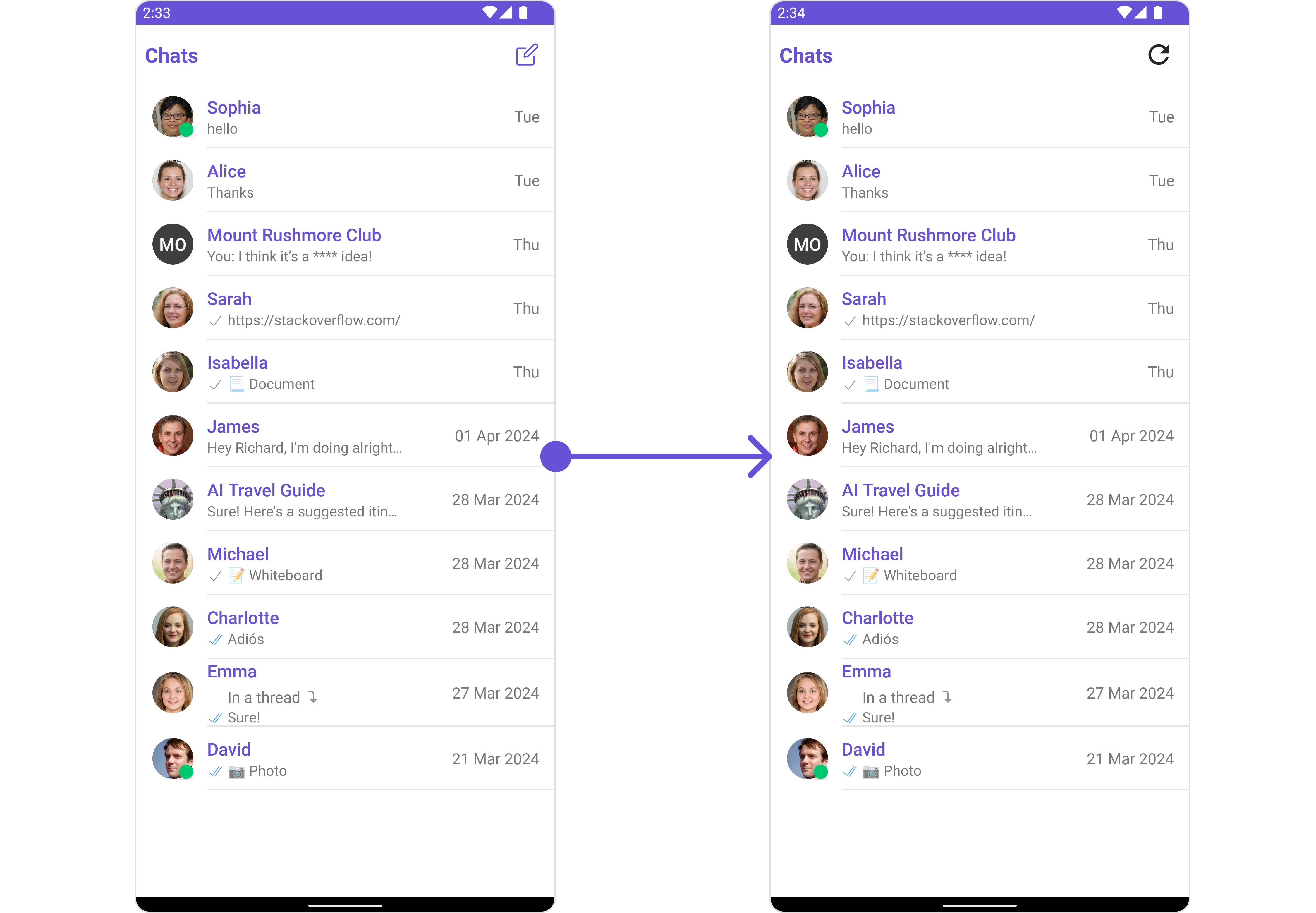
 In this example we are adding a custom payment option in header menu using `.setAuxiliaryHeaderMenu()`
```html theme={null}
```
```java theme={null}
messages.setAuxiliaryHeaderMenu(new Function3() {
@Override
public View apply(Context context, User user, Group group) {
View view = getLayoutInflater().inflate(R.layout.auxiliary_button_layout, null);
ImageView imgPayment = findViewById(R.id.img_payment);
imgPayment.setOnClickListener(new View.OnClickListener() {
@Override
public void onClick(View v) {
Toast.makeText(context, "Clicked on payment option", Toast.LENGTH_SHORT).show();
}
});
return view;
}
});
```
```kotlin theme={null}
messages.setAuxiliaryHeaderMenu { context, user, group ->
val view = LayoutInflater.from(context).inflate(R.layout.auxiliary_button_layout, null)
val imgPayment = view.findViewById(R.id.img_payment)
imgPayment.setOnClickListener {
Toast.makeText(context, "Clicked on payment option", Toast.LENGTH_SHORT).show()
}
view
}
```
The Messages Component uses the `setAuxiliaryHeaderMenu()` method to establish its default functionality. By setting an Auxiliary Menu, the Messages Component gains the capability to navigate to the [Details](/ui-kit/android/v4/group-details) section.
In this example we are adding a custom payment option in header menu using `.setAuxiliaryHeaderMenu()`
```html theme={null}
```
```java theme={null}
messages.setAuxiliaryHeaderMenu(new Function3() {
@Override
public View apply(Context context, User user, Group group) {
View view = getLayoutInflater().inflate(R.layout.auxiliary_button_layout, null);
ImageView imgPayment = findViewById(R.id.img_payment);
imgPayment.setOnClickListener(new View.OnClickListener() {
@Override
public void onClick(View v) {
Toast.makeText(context, "Clicked on payment option", Toast.LENGTH_SHORT).show();
}
});
return view;
}
});
```
```kotlin theme={null}
messages.setAuxiliaryHeaderMenu { context, user, group ->
val view = LayoutInflater.from(context).inflate(R.layout.auxiliary_button_layout, null)
val imgPayment = view.findViewById(R.id.img_payment)
imgPayment.setOnClickListener {
Toast.makeText(context, "Clicked on payment option", Toast.LENGTH_SHORT).show()
}
view
}
```
The Messages Component uses the `setAuxiliaryHeaderMenu()` method to establish its default functionality. By setting an Auxiliary Menu, the Messages Component gains the capability to navigate to the [Details](/ui-kit/android/v4/group-details) section.
 ## Configuration
Configurations offer the ability to customize the properties of each individual component within a Composite Component.
The Messages Component is a Composite Component and it has a specific set of configuration for each of its components.
### MessageHeader
If you want to customize the properties of the [MessageHeader](/ui-kit/android/v4/message-header) Component inside Messages Component, you need use the `MessageHeaderConfiguration` object.
```java theme={null}
MessageHeaderConfiguration configuration = new MessageHeaderConfiguration();
messages.setMessageHeaderConfiguration(configuration);
```
```kotlin theme={null}
val configuration = MessageHeaderConfiguration()
messages.setMessageHeaderConfiguration(configuration)
```
The `MessageHeaderConfiguration` provides access to all the [Action](/ui-kit/android/v4/message-header#style), [Filters](/ui-kit/android/v4/message-header#filters), [Styles](/ui-kit/android/v4/message-header#style), [Functionality](/ui-kit/android/v4/message-header#functionality), and [Advanced](/ui-kit/android/v4/message-header#advanced) properties of the [MessageHeader](/ui-kit/android/v4/message-header) component.
> Please note that the properties marked with the 🛑 symbol are not accessible within the Configuration Object.
**Example**
## Configuration
Configurations offer the ability to customize the properties of each individual component within a Composite Component.
The Messages Component is a Composite Component and it has a specific set of configuration for each of its components.
### MessageHeader
If you want to customize the properties of the [MessageHeader](/ui-kit/android/v4/message-header) Component inside Messages Component, you need use the `MessageHeaderConfiguration` object.
```java theme={null}
MessageHeaderConfiguration configuration = new MessageHeaderConfiguration();
messages.setMessageHeaderConfiguration(configuration);
```
```kotlin theme={null}
val configuration = MessageHeaderConfiguration()
messages.setMessageHeaderConfiguration(configuration)
```
The `MessageHeaderConfiguration` provides access to all the [Action](/ui-kit/android/v4/message-header#style), [Filters](/ui-kit/android/v4/message-header#filters), [Styles](/ui-kit/android/v4/message-header#style), [Functionality](/ui-kit/android/v4/message-header#functionality), and [Advanced](/ui-kit/android/v4/message-header#advanced) properties of the [MessageHeader](/ui-kit/android/v4/message-header) component.
> Please note that the properties marked with the 🛑 symbol are not accessible within the Configuration Object.
**Example**
 In this example, we will be adding a custom back button and styling a few properties of the Avatar component of the [MessageHeader](/ui-kit/android/v4/message-header) component using `MessageHeaderConfiguration`.
```java theme={null}
MessageHeaderConfiguration configuration = new MessageHeaderConfiguration();
View backButtonView = getLayoutInflater().inflate(R.layout.custom_header_back_icon, null);
configuration.setBackIconView(backButtonView);
AvatarStyle avatarStyle = new AvatarStyle();
avatarStyle.setBorderColor(R.color.purple_700);
avatarStyle.setBorderWidth(10);
configuration.setAvatarStyle(avatarStyle);
messages.setMessageHeaderConfiguration(configuration);
```
```kotlin theme={null}
val configuration = MessageHeaderConfiguration()
val backButtonView = LayoutInflater.from(this).inflate(R.layout.custom_header_back_icon, null)
configuration.backIconView = backButtonView
val avatarStyle = AvatarStyle()
avatarStyle.borderColor = R.color.purple_700
avatarStyle.borderWidth = 10
configuration.avatarStyle = avatarStyle
messages.setMessageHeaderConfiguration(configuration)
```
### MessageList
If you want to customize the properties of the [MessageList](/ui-kit/android/v4/message-list) Component inside Messages Component, you need use the `MessageListConfiguration` object.
```java theme={null}
MessageListConfiguration messageListConfiguration = new MessageListConfiguration();
messages.setMessageListConfiguration(messageListConfiguration);
```
```kotlin theme={null}
val messageListConfiguration = MessageListConfiguration()
messages.setMessageListConfiguration(messageListConfiguration)
```
The `MessageListConfiguration` provides access to all the [Action](/ui-kit/android/v4/message-list#style), [Filters](/ui-kit/android/v4/message-list#filters), [Styles](/ui-kit/android/v4/message-list#style), [Functionality](/ui-kit/android/v4/message-list#functionality), and [Advanced](/ui-kit/android/v4/message-list#advanced) properties of the [MessageList](/ui-kit/android/v4/message-list) component.
> Please note that the properties marked with the 🛑 symbol are not accessible within the Configuration Object.
**Example**
In this example, we will be adding a custom back button and styling a few properties of the Avatar component of the [MessageHeader](/ui-kit/android/v4/message-header) component using `MessageHeaderConfiguration`.
```java theme={null}
MessageHeaderConfiguration configuration = new MessageHeaderConfiguration();
View backButtonView = getLayoutInflater().inflate(R.layout.custom_header_back_icon, null);
configuration.setBackIconView(backButtonView);
AvatarStyle avatarStyle = new AvatarStyle();
avatarStyle.setBorderColor(R.color.purple_700);
avatarStyle.setBorderWidth(10);
configuration.setAvatarStyle(avatarStyle);
messages.setMessageHeaderConfiguration(configuration);
```
```kotlin theme={null}
val configuration = MessageHeaderConfiguration()
val backButtonView = LayoutInflater.from(this).inflate(R.layout.custom_header_back_icon, null)
configuration.backIconView = backButtonView
val avatarStyle = AvatarStyle()
avatarStyle.borderColor = R.color.purple_700
avatarStyle.borderWidth = 10
configuration.avatarStyle = avatarStyle
messages.setMessageHeaderConfiguration(configuration)
```
### MessageList
If you want to customize the properties of the [MessageList](/ui-kit/android/v4/message-list) Component inside Messages Component, you need use the `MessageListConfiguration` object.
```java theme={null}
MessageListConfiguration messageListConfiguration = new MessageListConfiguration();
messages.setMessageListConfiguration(messageListConfiguration);
```
```kotlin theme={null}
val messageListConfiguration = MessageListConfiguration()
messages.setMessageListConfiguration(messageListConfiguration)
```
The `MessageListConfiguration` provides access to all the [Action](/ui-kit/android/v4/message-list#style), [Filters](/ui-kit/android/v4/message-list#filters), [Styles](/ui-kit/android/v4/message-list#style), [Functionality](/ui-kit/android/v4/message-list#functionality), and [Advanced](/ui-kit/android/v4/message-list#advanced) properties of the [MessageList](/ui-kit/android/v4/message-list) component.
> Please note that the properties marked with the 🛑 symbol are not accessible within the Configuration Object.
**Example**
 In this example, we will be changing the list alignment and modifying the message bubble styles in the [MessageList](/ui-kit/android/v4/message-list) component using `MessageListConfiguration`.
```java theme={null}
MessageListConfiguration messageListConfiguration = new MessageListConfiguration();
messageListConfiguration.setListAlignment(UIKitConstants.MessageListAlignment.LEFT_ALIGNED);
MessageBubbleStyle messageBubbleStyle= new MessageBubbleStyle();
messageBubbleStyle.setCornerRadius(20f);
messageBubbleStyle.setBorderColor(R.color.purple_700);
messageBubbleStyle.setBorderWidth(5);
messageListConfiguration.setWrapperMessageBubbleStyle(messageBubbleStyle);
messages.setMessageListConfiguration(messageListConfiguration);
```
```kotlin theme={null}
val messageListConfiguration = MessageListConfiguration()
messageListConfiguration.listAlignment = UIKitConstants.MessageListAlignment.LEFT_ALIGNED
val messageBubbleStyle = MessageBubbleStyle()
messageBubbleStyle.cornerRadius = 20f
messageBubbleStyle.borderColor = R.color.purple_700
messageBubbleStyle.borderWidth = 5
messageListConfiguration.wrapperMessageBubbleStyle = messageBubbleStyle
messages.setMessageListConfiguration(messageListConfiguration)
```
### MessageComposer
If you want to customize the properties of the [MessageComposer](/ui-kit/android/v4/message-composer) Component inside Messages Component, you need use the `MessageComposerConfiguration` object.
```java theme={null}
MessageComposerConfiguration configuration = new MessageComposerConfiguration();
messages.setMessageComposerConfiguration(configuration);
```
```kotlin theme={null}
val configuration = MessageComposerConfiguration()
messages.setMessageComposerConfiguration(configuration)
```
The `MessageComposerConfiguration` provides access to all the [Action](/ui-kit/android/v4/message-composer#style), [Filters](/ui-kit/android/v4/message-composer#filters), [Styles](/ui-kit/android/v4/message-composer#style), [Functionality](/ui-kit/android/v4/message-composer#functionality), and [Advanced](/ui-kit/android/v4/message-composer#advanced) properties of the [MessageComposer](/ui-kit/android/v4/message-composer) component.
> Please note that the properties marked with the 🛑 symbol are not accessible within the Configuration Object.
**Example**
In this example, we will be changing the list alignment and modifying the message bubble styles in the [MessageList](/ui-kit/android/v4/message-list) component using `MessageListConfiguration`.
```java theme={null}
MessageListConfiguration messageListConfiguration = new MessageListConfiguration();
messageListConfiguration.setListAlignment(UIKitConstants.MessageListAlignment.LEFT_ALIGNED);
MessageBubbleStyle messageBubbleStyle= new MessageBubbleStyle();
messageBubbleStyle.setCornerRadius(20f);
messageBubbleStyle.setBorderColor(R.color.purple_700);
messageBubbleStyle.setBorderWidth(5);
messageListConfiguration.setWrapperMessageBubbleStyle(messageBubbleStyle);
messages.setMessageListConfiguration(messageListConfiguration);
```
```kotlin theme={null}
val messageListConfiguration = MessageListConfiguration()
messageListConfiguration.listAlignment = UIKitConstants.MessageListAlignment.LEFT_ALIGNED
val messageBubbleStyle = MessageBubbleStyle()
messageBubbleStyle.cornerRadius = 20f
messageBubbleStyle.borderColor = R.color.purple_700
messageBubbleStyle.borderWidth = 5
messageListConfiguration.wrapperMessageBubbleStyle = messageBubbleStyle
messages.setMessageListConfiguration(messageListConfiguration)
```
### MessageComposer
If you want to customize the properties of the [MessageComposer](/ui-kit/android/v4/message-composer) Component inside Messages Component, you need use the `MessageComposerConfiguration` object.
```java theme={null}
MessageComposerConfiguration configuration = new MessageComposerConfiguration();
messages.setMessageComposerConfiguration(configuration);
```
```kotlin theme={null}
val configuration = MessageComposerConfiguration()
messages.setMessageComposerConfiguration(configuration)
```
The `MessageComposerConfiguration` provides access to all the [Action](/ui-kit/android/v4/message-composer#style), [Filters](/ui-kit/android/v4/message-composer#filters), [Styles](/ui-kit/android/v4/message-composer#style), [Functionality](/ui-kit/android/v4/message-composer#functionality), and [Advanced](/ui-kit/android/v4/message-composer#advanced) properties of the [MessageComposer](/ui-kit/android/v4/message-composer) component.
> Please note that the properties marked with the 🛑 symbol are not accessible within the Configuration Object.
**Example**
 In this example, we'll be adding a custom header view and customizing some properties of the [MessageComposer](/ui-kit/android/v4/message-composer) component using `MessageComposerConfiguration`.
```java theme={null}
MessageComposerConfiguration configuration = new MessageComposerConfiguration();
View view = getLayoutInflater().inflate(R.layout.custom_header_view_layout, null);
configuration.setHeaderView(view);
MessageComposerStyle composerStyle = new MessageComposerStyle();
composerStyle.setBorderColor(Color.LTGRAY);
composerStyle.setBorderWidth(5);
composerStyle.setCornerRadius(20);
configuration.setStyle(composerStyle);
messages.setMessageComposerConfiguration(configuration);
```
```kotlin theme={null}
val configuration = MessageComposerConfiguration()
val view = LayoutInflater.from(this).inflate(R.layout.custom_header_view_layout, null)
configuration.headerView = view
val composerStyle = MessageComposerStyle()
composerStyle.borderColor = Color.LTGRAY
composerStyle.borderWidth = 5
composerStyle.cornerRadius = 20
configuration.style = composerStyle
messages.setMessageComposerConfiguration(configuration)
```
### ThreadedMessages
If you want to customize the properties of the [ThreadedMessages](/ui-kit/android/v4/threaded-messages) Component inside Messages Component, you need use the `ThreadedMessagesConfiguration` object.
```java theme={null}
ThreadedMessagesConfiguration configuration = new ThreadedMessagesConfiguration();
messages.setThreadedMessagesConfiguration(configuration);
```
```kotlin theme={null}
val configuration = ThreadedMessagesConfiguration()
messages.setThreadedMessagesConfiguration(configuration)
```
The `ThreadedMessagesConfiguration` provides access to all the [Action](/ui-kit/android/v4/threaded-messages#style), [Filters](/ui-kit/android/v4/threaded-messages#filters), [Styles](/ui-kit/android/v4/threaded-messages#style), [Functionality](/ui-kit/android/v4/threaded-messages#functionality), and [Advanced](/ui-kit/android/v4/threaded-messages#advanced) properties of the [ThreadedMessages](/ui-kit/android/v4/threaded-messages) component.
> Please note that the properties marked with the 🛑 symbol are not accessible within the Configuration Object.
**Example**
In this example, we'll be adding a custom header view and customizing some properties of the [MessageComposer](/ui-kit/android/v4/message-composer) component using `MessageComposerConfiguration`.
```java theme={null}
MessageComposerConfiguration configuration = new MessageComposerConfiguration();
View view = getLayoutInflater().inflate(R.layout.custom_header_view_layout, null);
configuration.setHeaderView(view);
MessageComposerStyle composerStyle = new MessageComposerStyle();
composerStyle.setBorderColor(Color.LTGRAY);
composerStyle.setBorderWidth(5);
composerStyle.setCornerRadius(20);
configuration.setStyle(composerStyle);
messages.setMessageComposerConfiguration(configuration);
```
```kotlin theme={null}
val configuration = MessageComposerConfiguration()
val view = LayoutInflater.from(this).inflate(R.layout.custom_header_view_layout, null)
configuration.headerView = view
val composerStyle = MessageComposerStyle()
composerStyle.borderColor = Color.LTGRAY
composerStyle.borderWidth = 5
composerStyle.cornerRadius = 20
configuration.style = composerStyle
messages.setMessageComposerConfiguration(configuration)
```
### ThreadedMessages
If you want to customize the properties of the [ThreadedMessages](/ui-kit/android/v4/threaded-messages) Component inside Messages Component, you need use the `ThreadedMessagesConfiguration` object.
```java theme={null}
ThreadedMessagesConfiguration configuration = new ThreadedMessagesConfiguration();
messages.setThreadedMessagesConfiguration(configuration);
```
```kotlin theme={null}
val configuration = ThreadedMessagesConfiguration()
messages.setThreadedMessagesConfiguration(configuration)
```
The `ThreadedMessagesConfiguration` provides access to all the [Action](/ui-kit/android/v4/threaded-messages#style), [Filters](/ui-kit/android/v4/threaded-messages#filters), [Styles](/ui-kit/android/v4/threaded-messages#style), [Functionality](/ui-kit/android/v4/threaded-messages#functionality), and [Advanced](/ui-kit/android/v4/threaded-messages#advanced) properties of the [ThreadedMessages](/ui-kit/android/v4/threaded-messages) component.
> Please note that the properties marked with the 🛑 symbol are not accessible within the Configuration Object.
**Example**
 In this example, we are adding a custom title to the Threaded Message component and also adding custom properties to the [MessageList](#messagelist) using `MessageListConfiguration`. We then apply these changes to the [ThreadedMessages](/ui-kit/android/v4/threaded-messages) component using `ThreadedMessagesConfiguration`.
```java theme={null}
ThreadedMessagesConfiguration configuration = new ThreadedMessagesConfiguration();
configuration.setTitle("Replies");
MessageListConfiguration messageListConfiguration = new MessageListConfiguration();
messageListConfiguration.setListAlignment(UIKitConstants.MessageListAlignment.LEFT_ALIGNED);
MessageBubbleStyle messageBubbleStyle= new MessageBubbleStyle();
messageBubbleStyle.setCornerRadius(20f);
messageBubbleStyle.setBorderColor(R.color.purple_700);
messageBubbleStyle.setBorderWidth(5);
messageListConfiguration.setWrapperMessageBubbleStyle(messageBubbleStyle);
configuration.setMessageListConfiguration(messageListConfiguration);
messages.setThreadedMessagesConfiguration(configuration);
```
```kotlin theme={null}
val configuration = ThreadedMessagesConfiguration()
configuration.title = "Replies"
val messageListConfiguration = MessageListConfiguration()
messageListConfiguration.listAlignment = UIKitConstants.MessageListAlignment.LEFT_ALIGNED
val messageBubbleStyle = MessageBubbleStyle()
messageBubbleStyle.cornerRadius = 20f
messageBubbleStyle.borderColor = R.color.purple_700
messageBubbleStyle.borderWidth = 5
messageListConfiguration.wrapperMessageBubbleStyle = messageBubbleStyle
configuration.messageListConfiguration = messageListConfiguration
messages.setThreadedMessagesConfiguration(configuration)
```
In this example, we are adding a custom title to the Threaded Message component and also adding custom properties to the [MessageList](#messagelist) using `MessageListConfiguration`. We then apply these changes to the [ThreadedMessages](/ui-kit/android/v4/threaded-messages) component using `ThreadedMessagesConfiguration`.
```java theme={null}
ThreadedMessagesConfiguration configuration = new ThreadedMessagesConfiguration();
configuration.setTitle("Replies");
MessageListConfiguration messageListConfiguration = new MessageListConfiguration();
messageListConfiguration.setListAlignment(UIKitConstants.MessageListAlignment.LEFT_ALIGNED);
MessageBubbleStyle messageBubbleStyle= new MessageBubbleStyle();
messageBubbleStyle.setCornerRadius(20f);
messageBubbleStyle.setBorderColor(R.color.purple_700);
messageBubbleStyle.setBorderWidth(5);
messageListConfiguration.setWrapperMessageBubbleStyle(messageBubbleStyle);
configuration.setMessageListConfiguration(messageListConfiguration);
messages.setThreadedMessagesConfiguration(configuration);
```
```kotlin theme={null}
val configuration = ThreadedMessagesConfiguration()
configuration.title = "Replies"
val messageListConfiguration = MessageListConfiguration()
messageListConfiguration.listAlignment = UIKitConstants.MessageListAlignment.LEFT_ALIGNED
val messageBubbleStyle = MessageBubbleStyle()
messageBubbleStyle.cornerRadius = 20f
messageBubbleStyle.borderColor = R.color.purple_700
messageBubbleStyle.borderWidth = 5
messageListConfiguration.wrapperMessageBubbleStyle = messageBubbleStyle
configuration.messageListConfiguration = messageListConfiguration
messages.setThreadedMessagesConfiguration(configuration)
```