> ## Documentation Index
> Fetch the complete documentation index at: https://cometchat-22654f5b-docs-rn-guide-message-privately.mintlify.site/llms.txt
> Use this file to discover all available pages before exploring further.
# Conversations
> Conversations — CometChat documentation.
## Overview
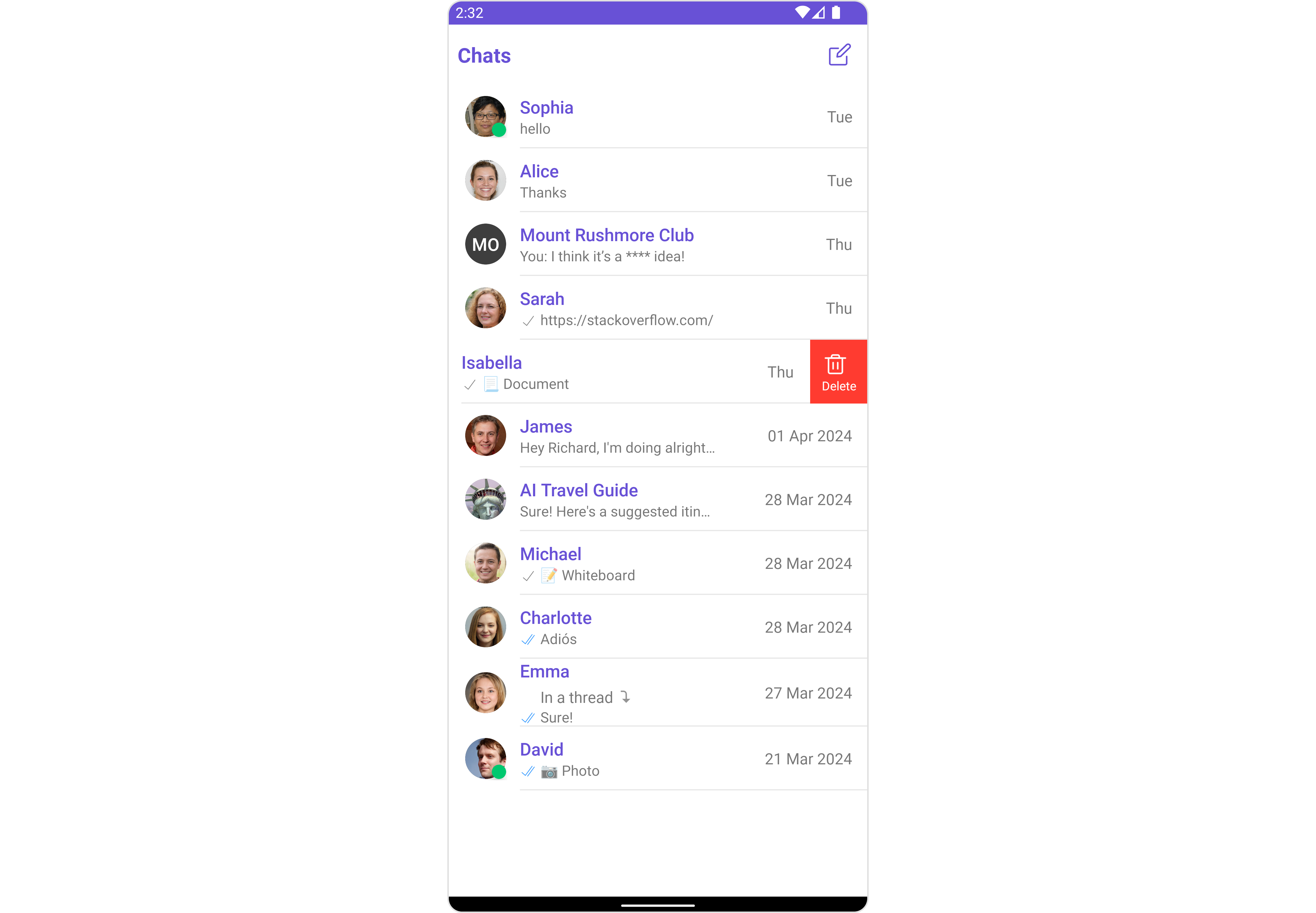
The Conversations is a [Component](/ui-kit/android/v4/components-overview#components), That shows all conversations related to the currently logged-in user,
 ## Usage
### Integration
There are multiple ways in which you can use Conversations in your app. **Layout File**: To use Conversations in your \`layout\_activity.xml, use the following code snippet.
```xml layout_activity.xml theme={null}
```
2. **Activity**: To use Conversations in your Activity, use the following code snippet.
```java YourActivity.java theme={null}
@Override
public View onCreateView(LayoutInflater inflater, ViewGroup container,
Bundle savedInstanceState) {
return new CometChatConversations(getContext());
}
```
```kotlin YourActivity.kt theme={null}
override fun onCreateView(inflater: LayoutInflater,container: ViewGroup?,savedInstanceState: Bundle?): View {
return CometChatConversations(requireContext())
}
```
3. **Fragment**: To use `Conversations` in your `Fragment`, use the following code snippet.
```java YourFragment.java theme={null}
@Override
protected void onCreate(Bundle savedInstanceState) {
super.onCreate(savedInstanceState);
setContentView(new CometChatConversations(this));
}
```
```kotlin YourFragment.kt theme={null}
override fun onCreate(savedInstanceState: Bundle?) {
super.onCreate(savedInstanceState)
setContentView(CometChatConversations(this))
}
```
### Actions
[Actions](/ui-kit/android/v4/components-overview#actions) dictate how a component functions. They are divided into two types: Predefined and User-defined. You can override either type, allowing you to tailor the behavior of the component to fit your specific needs.
##### 1. ItemClickListener
`ItemClickListener` is triggered when you click on a ListItem of the Conversations component. The `ItemClickListener` action doesn't have a predefined behavior. You can override this action using the following code snippet.
```java YourActivity.java theme={null}
cometChatConversations.setItemClickListener(new OnItemClickListener() {
@Override
public void OnItemClick(Conversation conversation, int i) {
// Your custom Action
}
});
```
```kotlin YourActivity.kt theme={null}
cometChatConversations.setItemClickListener(object : OnItemClickListener {
override fun onItemClick(conversation: Conversation, position: Int) {
// Your custom Action
}
})
```
***
##### 2. OnBackPressListener
`OnBackPressListener` is triggered when you press the back button in the app bar. It has a predefined behavior; when clicked, it navigates to the previous activity. However, you can override this action using the following code snippet.
```java YourActivity.java theme={null}
cometChatConversations.addOnBackPressListener(new CometChatListBase.OnBackPress() {
@Override
public void onBack() {
// Action on app bar back press
}
});
```
```kotlin YourActivity.kt theme={null}
cometChatConversations.addOnBackPressListener(object : CometChatListBase.OnBackPress {
override fun onBack() {
// Action on app bar back press
}
})
```
***
##### 3. OnSelection
The `OnSelection` event is triggered upon the completion of a selection in `SelectionMode`. It does not have a default behavior. However, you can override its behavior using the following code snippet.
```java YourActivity.java theme={null}
cometChatConversations.setOnSelection(new CometChatConversations.OnSelection() {
@Override
public void onSelection(List list) {
//Your custom action
}
});
```
```kotlin YourActivity.kt theme={null}
cometChatConversations.setOnSelection(object : CometChatConversations.OnSelection {
override fun onSelection(list: List) {
// Your custom action
}
})
```
***
##### 4. OnError
This action doesn't change the behavior of the component but rather listens for any errors that occur in the Conversations component.
```java YourActivity.java theme={null}
cometChatConversations.setOnError(new OnError() {
@Override
public void onError(Context context, CometChatException e) {
//Your Exception Handling code.
}
});
```
```kotlin YourActivity.kt theme={null}
cometChatConversations.setOnError(object : OnError {
override fun onError(context: Context, e: CometChatException) {
// Your Exception Handling code.
}
})
```
***
### Filters
You can set `ConversationsRequestBuilder` in the Conversations Component to filter the conversation list. You can modify the builder as per your specific requirements with multiple options available to know more refer to [ConversationRequestBuilder](/sdk/android/retrieve-conversations).
You can set filters using the following parameters.
1. **Conversation Type:** Filters on type of Conversation, `User` or `Groups`
2. **Limit:** Number of conversations fetched in a single request.
3. **WithTags:** Filter on fetching conversations containing tags
4. **Tags:** Filters on specific `Tag`
5. **UserTags:** Filters on specific User `Tag`
6. **GroupTags:** Filters on specific Group `Tag`
```java YourActivity.java theme={null}
ConversationsRequest.ConversationsRequestBuilder builder = new ConversationsRequest.ConversationsRequestBuilder();
builder.setConversationType(CometChatConstants.CONVERSATION_TYPE_USER);
builder.setLimit(50);
cometChatConversations.setConversationsRequestBuilder(builder);
```
```kotlin theme={null}
val builder = ConversationsRequest.ConversationsRequestBuilder()
builder.setConversationType(CometChatConstants.CONVERSATION_TYPE_USER)
builder.setLimit(50)
cometChatConversations.setConversationsRequestBuilder(builder)
```
***
### Events
[Events](/ui-kit/android/v4/components-overview#events) are emitted by a `Component`. By using event you can extend existing functionality. Being global events, they can be applied in Multiple Locations and are capable of being Added or Removed.
##### 1. ConversationDeleted
This event will be emitted when the user deletes a conversation
```java Add Listener theme={null}
CometChatConversationEvents.addListener("YOUR_LISTENER_TAG", new CometChatConversationEvents() {
@Override
public void ccConversationDeleted(Conversation conversation) {
super.ccConversationDeleted(conversation);
}
});
```
Remove Listener
```
CometChatMessageEvents.removeListener("YOUR_LISTENER_TAG");
```
```kotlin Add Listener theme={null}
CometChatConversationEvents.addListener("LISTENER_TAG", object : CometChatConversationEvents() {
override fun ccConversationDeleted(conversation: Conversation) {
super.ccConversationDeleted(conversation)
}
})
```
```kotlin Remove Listener theme={null}
CometChatMessageEvents.removeListener("YOUR_LISTENER_TAG");
```
## Customization
To fit your app's design requirements, you can customize the appearance of the conversation component. We provide exposed methods that allow you to modify the experience and behavior according to your specific needs.
### Style
Using Style you can customize the look and feel of the component in your app, These parameters typically control elements such as the color, size, shape, and fonts used within the component.
##### 1. Conversation Style
You can set the `ConversationsStyle` to the `Conversations` Component to customize the styling.
```java theme={null}
ConversationsStyle conversationsStyle = new ConversationsStyle();
conversationsStyle.setBorderWidth(20);
conversationsStyle.setBorderColor(Color.BLACK);
conversationsStyle.setSeparatorColor(Color.DKGRAY);
cometChatConversations.setStyle(conversationsStyle);
```
```kotlin theme={null}
val conversationsStyle = ConversationsStyle()
conversationsStyle.borderWidth = 20
conversationsStyle.borderColor = Color.BLACK
conversationsStyle.separatorColor = Color.DKGRAY
cometChatConversations.setStyle(conversationsStyle)
```
List of properties exposed by ConversationStyle
| Property | Description | Code |
| ---------------------------------- | ------------------------------------------------------------------------- | ---------------------------------------------- |
| **Background Color** | Used to set the background color | `setBackground(@color init)` |
| **Background Drawable** | Used to set background Drawable | `setBackground(@drawable int)` |
| **Border Width** | Used to set border width | `setBorderWidth(int)` |
| **Border Color** | Used to set border color | `setBorderColor(@color ini)` |
| **Corner Radius** | Used to set border radius | `setCornerRadius(float)` |
| **Title Appearance** | Used to customise the appearance of the title in the app bar | `setTitleAppearance(@style int)` |
| **BackIcon Tint** | Used to set the color of the back icon in the app bar | `setBackIconTint(@color int)` |
| **OnlineStatus Color** | Used to set the color of the status indicator shown if a member is online | `setOnlineStatusColor(@color int)` |
| **Separator Color** | Used to set the color of the divider separating the group member items | `setSeparatorColor(@color int)` |
| **LastMessageText Appearance** | Used to set the style of the text for the last message | `setLastMessageTextAppearance(@style int)` |
| **ThreadIndicatorText Appearance** | Used to set the style of the text for the thread indicator | `setThreadIndicatorTextAppearance(@style int)` |
| **ErrorText Color** | Used to set the color of the text for the error Text. | `setErrorTextColor(@color int)` |
| **LastMessageText Color** | Used to set the color of the text for the last message. | `setLastMessageTextColor(@color int)` |
| **TypingIndicatorTextColor** | Used to set the color of the typing indicator text. | `setLastMessageTextColor(@color int)` |
| **LastMessageText Color** | Used to set the color of the text for the last message. | `setLastMessageTextColor(@color int)` |
| **ThreadIndicatorText Color** | Used to set the color of thread indicator text | `setThreadIndicatorTextColor(@color int)` |
##### 2. Avatar Style
To apply customized styles to the `Avatar` component in the `Conversations` Component, you can use the following code snippet. For more information, visit [Avatar Styles](/ui-kit/android/v4/avatar#avatarstyle).
```java theme={null}
AvatarStyle avatarStyle = new AvatarStyle();
avatarStyle.setBorderWidth(10);
avatarStyle.setBorderColor(Color.BLACK);
cometChatConversations.setAvatarStyle(avatarStyle);
```
```kotlin theme={null}
val avatarStyle = AvatarStyle()
avatarStyle.borderWidth = 10
avatarStyle.borderColor = Color.BLACK
cometChatConversations.setAvatarStyle(avatarStyle)
```
##### 3. StatusIndicator Style
To apply customized styles to the Status Indicator component in the `Conversations` Component, you can use the following code snippet. For more information, visit [Indicator Styles](/ui-kit/android/v4/status-indicator#customization).
```java theme={null}
StatusIndicatorStyle statusIndicatorStyle = new StatusIndicatorStyle();
statusIndicatorStyle.setCornerRadius(3.5f);
statusIndicatorStyle.setBorderColor(Color.GREEN);
cometChatConversations.setStatusIndicatorStyle(statusIndicatorStyle);
```
```kotlin theme={null}
val statusIndicatorStyle = StatusIndicatorStyle()
statusIndicatorStyle.cornerRadius = 3.5f
statusIndicatorStyle.borderColor = Color.GREEN
cometChatConversations.setStatusIndicatorStyle(statusIndicatorStyle)
```
##### 4. Date Style
To apply customized styles to the `Date` component in the `Conversations` Component, you can use the following code snippet. For more information, visit [Date Styles](/ui-kit/android/v4/date#datestyle).
```java theme={null}
DateStyle dateStyle = new DateStyle();
dateStyle.setTextSize(20);
dateStyle.setTextColor(Color.GRAY);
cometChatConversations.setDateStyle(dateStyle);
```
```kotlin theme={null}
val dateStyle = DateStyle()
dateStyle.setTextSize(20)
dateStyle.setTextColor(Color.GRAY)
cometChatConversations.setDateStyle(dateStyle)
```
##### 5. Badge Style
To apply customized styles to the `Badge` component in the `Conversations` Component, you can use the following code snippet. For more information, visit [Badge Styles](/ui-kit/android/v4/badge#customization).
```java theme={null}
BadgeStyle badgeStyle = new BadgeStyle();
badgeStyle.setTextColor(Color.WHITE);
badgeStyle.setBorderColor(Color.BLACK);
cometChatConversations.setBadgeStyle(badgeStyle);
```
```kotlin theme={null}
val badgeStyle = BadgeStyle()
badgeStyle.setTextColor(Color.WHITE)
badgeStyle.setBorderColor(Color.BLACK)
cometChatConversations.setBadgeStyle(badgeStyle)
```
##### 6. LisItem Style
To apply customized styles to the `ListItemStyle` component in the `Conversations` Component, you can use the following code snippet. For more information, visit [List Item Styles](/ui-kit/android/v4/list-item#listitemstyle).
```java theme={null}
ListItemStyle listItemStyle = new ListItemStyle();
listItemStyle.setTitleColor(Color.BLACK);
cometChatConversations.setListItemStyle(listItemStyle);
```
```kotlin theme={null}
val listItemStyle = ListItemStyle()
listItemStyle.setTitleColor(Color.BLACK)
cometChatConversations.setListItemStyle(listItemStyle)
```
### Functionality
These are a set of small functional customizations that allow you to fine-tune the overall experience of the component. With these, you can change text, set custom icons, and toggle the visibility of UI elements.
## Usage
### Integration
There are multiple ways in which you can use Conversations in your app. **Layout File**: To use Conversations in your \`layout\_activity.xml, use the following code snippet.
```xml layout_activity.xml theme={null}
```
2. **Activity**: To use Conversations in your Activity, use the following code snippet.
```java YourActivity.java theme={null}
@Override
public View onCreateView(LayoutInflater inflater, ViewGroup container,
Bundle savedInstanceState) {
return new CometChatConversations(getContext());
}
```
```kotlin YourActivity.kt theme={null}
override fun onCreateView(inflater: LayoutInflater,container: ViewGroup?,savedInstanceState: Bundle?): View {
return CometChatConversations(requireContext())
}
```
3. **Fragment**: To use `Conversations` in your `Fragment`, use the following code snippet.
```java YourFragment.java theme={null}
@Override
protected void onCreate(Bundle savedInstanceState) {
super.onCreate(savedInstanceState);
setContentView(new CometChatConversations(this));
}
```
```kotlin YourFragment.kt theme={null}
override fun onCreate(savedInstanceState: Bundle?) {
super.onCreate(savedInstanceState)
setContentView(CometChatConversations(this))
}
```
### Actions
[Actions](/ui-kit/android/v4/components-overview#actions) dictate how a component functions. They are divided into two types: Predefined and User-defined. You can override either type, allowing you to tailor the behavior of the component to fit your specific needs.
##### 1. ItemClickListener
`ItemClickListener` is triggered when you click on a ListItem of the Conversations component. The `ItemClickListener` action doesn't have a predefined behavior. You can override this action using the following code snippet.
```java YourActivity.java theme={null}
cometChatConversations.setItemClickListener(new OnItemClickListener() {
@Override
public void OnItemClick(Conversation conversation, int i) {
// Your custom Action
}
});
```
```kotlin YourActivity.kt theme={null}
cometChatConversations.setItemClickListener(object : OnItemClickListener {
override fun onItemClick(conversation: Conversation, position: Int) {
// Your custom Action
}
})
```
***
##### 2. OnBackPressListener
`OnBackPressListener` is triggered when you press the back button in the app bar. It has a predefined behavior; when clicked, it navigates to the previous activity. However, you can override this action using the following code snippet.
```java YourActivity.java theme={null}
cometChatConversations.addOnBackPressListener(new CometChatListBase.OnBackPress() {
@Override
public void onBack() {
// Action on app bar back press
}
});
```
```kotlin YourActivity.kt theme={null}
cometChatConversations.addOnBackPressListener(object : CometChatListBase.OnBackPress {
override fun onBack() {
// Action on app bar back press
}
})
```
***
##### 3. OnSelection
The `OnSelection` event is triggered upon the completion of a selection in `SelectionMode`. It does not have a default behavior. However, you can override its behavior using the following code snippet.
```java YourActivity.java theme={null}
cometChatConversations.setOnSelection(new CometChatConversations.OnSelection() {
@Override
public void onSelection(List list) {
//Your custom action
}
});
```
```kotlin YourActivity.kt theme={null}
cometChatConversations.setOnSelection(object : CometChatConversations.OnSelection {
override fun onSelection(list: List) {
// Your custom action
}
})
```
***
##### 4. OnError
This action doesn't change the behavior of the component but rather listens for any errors that occur in the Conversations component.
```java YourActivity.java theme={null}
cometChatConversations.setOnError(new OnError() {
@Override
public void onError(Context context, CometChatException e) {
//Your Exception Handling code.
}
});
```
```kotlin YourActivity.kt theme={null}
cometChatConversations.setOnError(object : OnError {
override fun onError(context: Context, e: CometChatException) {
// Your Exception Handling code.
}
})
```
***
### Filters
You can set `ConversationsRequestBuilder` in the Conversations Component to filter the conversation list. You can modify the builder as per your specific requirements with multiple options available to know more refer to [ConversationRequestBuilder](/sdk/android/retrieve-conversations).
You can set filters using the following parameters.
1. **Conversation Type:** Filters on type of Conversation, `User` or `Groups`
2. **Limit:** Number of conversations fetched in a single request.
3. **WithTags:** Filter on fetching conversations containing tags
4. **Tags:** Filters on specific `Tag`
5. **UserTags:** Filters on specific User `Tag`
6. **GroupTags:** Filters on specific Group `Tag`
```java YourActivity.java theme={null}
ConversationsRequest.ConversationsRequestBuilder builder = new ConversationsRequest.ConversationsRequestBuilder();
builder.setConversationType(CometChatConstants.CONVERSATION_TYPE_USER);
builder.setLimit(50);
cometChatConversations.setConversationsRequestBuilder(builder);
```
```kotlin theme={null}
val builder = ConversationsRequest.ConversationsRequestBuilder()
builder.setConversationType(CometChatConstants.CONVERSATION_TYPE_USER)
builder.setLimit(50)
cometChatConversations.setConversationsRequestBuilder(builder)
```
***
### Events
[Events](/ui-kit/android/v4/components-overview#events) are emitted by a `Component`. By using event you can extend existing functionality. Being global events, they can be applied in Multiple Locations and are capable of being Added or Removed.
##### 1. ConversationDeleted
This event will be emitted when the user deletes a conversation
```java Add Listener theme={null}
CometChatConversationEvents.addListener("YOUR_LISTENER_TAG", new CometChatConversationEvents() {
@Override
public void ccConversationDeleted(Conversation conversation) {
super.ccConversationDeleted(conversation);
}
});
```
Remove Listener
```
CometChatMessageEvents.removeListener("YOUR_LISTENER_TAG");
```
```kotlin Add Listener theme={null}
CometChatConversationEvents.addListener("LISTENER_TAG", object : CometChatConversationEvents() {
override fun ccConversationDeleted(conversation: Conversation) {
super.ccConversationDeleted(conversation)
}
})
```
```kotlin Remove Listener theme={null}
CometChatMessageEvents.removeListener("YOUR_LISTENER_TAG");
```
## Customization
To fit your app's design requirements, you can customize the appearance of the conversation component. We provide exposed methods that allow you to modify the experience and behavior according to your specific needs.
### Style
Using Style you can customize the look and feel of the component in your app, These parameters typically control elements such as the color, size, shape, and fonts used within the component.
##### 1. Conversation Style
You can set the `ConversationsStyle` to the `Conversations` Component to customize the styling.
```java theme={null}
ConversationsStyle conversationsStyle = new ConversationsStyle();
conversationsStyle.setBorderWidth(20);
conversationsStyle.setBorderColor(Color.BLACK);
conversationsStyle.setSeparatorColor(Color.DKGRAY);
cometChatConversations.setStyle(conversationsStyle);
```
```kotlin theme={null}
val conversationsStyle = ConversationsStyle()
conversationsStyle.borderWidth = 20
conversationsStyle.borderColor = Color.BLACK
conversationsStyle.separatorColor = Color.DKGRAY
cometChatConversations.setStyle(conversationsStyle)
```
List of properties exposed by ConversationStyle
| Property | Description | Code |
| ---------------------------------- | ------------------------------------------------------------------------- | ---------------------------------------------- |
| **Background Color** | Used to set the background color | `setBackground(@color init)` |
| **Background Drawable** | Used to set background Drawable | `setBackground(@drawable int)` |
| **Border Width** | Used to set border width | `setBorderWidth(int)` |
| **Border Color** | Used to set border color | `setBorderColor(@color ini)` |
| **Corner Radius** | Used to set border radius | `setCornerRadius(float)` |
| **Title Appearance** | Used to customise the appearance of the title in the app bar | `setTitleAppearance(@style int)` |
| **BackIcon Tint** | Used to set the color of the back icon in the app bar | `setBackIconTint(@color int)` |
| **OnlineStatus Color** | Used to set the color of the status indicator shown if a member is online | `setOnlineStatusColor(@color int)` |
| **Separator Color** | Used to set the color of the divider separating the group member items | `setSeparatorColor(@color int)` |
| **LastMessageText Appearance** | Used to set the style of the text for the last message | `setLastMessageTextAppearance(@style int)` |
| **ThreadIndicatorText Appearance** | Used to set the style of the text for the thread indicator | `setThreadIndicatorTextAppearance(@style int)` |
| **ErrorText Color** | Used to set the color of the text for the error Text. | `setErrorTextColor(@color int)` |
| **LastMessageText Color** | Used to set the color of the text for the last message. | `setLastMessageTextColor(@color int)` |
| **TypingIndicatorTextColor** | Used to set the color of the typing indicator text. | `setLastMessageTextColor(@color int)` |
| **LastMessageText Color** | Used to set the color of the text for the last message. | `setLastMessageTextColor(@color int)` |
| **ThreadIndicatorText Color** | Used to set the color of thread indicator text | `setThreadIndicatorTextColor(@color int)` |
##### 2. Avatar Style
To apply customized styles to the `Avatar` component in the `Conversations` Component, you can use the following code snippet. For more information, visit [Avatar Styles](/ui-kit/android/v4/avatar#avatarstyle).
```java theme={null}
AvatarStyle avatarStyle = new AvatarStyle();
avatarStyle.setBorderWidth(10);
avatarStyle.setBorderColor(Color.BLACK);
cometChatConversations.setAvatarStyle(avatarStyle);
```
```kotlin theme={null}
val avatarStyle = AvatarStyle()
avatarStyle.borderWidth = 10
avatarStyle.borderColor = Color.BLACK
cometChatConversations.setAvatarStyle(avatarStyle)
```
##### 3. StatusIndicator Style
To apply customized styles to the Status Indicator component in the `Conversations` Component, you can use the following code snippet. For more information, visit [Indicator Styles](/ui-kit/android/v4/status-indicator#customization).
```java theme={null}
StatusIndicatorStyle statusIndicatorStyle = new StatusIndicatorStyle();
statusIndicatorStyle.setCornerRadius(3.5f);
statusIndicatorStyle.setBorderColor(Color.GREEN);
cometChatConversations.setStatusIndicatorStyle(statusIndicatorStyle);
```
```kotlin theme={null}
val statusIndicatorStyle = StatusIndicatorStyle()
statusIndicatorStyle.cornerRadius = 3.5f
statusIndicatorStyle.borderColor = Color.GREEN
cometChatConversations.setStatusIndicatorStyle(statusIndicatorStyle)
```
##### 4. Date Style
To apply customized styles to the `Date` component in the `Conversations` Component, you can use the following code snippet. For more information, visit [Date Styles](/ui-kit/android/v4/date#datestyle).
```java theme={null}
DateStyle dateStyle = new DateStyle();
dateStyle.setTextSize(20);
dateStyle.setTextColor(Color.GRAY);
cometChatConversations.setDateStyle(dateStyle);
```
```kotlin theme={null}
val dateStyle = DateStyle()
dateStyle.setTextSize(20)
dateStyle.setTextColor(Color.GRAY)
cometChatConversations.setDateStyle(dateStyle)
```
##### 5. Badge Style
To apply customized styles to the `Badge` component in the `Conversations` Component, you can use the following code snippet. For more information, visit [Badge Styles](/ui-kit/android/v4/badge#customization).
```java theme={null}
BadgeStyle badgeStyle = new BadgeStyle();
badgeStyle.setTextColor(Color.WHITE);
badgeStyle.setBorderColor(Color.BLACK);
cometChatConversations.setBadgeStyle(badgeStyle);
```
```kotlin theme={null}
val badgeStyle = BadgeStyle()
badgeStyle.setTextColor(Color.WHITE)
badgeStyle.setBorderColor(Color.BLACK)
cometChatConversations.setBadgeStyle(badgeStyle)
```
##### 6. LisItem Style
To apply customized styles to the `ListItemStyle` component in the `Conversations` Component, you can use the following code snippet. For more information, visit [List Item Styles](/ui-kit/android/v4/list-item#listitemstyle).
```java theme={null}
ListItemStyle listItemStyle = new ListItemStyle();
listItemStyle.setTitleColor(Color.BLACK);
cometChatConversations.setListItemStyle(listItemStyle);
```
```kotlin theme={null}
val listItemStyle = ListItemStyle()
listItemStyle.setTitleColor(Color.BLACK)
cometChatConversations.setListItemStyle(listItemStyle)
```
### Functionality
These are a set of small functional customizations that allow you to fine-tune the overall experience of the component. With these, you can change text, set custom icons, and toggle the visibility of UI elements.
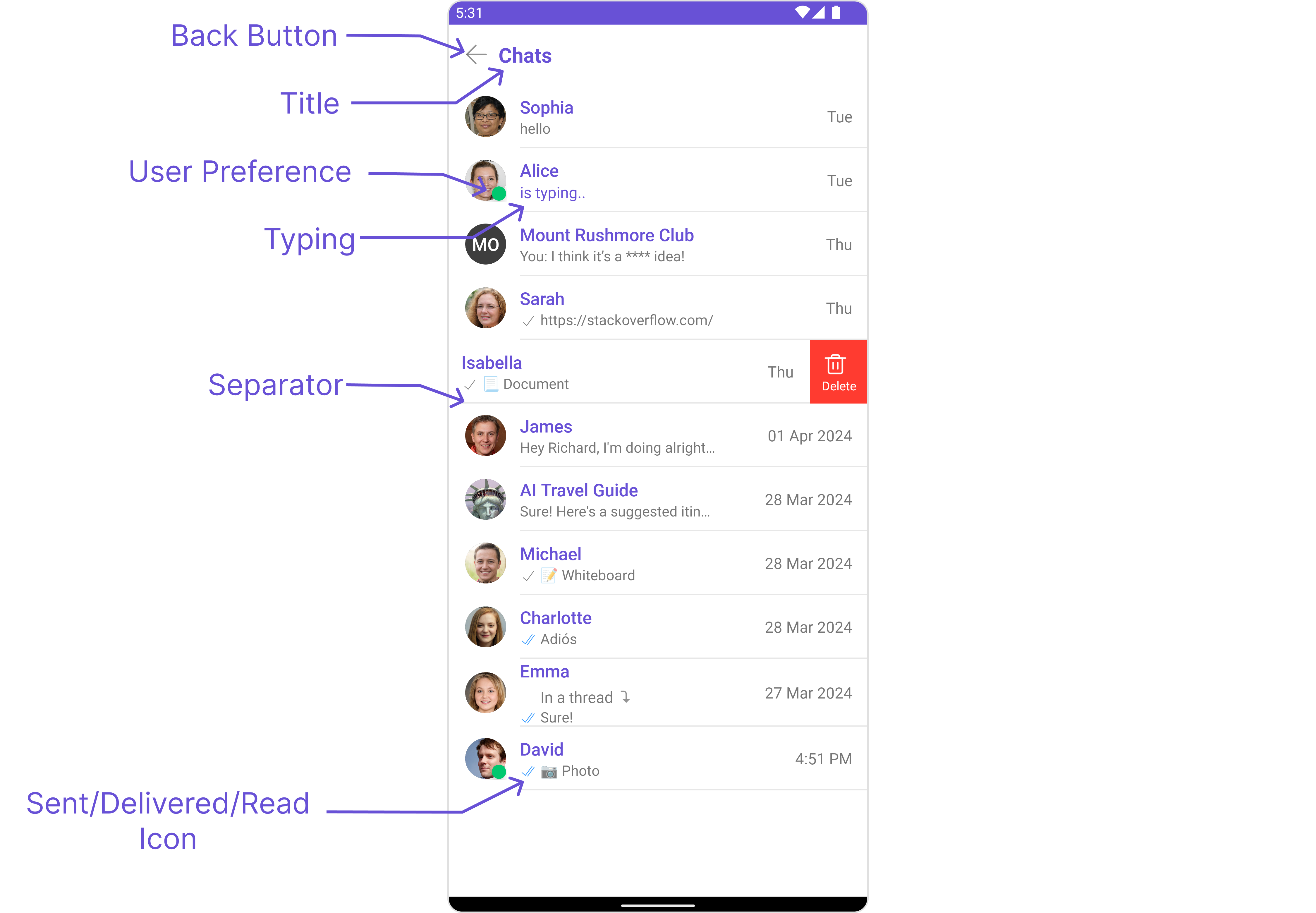 ```java theme={null}
cometChatConversations.setTitle("Your Custom Title");
cometChatConversations.showBackButton(true);
cometChatConversations.backIcon(getDrawable(R.drawable.your_back_icon));
```
```kotlin theme={null}
cometChatConversations.setTitle("Your Custom Title")
cometChatConversations.showBackButton(true)
cometChatConversations.backIcon(getDrawable(R.drawable.your_back_icon))
```
Below is a list of customizations along with corresponding code snippets
| Property | Description | Code |
| ---------------------- | ----------------------------------------------------------------------------------------------------------------------------------------------------------------------------------------------------------------------------------------------- | ------------------------------------------------------------ |
| Title | Used to set custom title in the app bar. | `.setTitle("Your Custom Title")` |
| EmptyState Text | Used to set a custom text response when fetching the conversations has returned an empty list | `.emptyStateText("Your Custom Title")` |
| Selection Mode | Used to set a custom text response when fetching the conversations has returned an empty list | `.setSelectionMode(UIKitConstants.SelectionMode.MULTIPLE);` |
| SearchPlaceholder Text | Used to set placeholder text for the search field | `.setSearchPlaceholderText("YOUR_CUSTOM_PLACEHOLDER");` |
| ProtectedGroup Icon | Used to set icon shown in place of status indicator for password protected group | `.setProtectedGroupIcon(getDrawable(R.drawable.your_icon));` |
| SearchBox Icon | Used to set search Icon in the search field | `.setSearchBoxIcon(getDrawable(R.drawable.your_icon));` |
| SentIcon Icon | Used to customize the receipt icon shown in the subtitle of the conversation item if hideReceipt is false and if the status of the last message in the conversation is sent | `.setSentIcon(getDrawable(R.drawable.your_icon));` |
| Delivered Icon | Used to customize the receipt icon shown in the subtitle of the conversation item if hideReceipt is false and if the status of the last message in the conversation is delivered | `.setDeliveredIcon(getDrawable(R.drawable.your_icon));` |
| Read Icon | Used to customize the receipt icon shown in the subtitle of the conversation item if hideReceipt is false and if the status of the last message in the conversation is read | `.setReadIcon(getDrawable(R.drawable.your_icon))` |
| Back Icon | used to set back button located in the app bar | `.backIcon(getDrawable(R.drawable.your_back_icon));` |
| Show BackButton | Used to toggle visibility for back button in the app bar | `.showBackButton(true);` |
| Hide Search | Used to toggle visibility for search box | `.hideSearch(false);` |
| Hide Error | Used to hide error on fetching conversations | `.hideError(false);` |
| Hide Separator | Used to control visibility of Separators in the list view | `.hideSeparator(false);` |
| Disable UsersPresence | Used to control visibility of status indicator shown if user is online | `.disableUsersPresence(false);` |
| Hide Receipt | Used to hide receipts shown in the subtitle of the conversation item without disabling the functionality of marking messages as read and delivered. | `.hideReceipt(false);` |
| Disable Typing | Used to toggle visibility of typing indicator | `.disableTyping(false);` |
| Disable Mentions | Sets whether mentions in text should be disabled. Processes the text formatters If there are text formatters available and the disableMentions flag is set to true, it removes any formatters that are instances of CometChatMentionsFormatter. | `.setDisableMentions(true);` |
### Advanced
For advanced-level customization, you can set custom views to the component. This lets you tailor each aspect of the component to fit your exact needs and application aesthetics. You can create and define your views, layouts, and UI elements and then incorporate those into the component.
***
#### SetListItemView
With this function, you can assign a custom ListItem to the Conversations Component.
```java theme={null}
cometChatConversations.setListItemView((context, conversation) -> {
// Your code for customizing the list item view
});
```
```kotlin theme={null}
cometChatConversations.setListItemView { context, conversation ->
// Your code for customizing the list item view
}
```
Demonstration
```java theme={null}
cometChatConversations.setTitle("Your Custom Title");
cometChatConversations.showBackButton(true);
cometChatConversations.backIcon(getDrawable(R.drawable.your_back_icon));
```
```kotlin theme={null}
cometChatConversations.setTitle("Your Custom Title")
cometChatConversations.showBackButton(true)
cometChatConversations.backIcon(getDrawable(R.drawable.your_back_icon))
```
Below is a list of customizations along with corresponding code snippets
| Property | Description | Code |
| ---------------------- | ----------------------------------------------------------------------------------------------------------------------------------------------------------------------------------------------------------------------------------------------- | ------------------------------------------------------------ |
| Title | Used to set custom title in the app bar. | `.setTitle("Your Custom Title")` |
| EmptyState Text | Used to set a custom text response when fetching the conversations has returned an empty list | `.emptyStateText("Your Custom Title")` |
| Selection Mode | Used to set a custom text response when fetching the conversations has returned an empty list | `.setSelectionMode(UIKitConstants.SelectionMode.MULTIPLE);` |
| SearchPlaceholder Text | Used to set placeholder text for the search field | `.setSearchPlaceholderText("YOUR_CUSTOM_PLACEHOLDER");` |
| ProtectedGroup Icon | Used to set icon shown in place of status indicator for password protected group | `.setProtectedGroupIcon(getDrawable(R.drawable.your_icon));` |
| SearchBox Icon | Used to set search Icon in the search field | `.setSearchBoxIcon(getDrawable(R.drawable.your_icon));` |
| SentIcon Icon | Used to customize the receipt icon shown in the subtitle of the conversation item if hideReceipt is false and if the status of the last message in the conversation is sent | `.setSentIcon(getDrawable(R.drawable.your_icon));` |
| Delivered Icon | Used to customize the receipt icon shown in the subtitle of the conversation item if hideReceipt is false and if the status of the last message in the conversation is delivered | `.setDeliveredIcon(getDrawable(R.drawable.your_icon));` |
| Read Icon | Used to customize the receipt icon shown in the subtitle of the conversation item if hideReceipt is false and if the status of the last message in the conversation is read | `.setReadIcon(getDrawable(R.drawable.your_icon))` |
| Back Icon | used to set back button located in the app bar | `.backIcon(getDrawable(R.drawable.your_back_icon));` |
| Show BackButton | Used to toggle visibility for back button in the app bar | `.showBackButton(true);` |
| Hide Search | Used to toggle visibility for search box | `.hideSearch(false);` |
| Hide Error | Used to hide error on fetching conversations | `.hideError(false);` |
| Hide Separator | Used to control visibility of Separators in the list view | `.hideSeparator(false);` |
| Disable UsersPresence | Used to control visibility of status indicator shown if user is online | `.disableUsersPresence(false);` |
| Hide Receipt | Used to hide receipts shown in the subtitle of the conversation item without disabling the functionality of marking messages as read and delivered. | `.hideReceipt(false);` |
| Disable Typing | Used to toggle visibility of typing indicator | `.disableTyping(false);` |
| Disable Mentions | Sets whether mentions in text should be disabled. Processes the text formatters If there are text formatters available and the disableMentions flag is set to true, it removes any formatters that are instances of CometChatMentionsFormatter. | `.setDisableMentions(true);` |
### Advanced
For advanced-level customization, you can set custom views to the component. This lets you tailor each aspect of the component to fit your exact needs and application aesthetics. You can create and define your views, layouts, and UI elements and then incorporate those into the component.
***
#### SetListItemView
With this function, you can assign a custom ListItem to the Conversations Component.
```java theme={null}
cometChatConversations.setListItemView((context, conversation) -> {
// Your code for customizing the list item view
});
```
```kotlin theme={null}
cometChatConversations.setListItemView { context, conversation ->
// Your code for customizing the list item view
}
```
Demonstration
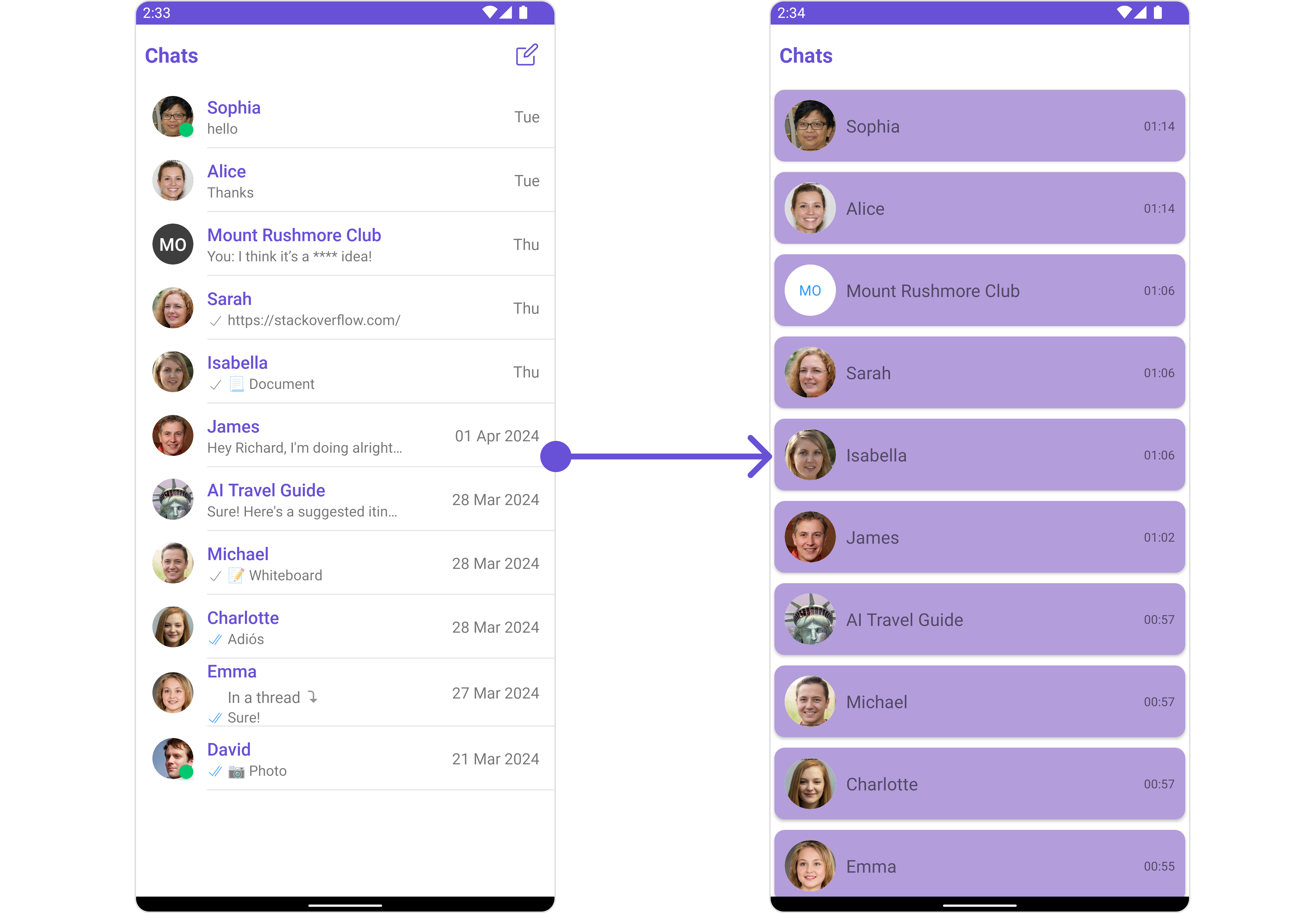 You can create an `item_converation_list.xml` as a custom layout file. Which we will inflate in `setListItemView()`
```html theme={null}
```
In the method `setListItemView` you need to inflate the XML and initialize the views using the conversation objects.
```java YourActivity.java theme={null}
cometChatConversations.setListItemView(new Function2() {
@Override
public View apply(Context context, Conversation conversation) {
View view = getLayoutInflater().inflate(R.layout.item_converation_list, null);
CometChatAvatar avatarView = view.findViewById(R.id.item_avatar);
avatarView.setRadius(100);
TextView nameView = view.findViewById(R.id.txt_item_name);
TextView dateView = view.findViewById(R.id.txt_item_date);
AppEntity entity = conversation.getConversationWith();
if(entity instanceof User){
User user = (User) entity;
nameView.setText(user.getName());
avatarView.setImage(user.getAvatar(),user.getName());
}else{
Group group = (Group) entity;
nameView.setText(group.getName());
avatarView.setImage(group.getIcon(),group.getName());
}
dateView.setText(new SimpleDateFormat("HH:mm").format(new Date(conversation.getUpdatedAt())));
return view;
}
});
```
```kotlin theme={null}
cometChatConversations.setListItemView { context, conversation ->
val view = layoutInflater.inflate(R.layout.item_conversation_list, null)
val avatarView: CometChatAvatar = view.findViewById(R.id.item_avatar)
avatarView.setRadius(100)
val nameView: TextView = view.findViewById(R.id.txt_item_name)
val dateView: TextView = view.findViewById(R.id.txt_item_date)
val entity: AppEntity = conversation.conversationWith
if (entity is User) {
val user: User = entity
nameView.text = user.name
avatarView.setImage(user.avatar, user.name)
} else if (entity is Group) {
val group: Group = entity
nameView.text = group.name
avatarView.setImage(group.icon, group.name)
}
dateView.text = SimpleDateFormat("HH:mm").format(Date(conversation.updatedAt))
view
}
```
***
#### SetTextFormatters
Assigns the list of text formatters. If the provided list is not null, it sets the list. Otherwise, it assigns the default text formatters retrieved from the data source. To configure the existing Mentions look and feel check out [MentionsFormatter Guide](/ui-kit/android/v4/mentions-formatter-guide)
**Example**
You can create an `item_converation_list.xml` as a custom layout file. Which we will inflate in `setListItemView()`
```html theme={null}
```
In the method `setListItemView` you need to inflate the XML and initialize the views using the conversation objects.
```java YourActivity.java theme={null}
cometChatConversations.setListItemView(new Function2() {
@Override
public View apply(Context context, Conversation conversation) {
View view = getLayoutInflater().inflate(R.layout.item_converation_list, null);
CometChatAvatar avatarView = view.findViewById(R.id.item_avatar);
avatarView.setRadius(100);
TextView nameView = view.findViewById(R.id.txt_item_name);
TextView dateView = view.findViewById(R.id.txt_item_date);
AppEntity entity = conversation.getConversationWith();
if(entity instanceof User){
User user = (User) entity;
nameView.setText(user.getName());
avatarView.setImage(user.getAvatar(),user.getName());
}else{
Group group = (Group) entity;
nameView.setText(group.getName());
avatarView.setImage(group.getIcon(),group.getName());
}
dateView.setText(new SimpleDateFormat("HH:mm").format(new Date(conversation.getUpdatedAt())));
return view;
}
});
```
```kotlin theme={null}
cometChatConversations.setListItemView { context, conversation ->
val view = layoutInflater.inflate(R.layout.item_conversation_list, null)
val avatarView: CometChatAvatar = view.findViewById(R.id.item_avatar)
avatarView.setRadius(100)
val nameView: TextView = view.findViewById(R.id.txt_item_name)
val dateView: TextView = view.findViewById(R.id.txt_item_date)
val entity: AppEntity = conversation.conversationWith
if (entity is User) {
val user: User = entity
nameView.text = user.name
avatarView.setImage(user.avatar, user.name)
} else if (entity is Group) {
val group: Group = entity
nameView.text = group.name
avatarView.setImage(group.icon, group.name)
}
dateView.text = SimpleDateFormat("HH:mm").format(Date(conversation.updatedAt))
view
}
```
***
#### SetTextFormatters
Assigns the list of text formatters. If the provided list is not null, it sets the list. Otherwise, it assigns the default text formatters retrieved from the data source. To configure the existing Mentions look and feel check out [MentionsFormatter Guide](/ui-kit/android/v4/mentions-formatter-guide)
**Example**
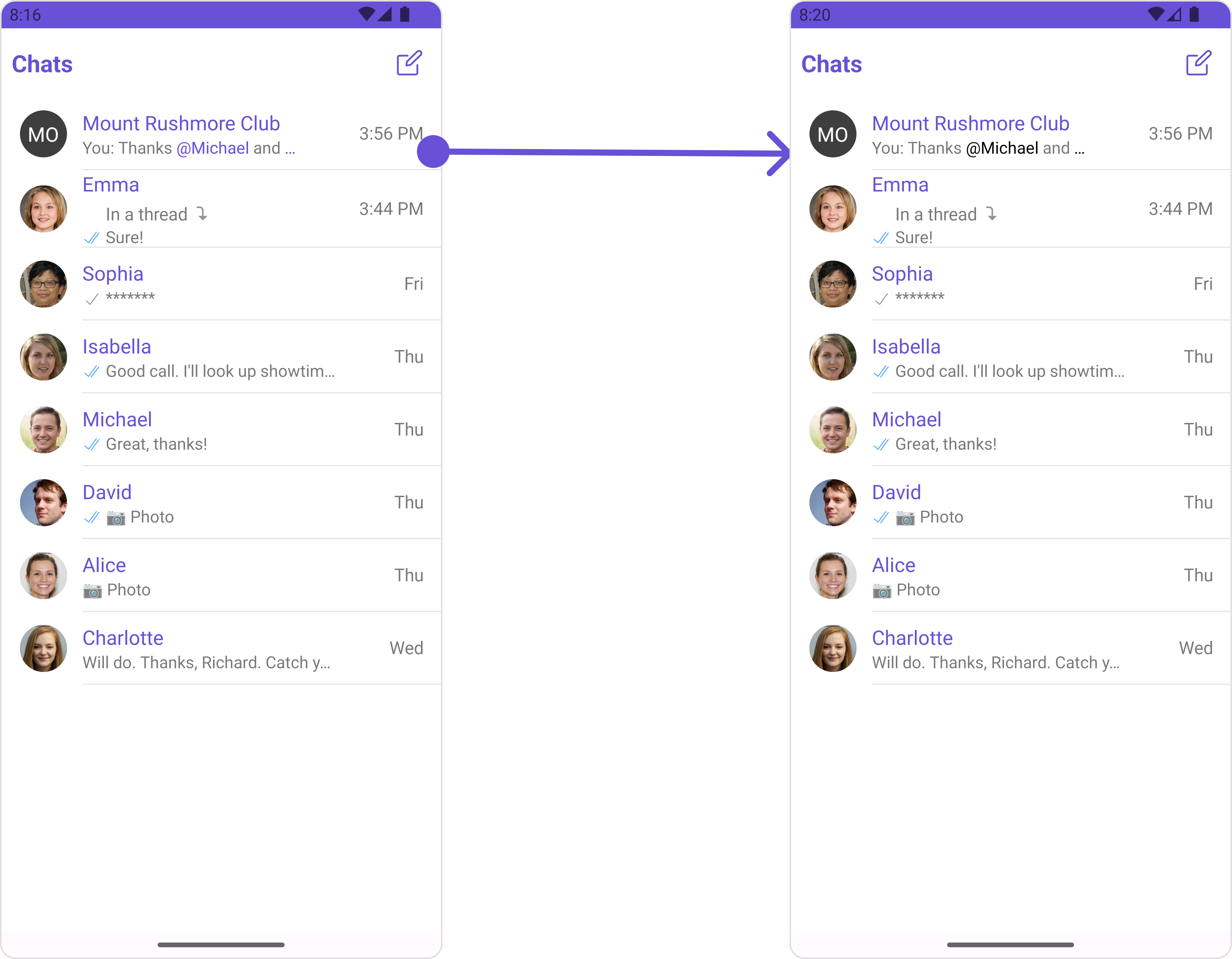 ```java theme={null}
// Initialize CometChatMentionsFormatter
CometChatMentionsFormatter mentionFormatter = new CometChatMentionsFormatter(context);
//set style to customize conversation mention text
mentionFormatter.setConversationsMentionTextStyle(new MentionTextStyle()
.setLoggedInUserTextStyle(Typeface.defaultFromStyle(Typeface.BOLD))
.setTextColor(Color.parseColor("#000000")));
// This can be passed as an array of formatter in CometChatConversations by using setTextFormatters method.
List textFormatters = new ArrayList<>();
textFormatters.add(mentionFormatter);
cometChatConversations.setTextFormatters(textFormatters);
```
```kotlin theme={null}
// Initialize CometChatMentionsFormatter
val mentionFormatter = CometChatMentionsFormatter(context)
//set style to customize conversation mention text
mentionFormatter.conversationsMentionTextStyle = MentionTextStyle()
.setLoggedInUserTextStyle(Typeface.defaultFromStyle(Typeface.BOLD))
.setTextColor(Color.parseColor("#000000"))
// This can be passed as an array of formatter in CometChatConversations by using setTextFormatters method.
val textFormatters: MutableList = ArrayList()
textFormatters.add(mentionFormatter)
cometChatConversations.setTextFormatters(textFormatters)
```
#### SetMenu
You can set the Custom Menu view to add more options to the Conversations component.
```java theme={null}
cometChatConversations.setMenu(View v);
```
```kotlin theme={null}
cometChatConversations.setMenu(v)
```
Demonstration
```java theme={null}
// Initialize CometChatMentionsFormatter
CometChatMentionsFormatter mentionFormatter = new CometChatMentionsFormatter(context);
//set style to customize conversation mention text
mentionFormatter.setConversationsMentionTextStyle(new MentionTextStyle()
.setLoggedInUserTextStyle(Typeface.defaultFromStyle(Typeface.BOLD))
.setTextColor(Color.parseColor("#000000")));
// This can be passed as an array of formatter in CometChatConversations by using setTextFormatters method.
List textFormatters = new ArrayList<>();
textFormatters.add(mentionFormatter);
cometChatConversations.setTextFormatters(textFormatters);
```
```kotlin theme={null}
// Initialize CometChatMentionsFormatter
val mentionFormatter = CometChatMentionsFormatter(context)
//set style to customize conversation mention text
mentionFormatter.conversationsMentionTextStyle = MentionTextStyle()
.setLoggedInUserTextStyle(Typeface.defaultFromStyle(Typeface.BOLD))
.setTextColor(Color.parseColor("#000000"))
// This can be passed as an array of formatter in CometChatConversations by using setTextFormatters method.
val textFormatters: MutableList = ArrayList()
textFormatters.add(mentionFormatter)
cometChatConversations.setTextFormatters(textFormatters)
```
#### SetMenu
You can set the Custom Menu view to add more options to the Conversations component.
```java theme={null}
cometChatConversations.setMenu(View v);
```
```kotlin theme={null}
cometChatConversations.setMenu(v)
```
Demonstration
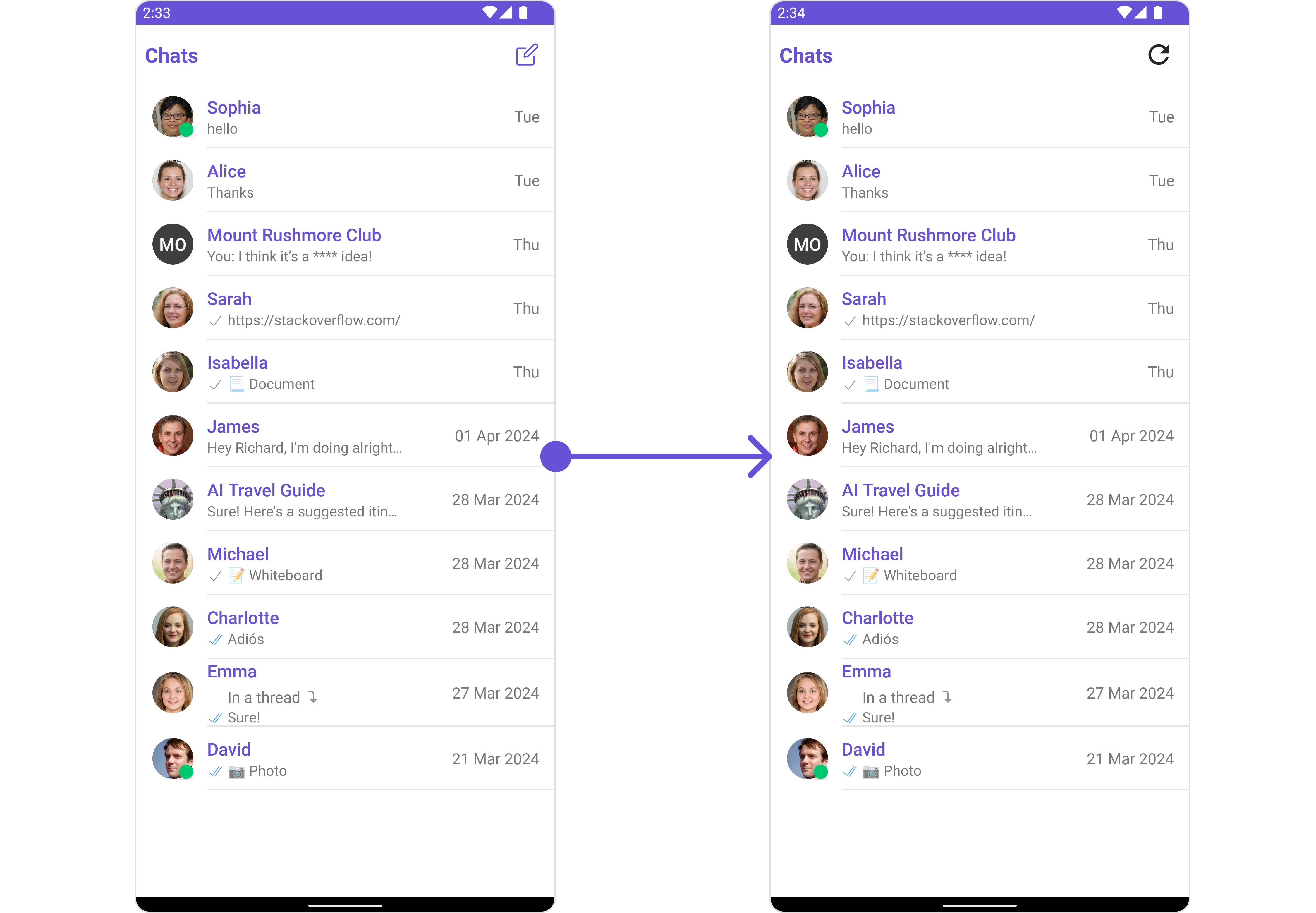 You can create a `view_menu.xml` as a custom view file. Which we will inflate and pass it to `.setMenu`.
```xml view_menu.xml theme={null}
```
You inflate the view and pass it to `setMenu`. You can get the child view reference and can handle click actions.
```java theme={null}
View view = getLayoutInflater().inflate(R.layout.view_menu, null);
ImageView imgRefresh = view.findViewById(R.id.img_refresh);
imgRefresh.setOnClickListener(v -> {
Toast.makeText(this, "Clicked on Refresh", Toast.LENGTH_SHORT).show();
});
cometChatConversations.setMenu(view);
```
```kotlin theme={null}
val view = layoutInflater.inflate(R.layout.view_menu, null)
val imgRefresh = view.findViewById(R.id.img_refresh)
imgRefresh.setOnClickListener {
Toast.makeText(this, "Clicked on Refresh", Toast.LENGTH_SHORT).show()
}
cometChatConversations.setMenu(view)
```
***
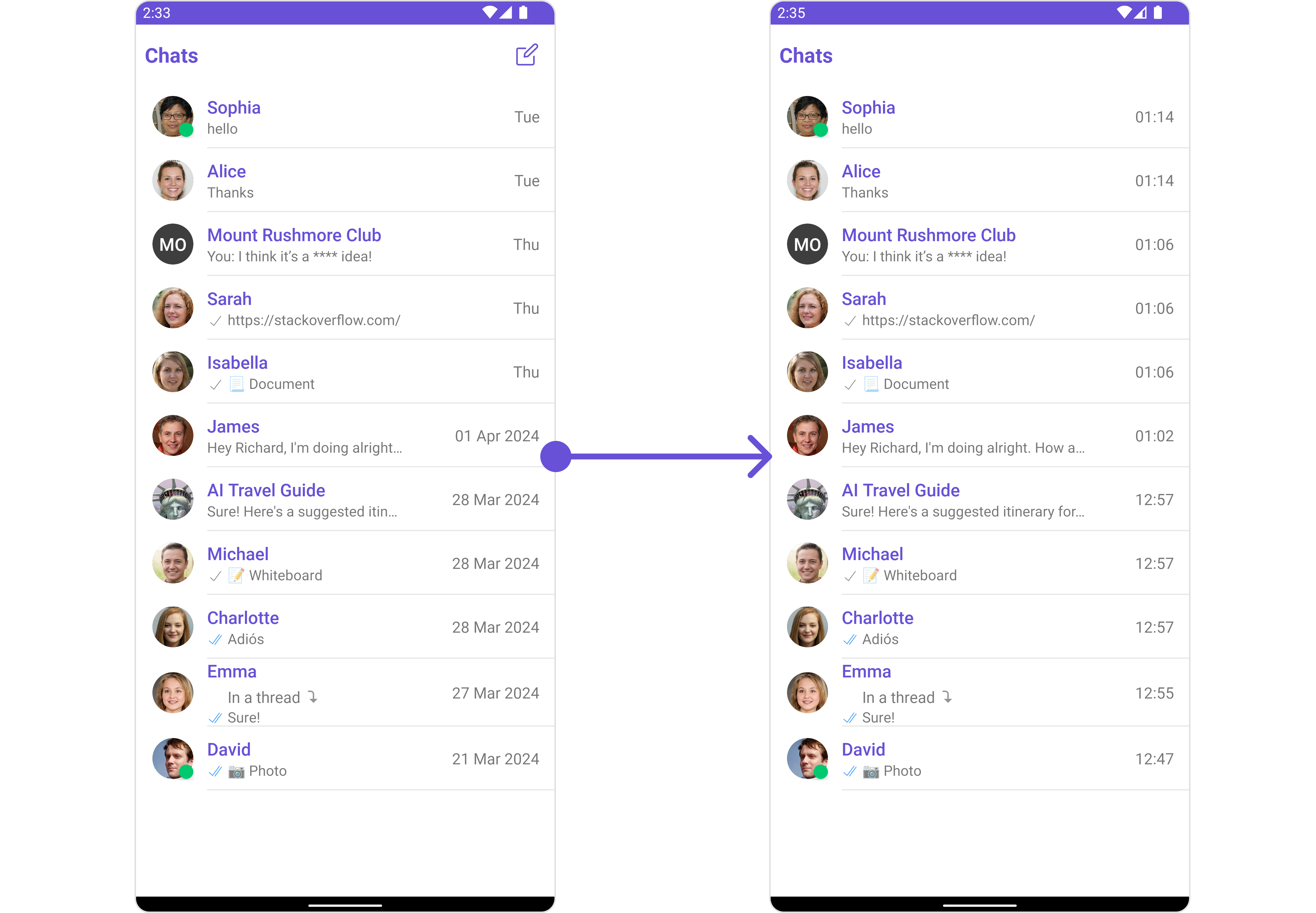
#### SetDatePattern
You can modify the date pattern to your requirement using .setDatePattern. This method accepts a function with a return type String. Inside the function, you can create your own pattern and return it as a String.
```java theme={null}
cometChatConversations.setDatePattern()
```
```kotlin theme={null}
cometChatConversations.setDatePattern()
```
Demonstration
You can create a `view_menu.xml` as a custom view file. Which we will inflate and pass it to `.setMenu`.
```xml view_menu.xml theme={null}
```
You inflate the view and pass it to `setMenu`. You can get the child view reference and can handle click actions.
```java theme={null}
View view = getLayoutInflater().inflate(R.layout.view_menu, null);
ImageView imgRefresh = view.findViewById(R.id.img_refresh);
imgRefresh.setOnClickListener(v -> {
Toast.makeText(this, "Clicked on Refresh", Toast.LENGTH_SHORT).show();
});
cometChatConversations.setMenu(view);
```
```kotlin theme={null}
val view = layoutInflater.inflate(R.layout.view_menu, null)
val imgRefresh = view.findViewById(R.id.img_refresh)
imgRefresh.setOnClickListener {
Toast.makeText(this, "Clicked on Refresh", Toast.LENGTH_SHORT).show()
}
cometChatConversations.setMenu(view)
```
***
#### SetDatePattern
You can modify the date pattern to your requirement using .setDatePattern. This method accepts a function with a return type String. Inside the function, you can create your own pattern and return it as a String.
```java theme={null}
cometChatConversations.setDatePattern()
```
```kotlin theme={null}
cometChatConversations.setDatePattern()
```
Demonstration
 ```java theme={null}
cometChatConversations.setDatePattern(conversation -> {
SimpleDateFormat sdf = new SimpleDateFormat("hh:mm");
return sdf.format(new Date(conversation.getUpdatedAt()));
});
```
```kotlin theme={null}
cometChatConversations.setDatePattern { conversation ->
val sdf = SimpleDateFormat("hh:mm")
sdf.format(Date(conversation.updatedAt))
}
```
#### SetSubtitleView
You can customize the subtitle view for each conversation item to meet your requirements
```java theme={null}
cometChatConversations.setSubtitleView()
```
```kotlin theme={null}
cometChatConversations.setSubtitleView()
```
Demonstration
```java theme={null}
cometChatConversations.setDatePattern(conversation -> {
SimpleDateFormat sdf = new SimpleDateFormat("hh:mm");
return sdf.format(new Date(conversation.getUpdatedAt()));
});
```
```kotlin theme={null}
cometChatConversations.setDatePattern { conversation ->
val sdf = SimpleDateFormat("hh:mm")
sdf.format(Date(conversation.updatedAt))
}
```
#### SetSubtitleView
You can customize the subtitle view for each conversation item to meet your requirements
```java theme={null}
cometChatConversations.setSubtitleView()
```
```kotlin theme={null}
cometChatConversations.setSubtitleView()
```
Demonstration
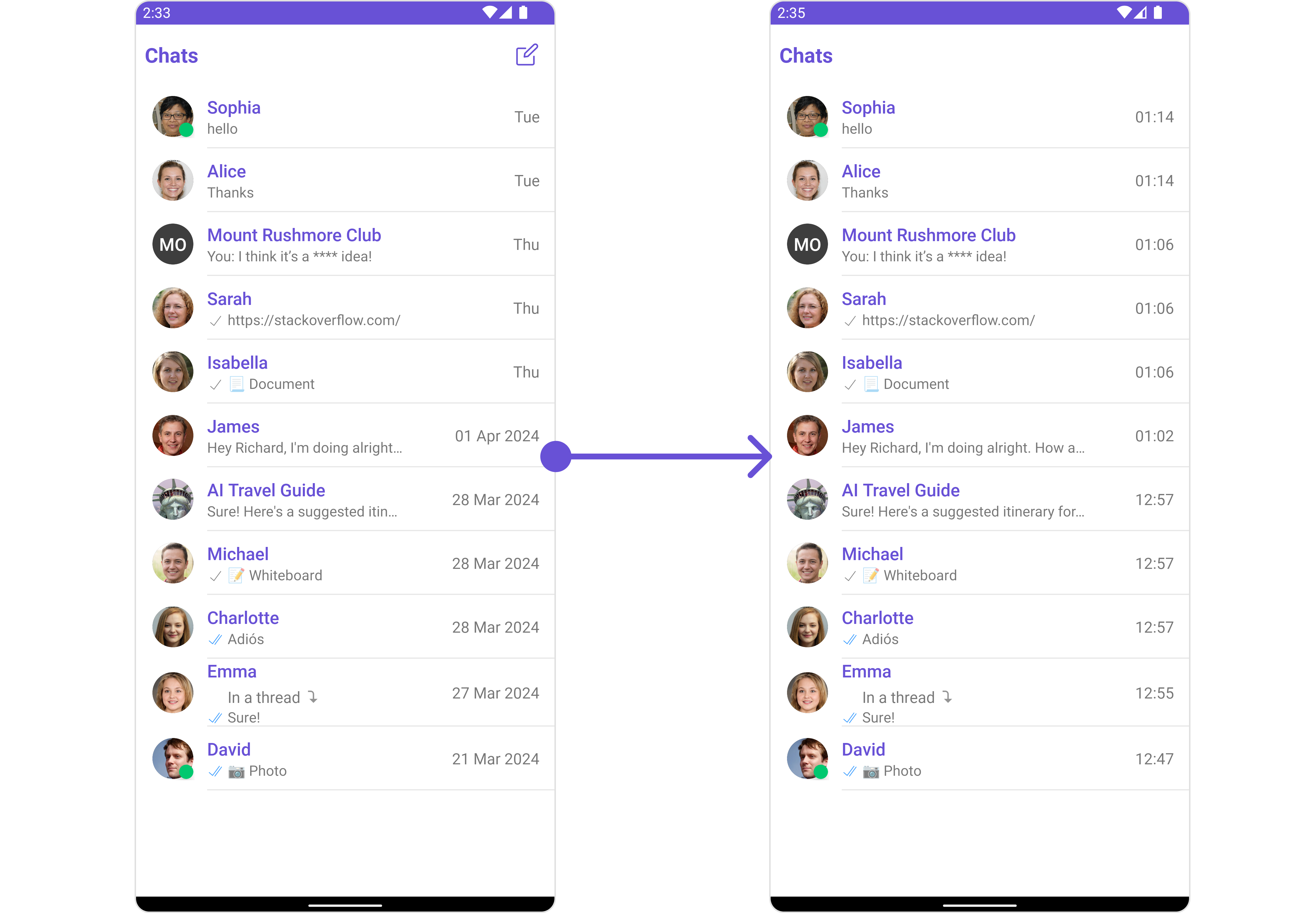 You need to create subtitle\_layout.xml and inflate it in the setSubtitleView apply function. Then, you can define individual actions depending on your requirements.
```xml subtitle_layout.xml theme={null}
```
```java YourActivity.java theme={null}
cometChatConversations.setSubtitleView(new Function2() {
@Override
public View apply(Context context, Conversation conversation) {
View view = getLayoutInflater().inflate(R.layout.subtitle_layout, null);
TextView txtSubtitle = view.findViewById(R.id.txt_subtitle);
ImageView imgConversation = view.findViewById(R.id.img_conversation);
ImageView imgAudioCall = view.findViewById(R.id.img_audio_call);;
ImageView imgVideCall = view.findViewById(R.id.img_video_call);;
BaseMessage baseMessage = conversation.getLastMessage();
assert baseMessage != null;
if(baseMessage instanceof TextMessage)
txtSubtitle.setText(((TextMessage) baseMessage).getText());
else
txtSubtitle.setText(baseMessage.getType()+" message received.");
imgConversation.setOnClickListener(v -> {
Toast.makeText(context, "Conversation Clicked", Toast.LENGTH_SHORT).show();
});
imgAudioCall.setOnClickListener(v -> {
Toast.makeText(context, "Audio Call Clicked", Toast.LENGTH_SHORT).show();
});
imgVideCall.setOnClickListener(v -> {
Toast.makeText(context, "Video Call Clicked", Toast.LENGTH_SHORT).show();
});
return view;
}
});
```
```kotlin theme={null}
cometChatConversations.setSubtitleView { context, conversation ->
val view = layoutInflater.inflate(R.layout.subtitle_layout, null)
val txtSubtitle = view.findViewById(R.id.txt_subtitle)
val imgConversation = view.findViewById(R.id.img_conversation)
val imgAudioCall = view.findViewById(R.id.img_audio_call)
val imgVideoCall = view.findViewById(R.id.img_video_call)
val baseMessage = conversation.lastMessage
requireNotNull(baseMessage) { "Last message should not be null" }
txtSubtitle.text = if (baseMessage is TextMessage) {
baseMessage.text
} else {
"${baseMessage.type} message received."
}
imgConversation.setOnClickListener {
Toast.makeText(context, "Conversation Clicked", Toast.LENGTH_SHORT).show()
}
imgAudioCall.setOnClickListener {
Toast.makeText(context, "Audio Call Clicked", Toast.LENGTH_SHORT).show()
}
imgVideoCall.setOnClickListener {
Toast.makeText(context, "Video Call Clicked", Toast.LENGTH_SHORT).show()
}
view
}
```
***
#### SetTail
used to generate a custom trailing view for the conversation item, by default it shows the time sent of the last message and the unread messages count
```java theme={null}
cometChatConversations.setTail((context, conversation) -> {
View view = getLayoutInflater().inflate(R.layout.your_custom_view, null);
//Initialize view using conversation Object
return view;zzzzzzzxzxzxzxzxzx
});
```
```kotlin theme={null}
cometChatConversations.setTail { context, conversation ->
val view = layoutInflater.inflate(R.layout.your_custom_view, null)
// Initialize view using conversation Object
view
}
```
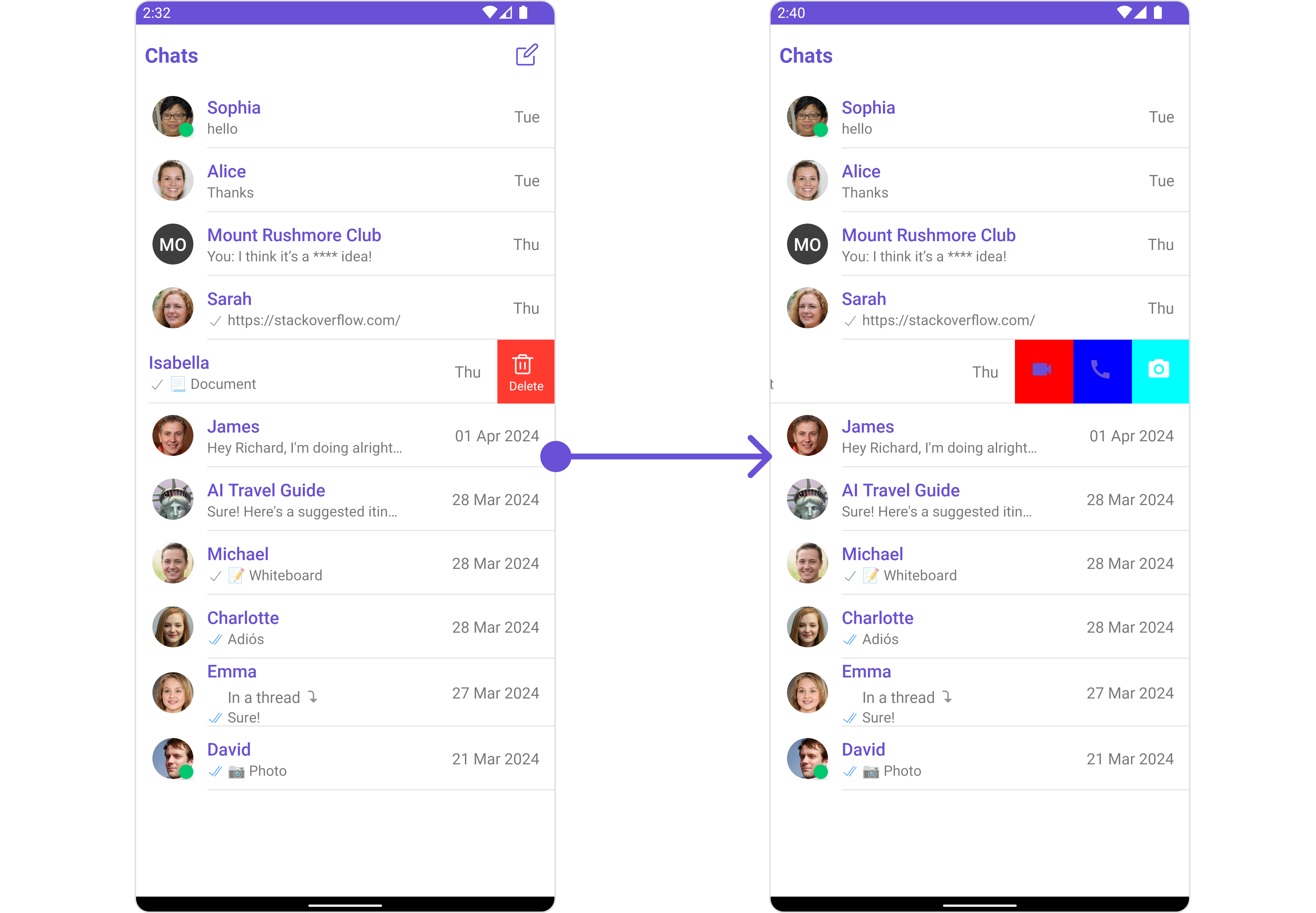
#### SetOptions
You can set a List of 'CometChatOption' for a conversation item to add your custom actions to the conversation. These options will be visible when swiping any conversation item.
```java theme={null}
cometChatConversations.setOptions()
```
```kotlin theme={null}
cometChatConversations.setOptions()
```
Demonstration
You need to create subtitle\_layout.xml and inflate it in the setSubtitleView apply function. Then, you can define individual actions depending on your requirements.
```xml subtitle_layout.xml theme={null}
```
```java YourActivity.java theme={null}
cometChatConversations.setSubtitleView(new Function2() {
@Override
public View apply(Context context, Conversation conversation) {
View view = getLayoutInflater().inflate(R.layout.subtitle_layout, null);
TextView txtSubtitle = view.findViewById(R.id.txt_subtitle);
ImageView imgConversation = view.findViewById(R.id.img_conversation);
ImageView imgAudioCall = view.findViewById(R.id.img_audio_call);;
ImageView imgVideCall = view.findViewById(R.id.img_video_call);;
BaseMessage baseMessage = conversation.getLastMessage();
assert baseMessage != null;
if(baseMessage instanceof TextMessage)
txtSubtitle.setText(((TextMessage) baseMessage).getText());
else
txtSubtitle.setText(baseMessage.getType()+" message received.");
imgConversation.setOnClickListener(v -> {
Toast.makeText(context, "Conversation Clicked", Toast.LENGTH_SHORT).show();
});
imgAudioCall.setOnClickListener(v -> {
Toast.makeText(context, "Audio Call Clicked", Toast.LENGTH_SHORT).show();
});
imgVideCall.setOnClickListener(v -> {
Toast.makeText(context, "Video Call Clicked", Toast.LENGTH_SHORT).show();
});
return view;
}
});
```
```kotlin theme={null}
cometChatConversations.setSubtitleView { context, conversation ->
val view = layoutInflater.inflate(R.layout.subtitle_layout, null)
val txtSubtitle = view.findViewById(R.id.txt_subtitle)
val imgConversation = view.findViewById(R.id.img_conversation)
val imgAudioCall = view.findViewById(R.id.img_audio_call)
val imgVideoCall = view.findViewById(R.id.img_video_call)
val baseMessage = conversation.lastMessage
requireNotNull(baseMessage) { "Last message should not be null" }
txtSubtitle.text = if (baseMessage is TextMessage) {
baseMessage.text
} else {
"${baseMessage.type} message received."
}
imgConversation.setOnClickListener {
Toast.makeText(context, "Conversation Clicked", Toast.LENGTH_SHORT).show()
}
imgAudioCall.setOnClickListener {
Toast.makeText(context, "Audio Call Clicked", Toast.LENGTH_SHORT).show()
}
imgVideoCall.setOnClickListener {
Toast.makeText(context, "Video Call Clicked", Toast.LENGTH_SHORT).show()
}
view
}
```
***
#### SetTail
used to generate a custom trailing view for the conversation item, by default it shows the time sent of the last message and the unread messages count
```java theme={null}
cometChatConversations.setTail((context, conversation) -> {
View view = getLayoutInflater().inflate(R.layout.your_custom_view, null);
//Initialize view using conversation Object
return view;zzzzzzzxzxzxzxzxzx
});
```
```kotlin theme={null}
cometChatConversations.setTail { context, conversation ->
val view = layoutInflater.inflate(R.layout.your_custom_view, null)
// Initialize view using conversation Object
view
}
```
#### SetOptions
You can set a List of 'CometChatOption' for a conversation item to add your custom actions to the conversation. These options will be visible when swiping any conversation item.
```java theme={null}
cometChatConversations.setOptions()
```
```kotlin theme={null}
cometChatConversations.setOptions()
```
Demonstration
 ```java YourActivity.java theme={null}
cometChatConversations.setOptions((context, conversation) -> {
List optionList = new ArrayList<>();
CometChatOption option = new CometChatOption();
option.setId("option_send_photo");
option.setIcon(R.drawable.ic_camera);
option.setBackgroundColor(Color.CYAN);
option.setOnClick(() -> {
// your Action onClick of option
});
optionList.add(option);
CometChatOption option2 = new CometChatOption();
option2.setId("option_audio_call");
option2.setIcon(R.drawable.ic_call);
option2.setBackgroundColor(Color.BLUE);
option2.setOnClick(() -> {
// your Action onClick of option
});
optionList.add(option2);
CometChatOption option3 = new CometChatOption();
option3.setId("option_video_call");
option3.setIcon(R.drawable.ic_video);
option3.setBackgroundColor(Color.RED);
option3.setOnClick(() -> {
// your Action onClick of option
});
optionList.add(option3);
return optionList;
});
```
```kotlin theme={null}
cometChatConversations.setOptions { context, conversation ->
val optionList = mutableListOf()
val option = CometChatOption().apply {
id = "option_send_photo"
icon = R.drawable.ic_camera
backgroundColor = Color.CYAN
onClick = {
// Your action onClick of option
}
}
optionList.add(option)
val option2 = CometChatOption().apply {
id = "option_audio_call"
icon = R.drawable.ic_call
backgroundColor = Color.BLUE
onClick = {
// Your action onClick of option
}
}
optionList.add(option2)
val option3 = CometChatOption().apply {
id = "option_video_call"
icon = R.drawable.ic_video
backgroundColor = Color.RED
onClick = {
// Your action onClick of option
}
}
optionList.add(option3)
optionList
}
```
***
#### SetLoadingStateView
You can set a custom loader view using `setLoadingStateView` to match the loading view of your app.
```java theme={null}
cometChatConversations.setLoadingStateView();
```
```kotlin theme={null}
cometChatConversations.setLoadingStateView()
```
Demonstration
```java YourActivity.java theme={null}
cometChatConversations.setOptions((context, conversation) -> {
List optionList = new ArrayList<>();
CometChatOption option = new CometChatOption();
option.setId("option_send_photo");
option.setIcon(R.drawable.ic_camera);
option.setBackgroundColor(Color.CYAN);
option.setOnClick(() -> {
// your Action onClick of option
});
optionList.add(option);
CometChatOption option2 = new CometChatOption();
option2.setId("option_audio_call");
option2.setIcon(R.drawable.ic_call);
option2.setBackgroundColor(Color.BLUE);
option2.setOnClick(() -> {
// your Action onClick of option
});
optionList.add(option2);
CometChatOption option3 = new CometChatOption();
option3.setId("option_video_call");
option3.setIcon(R.drawable.ic_video);
option3.setBackgroundColor(Color.RED);
option3.setOnClick(() -> {
// your Action onClick of option
});
optionList.add(option3);
return optionList;
});
```
```kotlin theme={null}
cometChatConversations.setOptions { context, conversation ->
val optionList = mutableListOf()
val option = CometChatOption().apply {
id = "option_send_photo"
icon = R.drawable.ic_camera
backgroundColor = Color.CYAN
onClick = {
// Your action onClick of option
}
}
optionList.add(option)
val option2 = CometChatOption().apply {
id = "option_audio_call"
icon = R.drawable.ic_call
backgroundColor = Color.BLUE
onClick = {
// Your action onClick of option
}
}
optionList.add(option2)
val option3 = CometChatOption().apply {
id = "option_video_call"
icon = R.drawable.ic_video
backgroundColor = Color.RED
onClick = {
// Your action onClick of option
}
}
optionList.add(option3)
optionList
}
```
***
#### SetLoadingStateView
You can set a custom loader view using `setLoadingStateView` to match the loading view of your app.
```java theme={null}
cometChatConversations.setLoadingStateView();
```
```kotlin theme={null}
cometChatConversations.setLoadingStateView()
```
Demonstration
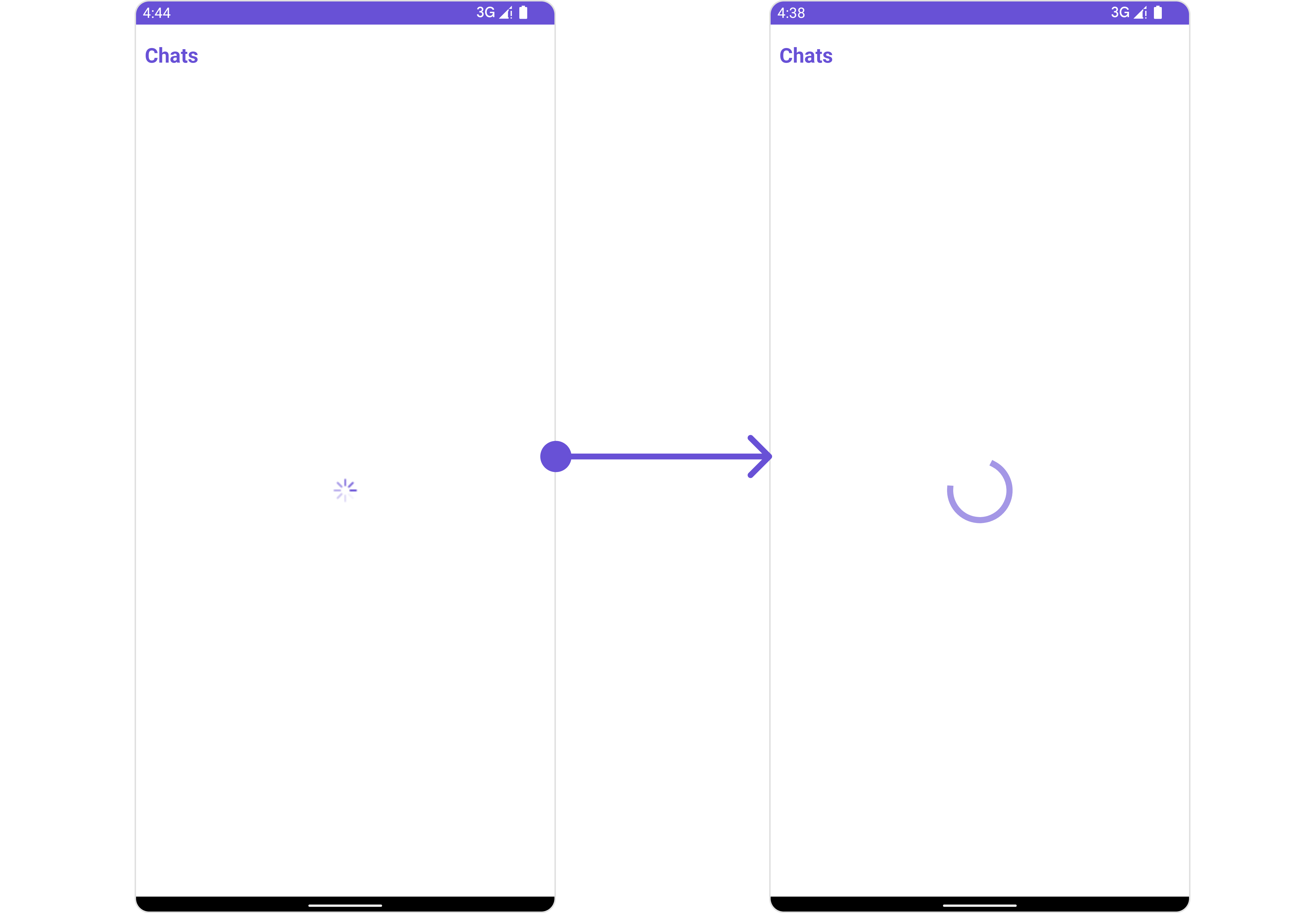 We have added a `ContentLoadingProgressBar` to `loading_view_layout.xml`. You can choose any view you prefer. This view should be inflated and passed to the `setLoadingStateView()` method.
```xml loading_view_layout.xml theme={null}
```
```java YourActivity.java theme={null}
cometChatConversations.setLoadingStateView(R.layout.loading_view_layout);
```
```kotlin theme={null}
cometChatConversations.setLoadingStateView(R.layout.loading_view_layout)
```
#### SetErrorStateView
You can set a custom `ErrorStateView` using `setEmptyStateView` to match the error view of your app.
```java theme={null}
cometChatConversations.setErrorStateView();
```
```kotlin theme={null}
cometChatConversations.setErrorStateView();
```
Demonstration
We have added a `ContentLoadingProgressBar` to `loading_view_layout.xml`. You can choose any view you prefer. This view should be inflated and passed to the `setLoadingStateView()` method.
```xml loading_view_layout.xml theme={null}
```
```java YourActivity.java theme={null}
cometChatConversations.setLoadingStateView(R.layout.loading_view_layout);
```
```kotlin theme={null}
cometChatConversations.setLoadingStateView(R.layout.loading_view_layout)
```
#### SetErrorStateView
You can set a custom `ErrorStateView` using `setEmptyStateView` to match the error view of your app.
```java theme={null}
cometChatConversations.setErrorStateView();
```
```kotlin theme={null}
cometChatConversations.setErrorStateView();
```
Demonstration
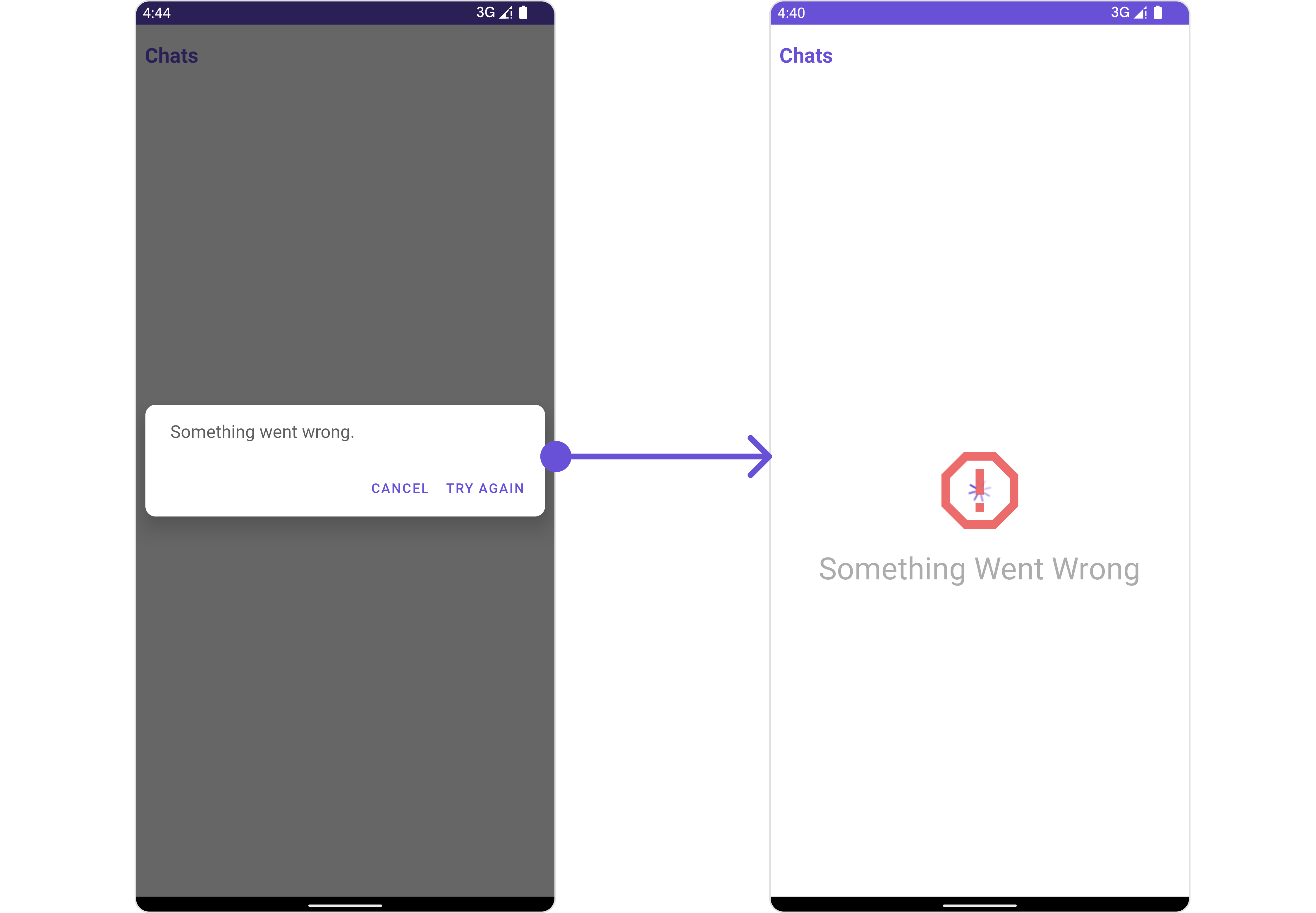 We have added an error view to `error_state_view_layout.xml`. You can choose any view you prefer. This view should be inflated and passed to the `setErrorStateView()` method.
```xml error_state_view_layout.xml theme={null}
```
```java YourActivity.java theme={null}
cometChatConversations.setErrorStateView(R.layout.error_state_view_layout);
```
```kotlin theme={null}
cometChatConversations.setErrorStateView(R.layout.error_state_view_layout);
```
***
We have added an error view to `error_state_view_layout.xml`. You can choose any view you prefer. This view should be inflated and passed to the `setErrorStateView()` method.
```xml error_state_view_layout.xml theme={null}
```
```java YourActivity.java theme={null}
cometChatConversations.setErrorStateView(R.layout.error_state_view_layout);
```
```kotlin theme={null}
cometChatConversations.setErrorStateView(R.layout.error_state_view_layout);
```
***