> ## Documentation Index
> Fetch the complete documentation index at: https://cometchat-22654f5b-docs-rn-guide-message-privately.mintlify.site/llms.txt
> Use this file to discover all available pages before exploring further.
# Getting Started With CometChat Android UI Kit
> Install, configure, and launch the CometChat Android UI Kit in your app with step-by-step integration instructions.
| Field | Value |
| --------- | --------------------------------------------------------------------------------------- |
| Package | `com.cometchat:chat-uikit-android` v5.x |
| Init | `CometChatUIKit.init(context, UIKitSettings, callback)` — must resolve before `login()` |
| Login | `CometChatUIKit.login("UID", callback)` — must resolve before rendering components |
| Order | `init()` → `login()` → render. Breaking this order = blank screen |
| Auth Key | Dev/testing only. Use Auth Token in production |
| Theme | Set `CometChatTheme.DayNight` as parent theme in `themes.xml` |
| Calling | Optional. Add `com.cometchat:calls-sdk-android` to enable voice/video |
| Min SDK | Android 7.0 (API 24) |
| AI Skills | `npx @cometchat/skills add` — [GitHub](https://github.com/cometchat/cometchat-skills) |
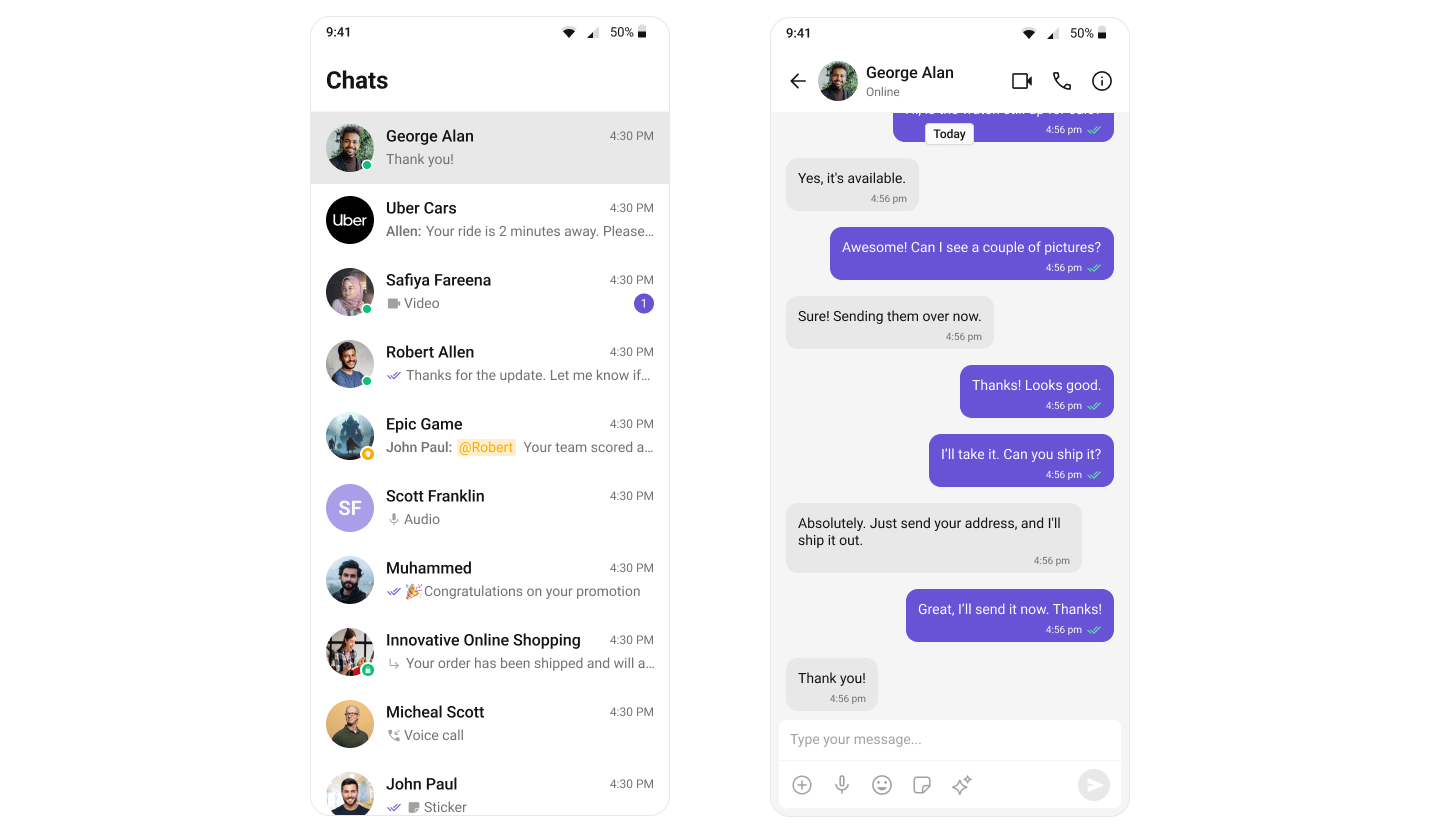
This guide walks you through adding CometChat to an Android app. By the end you'll have a working chat UI.
 ***
## Integrate with AI Coding Agents
Skip the manual steps — use [CometChat Skills](https://github.com/cometchat/cometchat-skills) to integrate via your AI coding agent. Your agent has a short conversation with you to understand your project and chat requirements, then writes production-grade integration code tailored to the files you already have.
```bash theme={null}
npx @cometchat/skills add
```
Use `--ide ` to target a specific IDE (e.g. `--ide cursor`), or `--ide all` for all supported IDEs.
Then in your IDE:
```
/cometchat add chat to my app
```
The skill detects your Android project structure, build system (Gradle/Kotlin DSL), and existing auth system. It onboards you to CometChat directly in the terminal — signup, login, and app creation all via the CLI. It reads your Activities, Fragments, and navigation before proposing a placement, shows the plan, and waits for your approval before writing code. Credentials are saved to `local.properties` and accessed via `BuildConfig`.
After the first integration, re-run `/cometchat` to access the iteration menu: theme presets, 40+ features, component customization, production auth, user management, and diagnostics.
Works with Claude Code, Cursor, Codex, VS Code Copilot, Windsurf, Cline, Kiro, and [30+ more agents](https://github.com/cometchat/cometchat-skills).
***
## Prerequisites
You need three things from the [CometChat Dashboard](https://app.cometchat.com/):
| Credential | Where to find it |
| ---------- | ---------------------------------------------------------- |
| App ID | Dashboard → Your App → Credentials |
| Auth Key | Dashboard → Your App → Credentials |
| Region | Dashboard → Your App → Credentials (e.g. `us`, `eu`, `in`) |
You also need:
* Android Studio installed
* An Android emulator or physical device running Android 7.0 (API 24) or higher
* Java 8 or higher
* Gradle plugin 4.0.1 or later
Auth Key is for development only. In production, generate Auth Tokens server-side via the [REST API](/rest-api/chat-apis) and use [`loginWithAuthToken()`](/ui-kit/android/methods#login-using-auth-token). Never ship Auth Keys in client code.
***
## Step 1 — Create an Android Project
1. Open Android Studio and start a new project.
2. Choose Empty Activity as the project template.
3. Enter a project name and choose Java or Kotlin as the language.
4. Set minimum API level to 24 or higher.
***
## Step 2 — Install Dependencies
Add the CometChat repository and dependencies to your Gradle configuration.
### Add the CometChat Repository
Add the CometChat Maven repository to your project-level `settings.gradle` or `settings.gradle.kts` file.
```gradle settings.gradle.kts lines theme={null}
dependencyResolutionManagement {
repositoriesMode.set(RepositoriesMode.FAIL_ON_PROJECT_REPOS)
repositories {
google()
mavenCentral()
maven("https://dl.cloudsmith.io/public/cometchat/cometchat/maven/")
}
}
```
```gradle settings.gradle lines theme={null}
dependencyResolutionManagement {
repositoriesMode.set(RepositoriesMode.FAIL_ON_PROJECT_REPOS)
repositories {
google()
mavenCentral()
maven{
url "https://dl.cloudsmith.io/public/cometchat/cometchat/maven/"
}
}
}
```
### Add the CometChat Dependency
Inside `libs.versions.toml`, add the CometChat Chat UI Kit version under the `[versions]` section:
```toml libs.versions.toml lines theme={null}
[versions]
cometchat-ui-kit = "5.2.9"
cometchat-calls-sdk = "4.3.3"
```
Under the `[libraries]` section, define the library and reference the version:
```toml libs.versions.toml lines theme={null}
[libraries]
cometchat-ui-kit = { module = "com.cometchat:chat-uikit-android", version.ref = "cometchat-ui-kit" }
cometchat-calls-sdk = { module = "com.cometchat:calls-sdk-android", version.ref = "cometchat-calls-sdk" }
```
Now, in your app-level `build.gradle.kts` file, add the dependency using libs from Version Catalogs:
```gradle build.gradle.kts lines theme={null}
dependencies {
implementation(libs.cometchat.ui.kit)
// (Optional) Include if using voice/video calling features
implementation(libs.cometchat.calls.sdk)
}
```
Open the app level `build.gradle` file and add the following dependency:
```gradle build.gradle lines theme={null}
dependencies {
// CometChat UIKit
implementation 'com.cometchat:chat-uikit-android:5.2.9'
// (Optional) Include this if your app uses voice/video calling features
implementation 'com.cometchat:calls-sdk-android:4.3.3'
}
```
### Add AndroidX Support
The Jetifier tool helps migrate legacy support libraries to AndroidX. Open `gradle.properties` and verify this line is present:
```gradle gradle.properties lines theme={null}
android.enableJetifier=true
```
***
## Step 3 — Initialize and Login
To authenticate a user, you need a UID. You can either create users on the [CometChat Dashboard](https://app.cometchat.com), via the [SDK method](/ui-kit/android/methods#create-user), or through the [REST API](/rest-api/chat-apis).
For development, use one of the pre-created test UIDs:
`cometchat-uid-1` · `cometchat-uid-2` · `cometchat-uid-3` · `cometchat-uid-4` · `cometchat-uid-5`
```kotlin MainActivity.kt highlight={15-17, 46-55} lines theme={null}
import android.os.Bundle
import android.util.Log
import androidx.activity.ComponentActivity
import androidx.activity.enableEdgeToEdge
import com.cometchat.chat.core.CometChat
import com.cometchat.chat.exceptions.CometChatException
import com.cometchat.chat.models.User
import com.cometchat.chatuikit.shared.cometchatuikit.CometChatUIKit
import com.cometchat.chatuikit.shared.cometchatuikit.UIKitSettings
class MainActivity : ComponentActivity() {
private val TAG = "MainActivity"
private val appID = "APP_ID" // Replace with your App ID
private val region = "REGION" // Replace with your App Region
private val authKey = "AUTH_KEY" // Replace with your Auth Key or leave blank if you are authenticating using Auth Token
private val uiKitSettings = UIKitSettings.UIKitSettingsBuilder()
.setRegion(region)
.setAppId(appID)
.setAuthKey(authKey)
.subscribePresenceForAllUsers()
.build()
override fun onCreate(savedInstanceState: Bundle?) {
super.onCreate(savedInstanceState)
enableEdgeToEdge()
CometChatUIKit.init(this, uiKitSettings, object : CometChat.CallbackListener() {
override fun onSuccess(successString: String?) {
Log.d(TAG, "Initialization completed successfully")
loginUser()
}
override fun onError(e: CometChatException?) {}
})
}
private fun loginUser() {
CometChatUIKit.login("cometchat-uid-1", object : CometChat.CallbackListener() {
override fun onSuccess(user: User) {
// Option 1: Launch One-to-One or Group Chat Screen
// val intent = Intent(this@MainActivity, MessageActivity::class.java)
// intent.putExtra("uid", "cometchat-uid-1")
// startActivity(intent)
// Option 2: Launch Conversation List + Message View (Split-Screen Style)
// startActivity(Intent(this@MainActivity, ConversationActivity::class.java))
// Option 3: Launch Tab-Based Chat Experience (Chats, Calls, Users, Groups)
// startActivity(Intent(this@MainActivity, TabbedActivity::class.java))
}
override fun onError(e: CometChatException) {
// Handle login failure (e.g. show error message or retry)
Log.e("Login", "Login failed: ${e.message}")
}
})
}
}
```
```java MainActivity.java highlight={15-17, 51-60} lines theme={null}
import android.content.Intent;
import android.os.Bundle;
import android.util.Log;
import androidx.activity.ComponentActivity;
import com.cometchat.chat.core.CometChat;
import com.cometchat.chat.exceptions.CometChatException;
import com.cometchat.chat.models.User;
import com.cometchat.chatuikit.shared.cometchatuikit.CometChatUIKit;
import com.cometchat.chatuikit.shared.cometchatuikit.UIKitSettings;
public class MainActivity extends ComponentActivity {
private static final String TAG = "MainActivity";
private final String appID = "APP_ID"; // Replace with your App ID
private final String region = "REGION"; // Replace with your App Region
private final String authKey = "AUTH_KEY"; // Replace with your Auth Key
@Override
protected void onCreate(Bundle savedInstanceState) {
super.onCreate(savedInstanceState);
getWindow().setDecorFitsSystemWindows(false); // Equivalent to enableEdgeToEdge()
UIKitSettings uiKitSettings = new UIKitSettings.UIKitSettingsBuilder()
.setRegion(region)
.setAppId(appID)
.setAuthKey(authKey)
.subscribePresenceForAllUsers()
.build();
CometChatUIKit.init(this, uiKitSettings, new CometChat.CallbackListener() {
@Override
public void onSuccess(String success) {
Log.d(TAG, "Initialization completed successfully");
loginUser();
}
@Override
public void onError(CometChatException e) {
Log.e(TAG, "Initialization failed: " + (e != null ? e.getMessage() : "Unknown error"));
}
});
}
private void loginUser() {
CometChatUIKit.login("cometchat-uid-1", new CometChat.CallbackListener() {
@Override
public void onSuccess(User user) {
Log.d(TAG, "Login successful for user: " + user.getUid());
// Option 1: Launch One-to-One or Group Chat Screen
// Intent intent = new Intent(MainActivity.this, MessageActivity.class);
// intent.putExtra("uid", "cometchat-uid-1");
// startActivity(intent);
// Option 2: Launch Conversation List + Message View
// startActivity(new Intent(MainActivity.this, ConversationActivity.class));
// Option 3: Launch Tab-Based Chat Experience (Chats, Calls, Users, Groups)
// startActivity(new Intent(MainActivity.this, TabbedActivity.class));
}
@Override
public void onError(CometChatException e) {
Log.e("Login", "Login failed: " + (e != null ? e.getMessage() : "Unknown error"));
}
});
}
}
```
`init()` must resolve before you call `login()`. If you call `login()` before init completes, it will fail silently.
For production, use [`loginWithAuthToken()`](/ui-kit/android/methods#login-using-auth-token) instead of Auth Key. Generate tokens server-side via the REST API.
***
## Step 4 — Set Up Global Theme
To customize component styling across your application, set up the CometChat Theme.
Use the `CometChatTheme.DayNight` style, which is built on `Theme.MaterialComponents.DayNight.NoActionBar`.
```xml themes.xml lines theme={null}
```
```xml AndroidManifest.xml lines theme={null}
```
***
## Step 5 — Choose a Chat Experience
Integrate a conversation view that suits your app's UX. Each option below includes a description and a step-by-step guide.
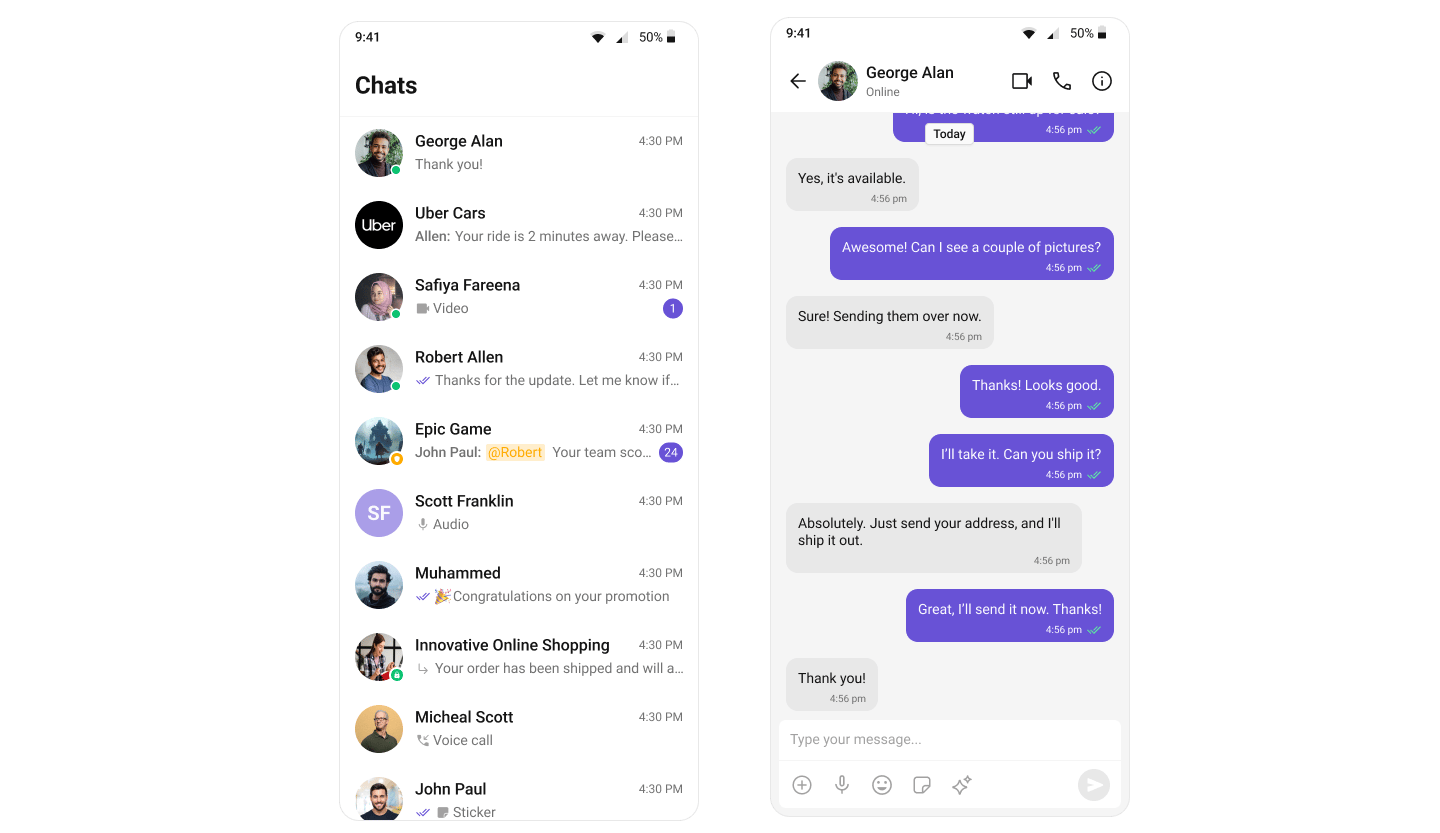
### Conversation List + Message View
Single-screen layout for mobile — tap a conversation to open the message view. Handles one-to-one and group conversations with real-time updates and session persistence.
***
## Integrate with AI Coding Agents
Skip the manual steps — use [CometChat Skills](https://github.com/cometchat/cometchat-skills) to integrate via your AI coding agent. Your agent has a short conversation with you to understand your project and chat requirements, then writes production-grade integration code tailored to the files you already have.
```bash theme={null}
npx @cometchat/skills add
```
Use `--ide ` to target a specific IDE (e.g. `--ide cursor`), or `--ide all` for all supported IDEs.
Then in your IDE:
```
/cometchat add chat to my app
```
The skill detects your Android project structure, build system (Gradle/Kotlin DSL), and existing auth system. It onboards you to CometChat directly in the terminal — signup, login, and app creation all via the CLI. It reads your Activities, Fragments, and navigation before proposing a placement, shows the plan, and waits for your approval before writing code. Credentials are saved to `local.properties` and accessed via `BuildConfig`.
After the first integration, re-run `/cometchat` to access the iteration menu: theme presets, 40+ features, component customization, production auth, user management, and diagnostics.
Works with Claude Code, Cursor, Codex, VS Code Copilot, Windsurf, Cline, Kiro, and [30+ more agents](https://github.com/cometchat/cometchat-skills).
***
## Prerequisites
You need three things from the [CometChat Dashboard](https://app.cometchat.com/):
| Credential | Where to find it |
| ---------- | ---------------------------------------------------------- |
| App ID | Dashboard → Your App → Credentials |
| Auth Key | Dashboard → Your App → Credentials |
| Region | Dashboard → Your App → Credentials (e.g. `us`, `eu`, `in`) |
You also need:
* Android Studio installed
* An Android emulator or physical device running Android 7.0 (API 24) or higher
* Java 8 or higher
* Gradle plugin 4.0.1 or later
Auth Key is for development only. In production, generate Auth Tokens server-side via the [REST API](/rest-api/chat-apis) and use [`loginWithAuthToken()`](/ui-kit/android/methods#login-using-auth-token). Never ship Auth Keys in client code.
***
## Step 1 — Create an Android Project
1. Open Android Studio and start a new project.
2. Choose Empty Activity as the project template.
3. Enter a project name and choose Java or Kotlin as the language.
4. Set minimum API level to 24 or higher.
***
## Step 2 — Install Dependencies
Add the CometChat repository and dependencies to your Gradle configuration.
### Add the CometChat Repository
Add the CometChat Maven repository to your project-level `settings.gradle` or `settings.gradle.kts` file.
```gradle settings.gradle.kts lines theme={null}
dependencyResolutionManagement {
repositoriesMode.set(RepositoriesMode.FAIL_ON_PROJECT_REPOS)
repositories {
google()
mavenCentral()
maven("https://dl.cloudsmith.io/public/cometchat/cometchat/maven/")
}
}
```
```gradle settings.gradle lines theme={null}
dependencyResolutionManagement {
repositoriesMode.set(RepositoriesMode.FAIL_ON_PROJECT_REPOS)
repositories {
google()
mavenCentral()
maven{
url "https://dl.cloudsmith.io/public/cometchat/cometchat/maven/"
}
}
}
```
### Add the CometChat Dependency
Inside `libs.versions.toml`, add the CometChat Chat UI Kit version under the `[versions]` section:
```toml libs.versions.toml lines theme={null}
[versions]
cometchat-ui-kit = "5.2.9"
cometchat-calls-sdk = "4.3.3"
```
Under the `[libraries]` section, define the library and reference the version:
```toml libs.versions.toml lines theme={null}
[libraries]
cometchat-ui-kit = { module = "com.cometchat:chat-uikit-android", version.ref = "cometchat-ui-kit" }
cometchat-calls-sdk = { module = "com.cometchat:calls-sdk-android", version.ref = "cometchat-calls-sdk" }
```
Now, in your app-level `build.gradle.kts` file, add the dependency using libs from Version Catalogs:
```gradle build.gradle.kts lines theme={null}
dependencies {
implementation(libs.cometchat.ui.kit)
// (Optional) Include if using voice/video calling features
implementation(libs.cometchat.calls.sdk)
}
```
Open the app level `build.gradle` file and add the following dependency:
```gradle build.gradle lines theme={null}
dependencies {
// CometChat UIKit
implementation 'com.cometchat:chat-uikit-android:5.2.9'
// (Optional) Include this if your app uses voice/video calling features
implementation 'com.cometchat:calls-sdk-android:4.3.3'
}
```
### Add AndroidX Support
The Jetifier tool helps migrate legacy support libraries to AndroidX. Open `gradle.properties` and verify this line is present:
```gradle gradle.properties lines theme={null}
android.enableJetifier=true
```
***
## Step 3 — Initialize and Login
To authenticate a user, you need a UID. You can either create users on the [CometChat Dashboard](https://app.cometchat.com), via the [SDK method](/ui-kit/android/methods#create-user), or through the [REST API](/rest-api/chat-apis).
For development, use one of the pre-created test UIDs:
`cometchat-uid-1` · `cometchat-uid-2` · `cometchat-uid-3` · `cometchat-uid-4` · `cometchat-uid-5`
```kotlin MainActivity.kt highlight={15-17, 46-55} lines theme={null}
import android.os.Bundle
import android.util.Log
import androidx.activity.ComponentActivity
import androidx.activity.enableEdgeToEdge
import com.cometchat.chat.core.CometChat
import com.cometchat.chat.exceptions.CometChatException
import com.cometchat.chat.models.User
import com.cometchat.chatuikit.shared.cometchatuikit.CometChatUIKit
import com.cometchat.chatuikit.shared.cometchatuikit.UIKitSettings
class MainActivity : ComponentActivity() {
private val TAG = "MainActivity"
private val appID = "APP_ID" // Replace with your App ID
private val region = "REGION" // Replace with your App Region
private val authKey = "AUTH_KEY" // Replace with your Auth Key or leave blank if you are authenticating using Auth Token
private val uiKitSettings = UIKitSettings.UIKitSettingsBuilder()
.setRegion(region)
.setAppId(appID)
.setAuthKey(authKey)
.subscribePresenceForAllUsers()
.build()
override fun onCreate(savedInstanceState: Bundle?) {
super.onCreate(savedInstanceState)
enableEdgeToEdge()
CometChatUIKit.init(this, uiKitSettings, object : CometChat.CallbackListener() {
override fun onSuccess(successString: String?) {
Log.d(TAG, "Initialization completed successfully")
loginUser()
}
override fun onError(e: CometChatException?) {}
})
}
private fun loginUser() {
CometChatUIKit.login("cometchat-uid-1", object : CometChat.CallbackListener() {
override fun onSuccess(user: User) {
// Option 1: Launch One-to-One or Group Chat Screen
// val intent = Intent(this@MainActivity, MessageActivity::class.java)
// intent.putExtra("uid", "cometchat-uid-1")
// startActivity(intent)
// Option 2: Launch Conversation List + Message View (Split-Screen Style)
// startActivity(Intent(this@MainActivity, ConversationActivity::class.java))
// Option 3: Launch Tab-Based Chat Experience (Chats, Calls, Users, Groups)
// startActivity(Intent(this@MainActivity, TabbedActivity::class.java))
}
override fun onError(e: CometChatException) {
// Handle login failure (e.g. show error message or retry)
Log.e("Login", "Login failed: ${e.message}")
}
})
}
}
```
```java MainActivity.java highlight={15-17, 51-60} lines theme={null}
import android.content.Intent;
import android.os.Bundle;
import android.util.Log;
import androidx.activity.ComponentActivity;
import com.cometchat.chat.core.CometChat;
import com.cometchat.chat.exceptions.CometChatException;
import com.cometchat.chat.models.User;
import com.cometchat.chatuikit.shared.cometchatuikit.CometChatUIKit;
import com.cometchat.chatuikit.shared.cometchatuikit.UIKitSettings;
public class MainActivity extends ComponentActivity {
private static final String TAG = "MainActivity";
private final String appID = "APP_ID"; // Replace with your App ID
private final String region = "REGION"; // Replace with your App Region
private final String authKey = "AUTH_KEY"; // Replace with your Auth Key
@Override
protected void onCreate(Bundle savedInstanceState) {
super.onCreate(savedInstanceState);
getWindow().setDecorFitsSystemWindows(false); // Equivalent to enableEdgeToEdge()
UIKitSettings uiKitSettings = new UIKitSettings.UIKitSettingsBuilder()
.setRegion(region)
.setAppId(appID)
.setAuthKey(authKey)
.subscribePresenceForAllUsers()
.build();
CometChatUIKit.init(this, uiKitSettings, new CometChat.CallbackListener() {
@Override
public void onSuccess(String success) {
Log.d(TAG, "Initialization completed successfully");
loginUser();
}
@Override
public void onError(CometChatException e) {
Log.e(TAG, "Initialization failed: " + (e != null ? e.getMessage() : "Unknown error"));
}
});
}
private void loginUser() {
CometChatUIKit.login("cometchat-uid-1", new CometChat.CallbackListener() {
@Override
public void onSuccess(User user) {
Log.d(TAG, "Login successful for user: " + user.getUid());
// Option 1: Launch One-to-One or Group Chat Screen
// Intent intent = new Intent(MainActivity.this, MessageActivity.class);
// intent.putExtra("uid", "cometchat-uid-1");
// startActivity(intent);
// Option 2: Launch Conversation List + Message View
// startActivity(new Intent(MainActivity.this, ConversationActivity.class));
// Option 3: Launch Tab-Based Chat Experience (Chats, Calls, Users, Groups)
// startActivity(new Intent(MainActivity.this, TabbedActivity.class));
}
@Override
public void onError(CometChatException e) {
Log.e("Login", "Login failed: " + (e != null ? e.getMessage() : "Unknown error"));
}
});
}
}
```
`init()` must resolve before you call `login()`. If you call `login()` before init completes, it will fail silently.
For production, use [`loginWithAuthToken()`](/ui-kit/android/methods#login-using-auth-token) instead of Auth Key. Generate tokens server-side via the REST API.
***
## Step 4 — Set Up Global Theme
To customize component styling across your application, set up the CometChat Theme.
Use the `CometChatTheme.DayNight` style, which is built on `Theme.MaterialComponents.DayNight.NoActionBar`.
```xml themes.xml lines theme={null}
```
```xml AndroidManifest.xml lines theme={null}
```
***
## Step 5 — Choose a Chat Experience
Integrate a conversation view that suits your app's UX. Each option below includes a description and a step-by-step guide.
### Conversation List + Message View
Single-screen layout for mobile — tap a conversation to open the message view. Handles one-to-one and group conversations with real-time updates and session persistence.
 Step-by-step guide to build this layout
***
### One-to-One / Group Chat
Single chat window — no sidebar. Loads a specific user or group chat directly. Ideal for support chat, direct messages, or notification-driven flows.
Step-by-step guide to build this layout
***
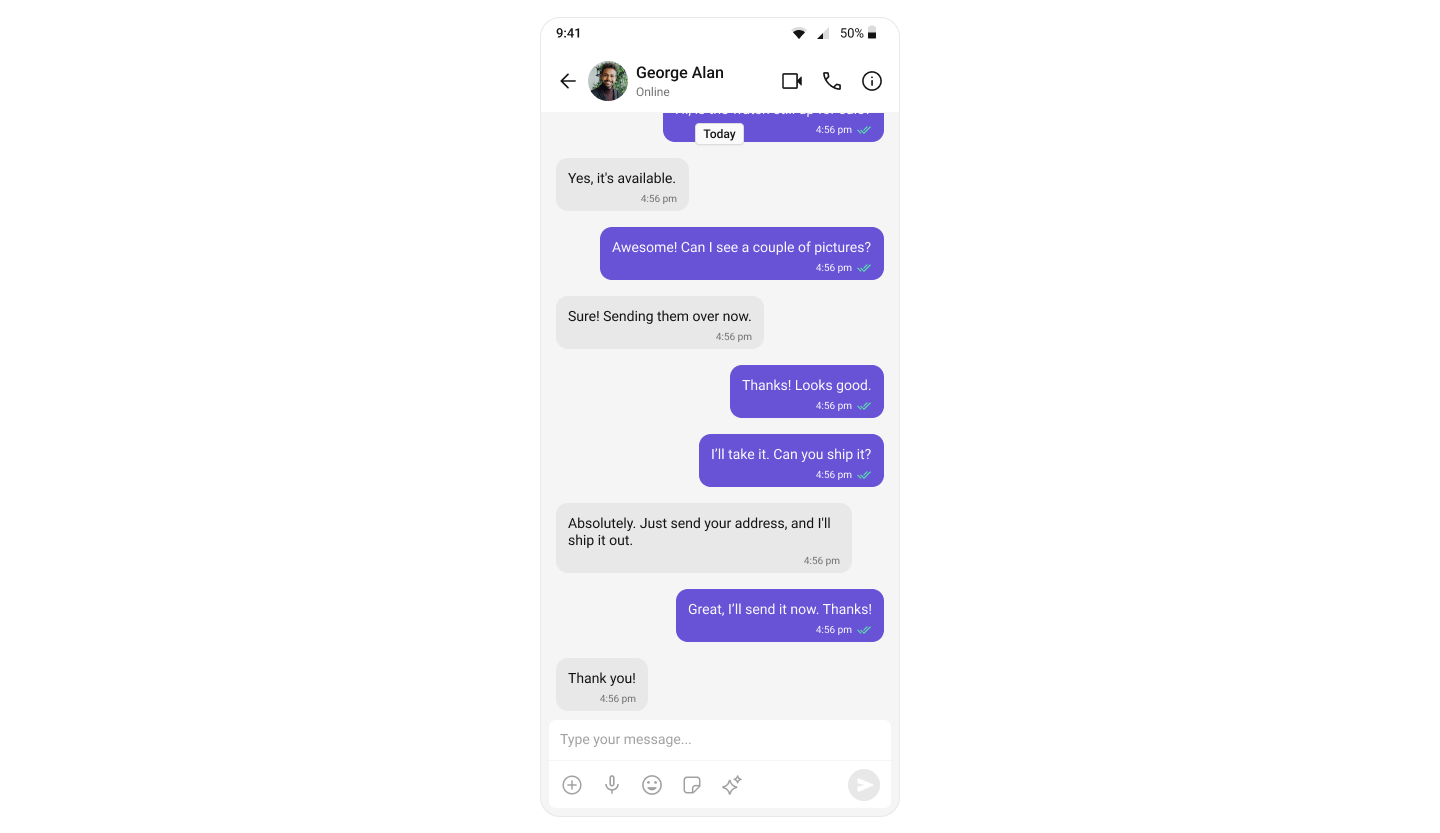
### One-to-One / Group Chat
Single chat window — no sidebar. Loads a specific user or group chat directly. Ideal for support chat, direct messages, or notification-driven flows.
 Step-by-step guide to build this layout
***
### Tab-Based Chat
Bottom navigation with tabs for Chats, Calls, Users, and Settings. Mobile-first, modular, and extensible for multi-feature apps.
Step-by-step guide to build this layout
***
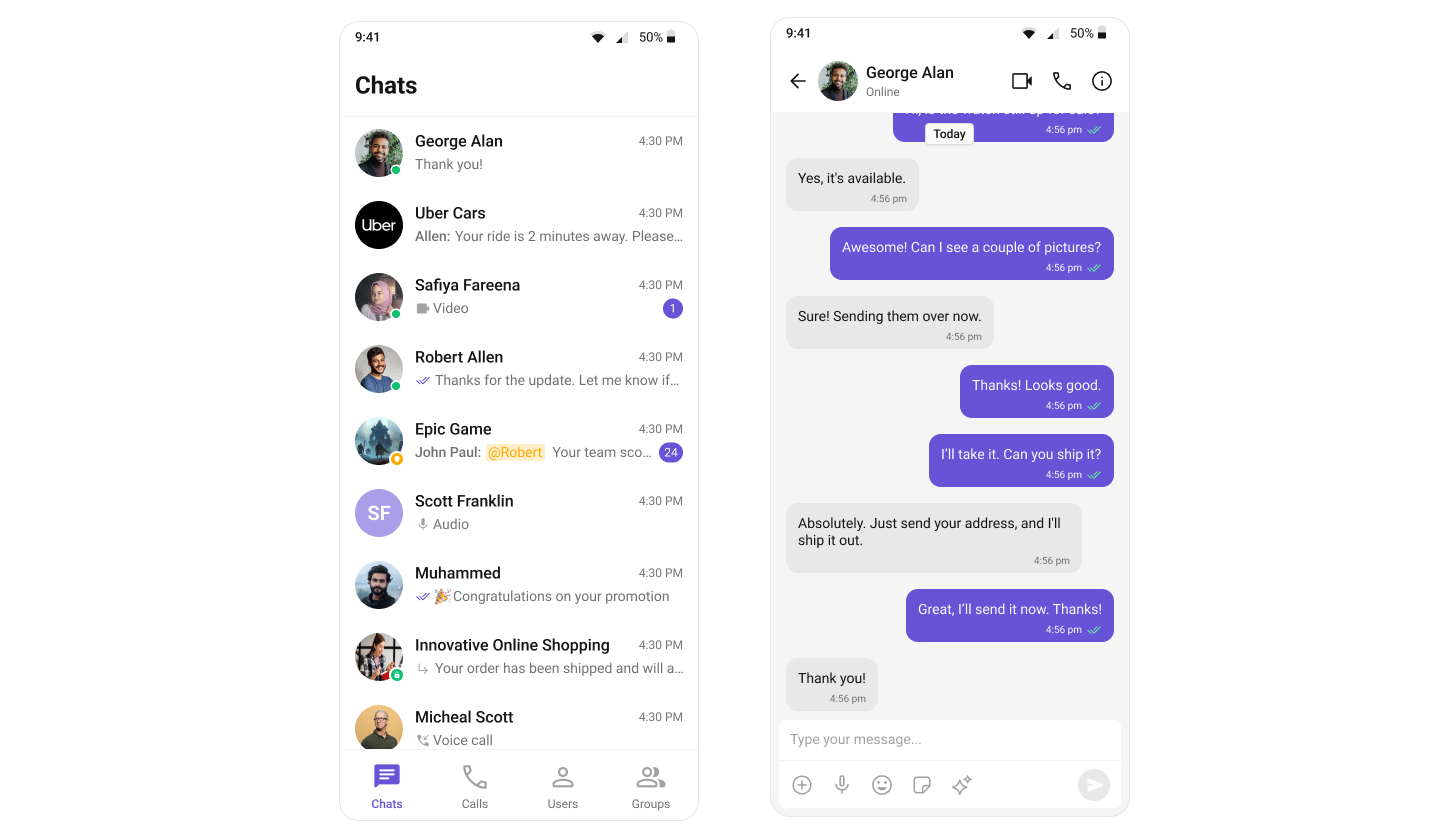
### Tab-Based Chat
Bottom navigation with tabs for Chats, Calls, Users, and Settings. Mobile-first, modular, and extensible for multi-feature apps.
 Step-by-step guide to build this layout
***
## Build Your Own Chat Experience
Need full control over the UI? Use individual components, customize themes, and wire up your own layouts.
Working reference app to compare against
All prebuilt UI elements with customization options
Messaging, real-time updates, and other capabilities
Colors, fonts, dark mode, and custom styling
Skip the UI Kit entirely and build on the raw SDK
***
## Next Steps
Browse all prebuilt UI components
Customize colors, fonts, and styles
Chat features included out of the box
Common issues and fixes
Step-by-step guide to build this layout
***
## Build Your Own Chat Experience
Need full control over the UI? Use individual components, customize themes, and wire up your own layouts.
Working reference app to compare against
All prebuilt UI elements with customization options
Messaging, real-time updates, and other capabilities
Colors, fonts, dark mode, and custom styling
Skip the UI Kit entirely and build on the raw SDK
***
## Next Steps
Browse all prebuilt UI components
Customize colors, fonts, and styles
Chat features included out of the box
Common issues and fixes