> ## Documentation Index
> Fetch the complete documentation index at: https://cometchat-22654f5b-docs-rn-guide-message-privately.mintlify.site/llms.txt
> Use this file to discover all available pages before exploring further.
# Setup
> Setup — CometChat documentation.
Migrating app version from v2 to v3 ?
Skip the create new app step. Your existing v2 app can be migrated to v3.\
\
Follow steps mentioned in **Add the CometChat dependency** section below to upgrade to latest version of v3
## Get your Application Keys
[Signup for CometChat](https://app.cometchat.com) and then:
1. Create a new app
2. Head over to the **API Keys** section and note the **Auth Key**, **App ID** & **Region**
Minimum Requirement
1. Xcode 12 (or Higher)
2. iOS 11 or higher
***
## Add the CometChat Dependency
### CocoaPods
We recommend using [CocoaPods](https://cocoapods.org/), as they are the most advanced way of managing iOS project dependencies. Open a terminal window, move to your project directory, and then create a `Podfile` by running the following command.
1. CometChatPro SDK supports installation through Cocoapods and SPM both. Currently, we are supporting Xcode 11.4 and higher.
2. CometChatPro SDK includes video calling components. We suggest you run on physical devices to avoid errors.
```bash theme={null}
$ pod init
```
Add the following lines to the Podfile.
```ruby theme={null}
platform :ios, '11.0'
use_frameworks!
target 'MyApp' do
pod 'CometChatPro', '3.0.919'
end
```
Minimum Requirement
v3.0.2+ onwards, Voice & Video Calling functionality has been moved to a separate framework. In case you do not plan to use the calling feature, please add the Calling framework `pod 'CometChatCalls', '3.0.0'` in your app Podfile.
And then install the `CometChatSDK` framework through CocoaPods.
```bash theme={null}
$ pod install
```
Always get the latest version of `CometChatSDK` by command
```bash theme={null}
$ pod update CometChatPro
```
### Swift Packages
To install **Swift Packages** you can use Xcode package manager\*\*.\*\*
1. Open **Xcode**, go to the project's **General** settings tab and select the project under **Project** in the left column.
2. Go to the **Swift packages** tab and click on the **+** button.
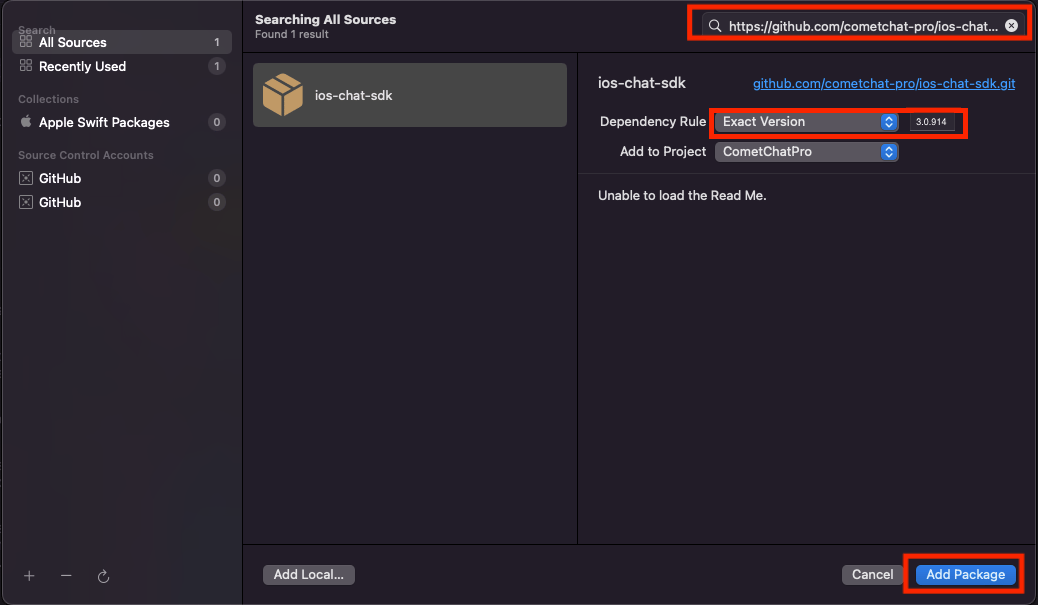
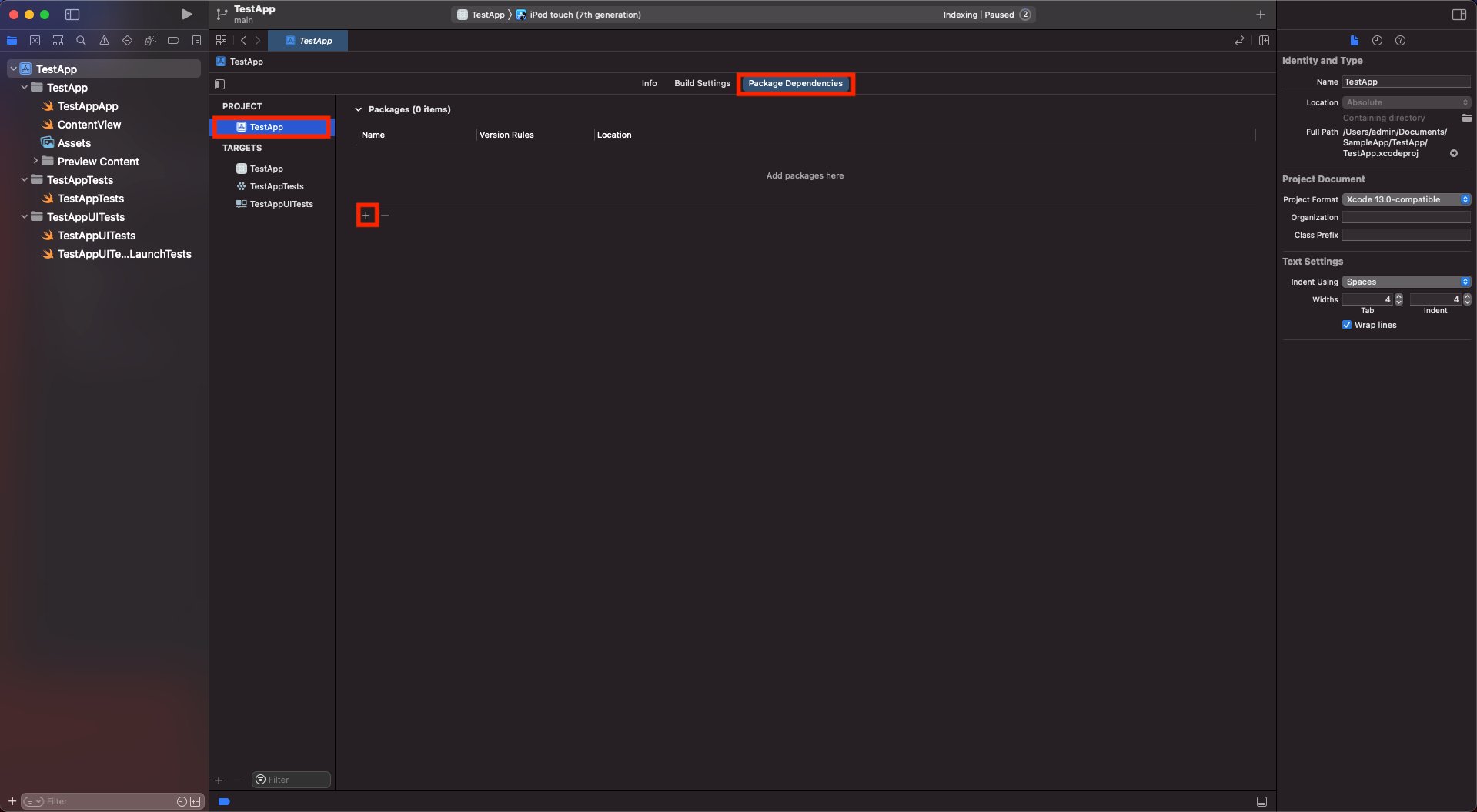 3. Once the pop-up appears, enter the github repository address in the search bar [`https://github.com/cometchat/chat-sdk-ios.git`](https://github.com/cometchat/chat-sdk-ios.git) and set dependency rule to `Up to Next Major Version` and set version as `3.0.919` . Then click on the **Add Package** button.
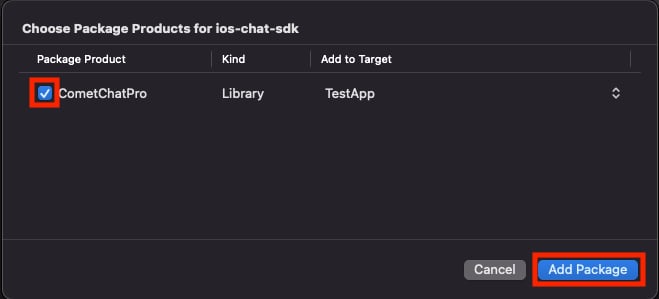
 4. `CometChatPro` must be checked in the **Package Product** column and click on the Add Package button. This will add **Package Dependencies** menu in Xcode.
 ### Request Authorization
Prepare your app for this requirement by providing justification strings. The justification string is a localizable message that you add to your app's `Info.plist` file to tell the user why your app needs access to the user's photo library, Camera, Microphone. Then, App prompts the user to grant permission for access, the alert displays the justification string you provided, in the language of the locale selected on the user's device. You can do this as follows:
### Request Authorization
Prepare your app for this requirement by providing justification strings. The justification string is a localizable message that you add to your app's `Info.plist` file to tell the user why your app needs access to the user's photo library, Camera, Microphone. Then, App prompts the user to grant permission for access, the alert displays the justification string you provided, in the language of the locale selected on the user's device. You can do this as follows:
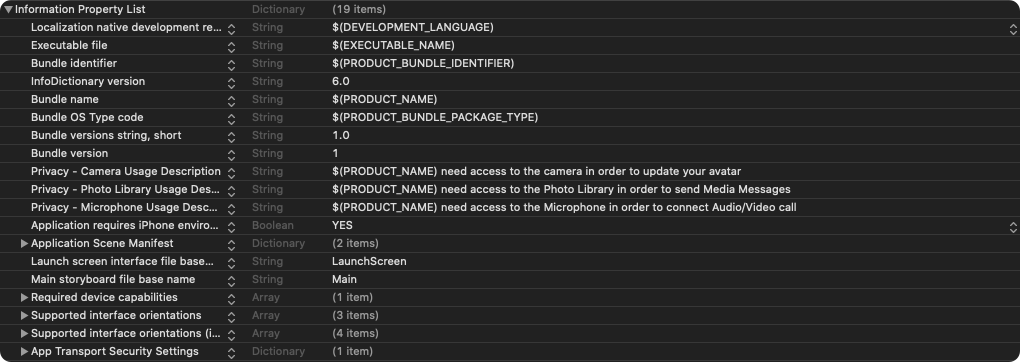 ```xml theme={null}
NSAppTransportSecurity
NSAllowsArbitraryLoads
NSCameraUsageDescription
$(PRODUCT_NAME) need access to the camera in order to update your avatar
NSPhotoLibraryUsageDescription
$(PRODUCT_NAME) need access to the Photo Library in order to send Media Messages
NSMicrophoneUsageDescription
$(PRODUCT_NAME) need access to the Microphone in order to connect Audio/Video call
```
### Setup Bitcode
You can set the Enable Bitcode setting to YES present in build settings in your XCode project.
```xml theme={null}
NSAppTransportSecurity
NSAllowsArbitraryLoads
NSCameraUsageDescription
$(PRODUCT_NAME) need access to the camera in order to update your avatar
NSPhotoLibraryUsageDescription
$(PRODUCT_NAME) need access to the Photo Library in order to send Media Messages
NSMicrophoneUsageDescription
$(PRODUCT_NAME) need access to the Microphone in order to connect Audio/Video call
```
### Setup Bitcode
You can set the Enable Bitcode setting to YES present in build settings in your XCode project.
 If you are using CometChat Pro SDK having the version less than 2.0.8, then you need to set **Enable Bitcode** to **NO**
### Swift Standard Libraries
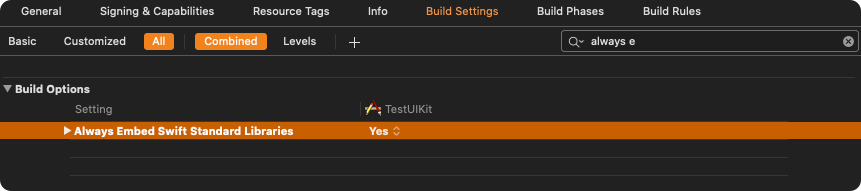
`CometChatPro`framework build on Swift, you have to ensure the required libraries are embedded. This can be done by setting the `“Always Embed Swift Standard Libraries”` checkbox in your target’s build settings to “Yes”:
If you are using CometChat Pro SDK having the version less than 2.0.8, then you need to set **Enable Bitcode** to **NO**
### Swift Standard Libraries
`CometChatPro`framework build on Swift, you have to ensure the required libraries are embedded. This can be done by setting the `“Always Embed Swift Standard Libraries”` checkbox in your target’s build settings to “Yes”:
 ### Set Header Search Path
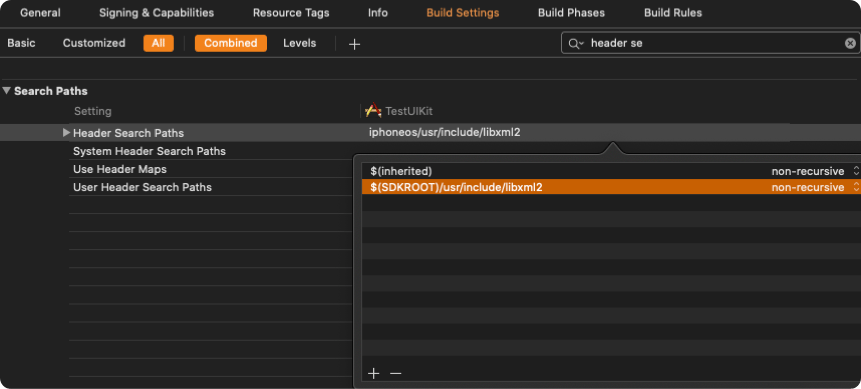
Set the `Header Search Paths` to `$SDKROOT/usr/include/libxml2`.
### Set Header Search Path
Set the `Header Search Paths` to `$SDKROOT/usr/include/libxml2`.
 Excluded Architecture
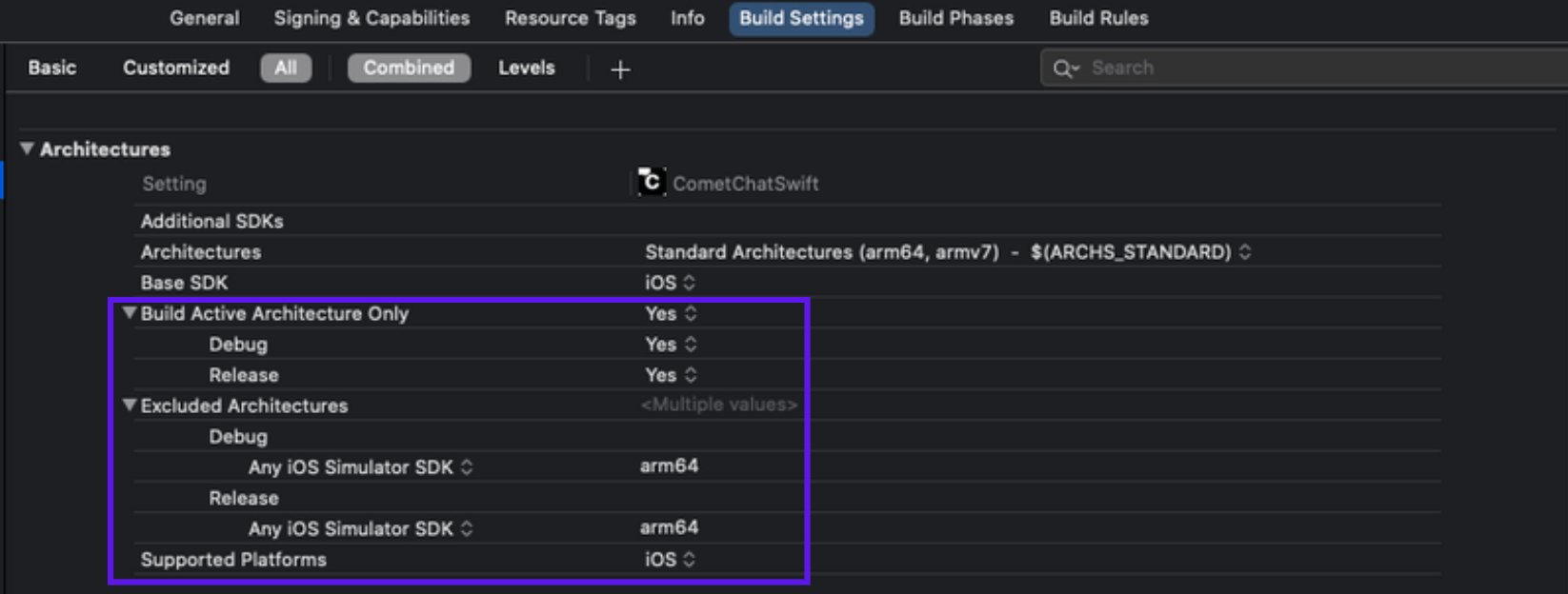
For Xcode 12 and above, we need to add arm64 in the excluded architecture of build settings as Apple supports only arm architecture for simulators and actual devices. No support provided for X86\_64 and i386 architectures.
### Setting for build for active architecture
In Build Settings, enable active architecture to Yes
Excluded Architecture
For Xcode 12 and above, we need to add arm64 in the excluded architecture of build settings as Apple supports only arm architecture for simulators and actual devices. No support provided for X86\_64 and i386 architectures.
### Setting for build for active architecture
In Build Settings, enable active architecture to Yes
 ***
## Initialize CometChat
The `init()` method initializes the settings required for CometChat.
The `init()` method takes the below parameters:
1. appID - You CometChat App ID
2. appSettings - An object of the AppSettings class can be created using the AppSettingsBuilder class. The region field is mandatory and can be set using the `setRegion()` method.
The `AppSettings` class allows you to configure three settings:
* **Region**: The region where you app was created.
* **[Presence Subscription](/sdk/ios/3.0/user-presence) :** Represents the subscription type for user presence (real-time online/offline status)
* **autoEstablishSocketConnection(boolean value)**: This property takes a boolean value which when set to true informs the SDK to manage the web-socket connection internally. If set to false, it informs the SDK that the web-socket connection will be managed manually. The default value for this parameter is true. For more information on this, please check the [Managing Web-Socket connections manually](/sdk/ios/3.0/managing-web-socket-connections-manually) section. The default value for this property is **true.**
* **overrideAdminHost(adminHost: string)**: This method takes the admin URL as input and uses this admin URL instead of the default admin URL. This can be used in case of dedicated deployment of CometChat.
* **overrideClientHost(clientHost: string)**: This method takes the client URL as input and uses this client URL instead of the default client URL. This can be used in case of dedicated deployment of CometChat.
We suggest you call the method on app startup preferably in the `didFinishLaunchingWithOptions:` method of the `AppDelegate` class.
```swift theme={null}
import CometChatPro
class AppDelegate: UIResponder, UIApplicationDelegate{
{
var window: UIWindow?
let appId: String = "ENTER APP ID"
let region: String = "ENTER REGION CODE"
func application(_ application: UIApplication, didFinishLaunchingWithOptions launchOptions: [UIApplication.LaunchOptionsKey: Any]?) -> Bool {
let mySettings = AppSettings.AppSettingsBuilder().subscribePresenceForAllUsers().setRegion(region: region).build()
CometChat.init(appId: appId ,appSettings: mySettings,onSuccess: { (isSuccess) in
if (isSuccess) {
print("CometChat Pro SDK intialise successfully.")
}
}) { (error) in
print("CometChat Pro SDK failed intialise with error: \(error.errorDescription)")
}
return true
}
}
```
```objc theme={null}
#import
@interface AppDelegate ()
@end
@implementation AppDelegate
- (BOOL)application:(UIApplication *)application didFinishLaunchingWithOptions:(NSDictionary *)launchOptions {
NSString *region = @"REGION";
NSString *appID = @"YOUR_APP_ID";
AppSettingsBuilder *appSettingBuilder = [[AppSettingsBuilder alloc]init];
AppSettings *appSettings = [[[appSettingBuilder subscribePresenceForAllUsers]setRegionWithRegion:region]build];
[[CometChat alloc]initWithAppId: appID appSettings:appSettings onSuccess:^(BOOL isSuccess) {
NSLog(isSuccess ? @"CometChat Initialize Success:-YES" : @"CometChat Initialize Success:-NO");
} onError:^(CometChatException * error) {
NSLog(@"Error %@",[error errorDescription]);
}];
return YES;
}
```
Make sure you replace the `appId` with your CometChat **App ID** in the above code.
| Parameter | Description |
| ---------- | ----------------------------------- |
| appID | CometChat App ID |
| appSetting | An object of the AppSettings class. |
***
## Publishing to App Store
To publish your App on App Store please [follow this guide](/sdk/ios/3.0/publishing-app-on-appstore)
***
## Initialize CometChat
The `init()` method initializes the settings required for CometChat.
The `init()` method takes the below parameters:
1. appID - You CometChat App ID
2. appSettings - An object of the AppSettings class can be created using the AppSettingsBuilder class. The region field is mandatory and can be set using the `setRegion()` method.
The `AppSettings` class allows you to configure three settings:
* **Region**: The region where you app was created.
* **[Presence Subscription](/sdk/ios/3.0/user-presence) :** Represents the subscription type for user presence (real-time online/offline status)
* **autoEstablishSocketConnection(boolean value)**: This property takes a boolean value which when set to true informs the SDK to manage the web-socket connection internally. If set to false, it informs the SDK that the web-socket connection will be managed manually. The default value for this parameter is true. For more information on this, please check the [Managing Web-Socket connections manually](/sdk/ios/3.0/managing-web-socket-connections-manually) section. The default value for this property is **true.**
* **overrideAdminHost(adminHost: string)**: This method takes the admin URL as input and uses this admin URL instead of the default admin URL. This can be used in case of dedicated deployment of CometChat.
* **overrideClientHost(clientHost: string)**: This method takes the client URL as input and uses this client URL instead of the default client URL. This can be used in case of dedicated deployment of CometChat.
We suggest you call the method on app startup preferably in the `didFinishLaunchingWithOptions:` method of the `AppDelegate` class.
```swift theme={null}
import CometChatPro
class AppDelegate: UIResponder, UIApplicationDelegate{
{
var window: UIWindow?
let appId: String = "ENTER APP ID"
let region: String = "ENTER REGION CODE"
func application(_ application: UIApplication, didFinishLaunchingWithOptions launchOptions: [UIApplication.LaunchOptionsKey: Any]?) -> Bool {
let mySettings = AppSettings.AppSettingsBuilder().subscribePresenceForAllUsers().setRegion(region: region).build()
CometChat.init(appId: appId ,appSettings: mySettings,onSuccess: { (isSuccess) in
if (isSuccess) {
print("CometChat Pro SDK intialise successfully.")
}
}) { (error) in
print("CometChat Pro SDK failed intialise with error: \(error.errorDescription)")
}
return true
}
}
```
```objc theme={null}
#import
@interface AppDelegate ()
@end
@implementation AppDelegate
- (BOOL)application:(UIApplication *)application didFinishLaunchingWithOptions:(NSDictionary *)launchOptions {
NSString *region = @"REGION";
NSString *appID = @"YOUR_APP_ID";
AppSettingsBuilder *appSettingBuilder = [[AppSettingsBuilder alloc]init];
AppSettings *appSettings = [[[appSettingBuilder subscribePresenceForAllUsers]setRegionWithRegion:region]build];
[[CometChat alloc]initWithAppId: appID appSettings:appSettings onSuccess:^(BOOL isSuccess) {
NSLog(isSuccess ? @"CometChat Initialize Success:-YES" : @"CometChat Initialize Success:-NO");
} onError:^(CometChatException * error) {
NSLog(@"Error %@",[error errorDescription]);
}];
return YES;
}
```
Make sure you replace the `appId` with your CometChat **App ID** in the above code.
| Parameter | Description |
| ---------- | ----------------------------------- |
| appID | CometChat App ID |
| appSetting | An object of the AppSettings class. |
***
## Publishing to App Store
To publish your App on App Store please [follow this guide](/sdk/ios/3.0/publishing-app-on-appstore)