> ## Documentation Index
> Fetch the complete documentation index at: https://cometchat-22654f5b-docs-rn-guide-message-privately.mintlify.site/llms.txt
> Use this file to discover all available pages before exploring further.
# Connection Behaviour
> Understand how CometChat SDK manages WebSocket connections in auto and manual modes, including background behavior and reconnection handling.
```dart theme={null}
// Auto Mode (default) - SDK manages connection automatically
AppSettings appSettings = (AppSettingsBuilder()
..subscriptionType = CometChatSubscriptionType.allUsers
..region = "REGION"
..autoEstablishSocketConnection = true // Default behavior
).build();
// Manual Mode - You control the connection
AppSettings appSettings = (AppSettingsBuilder()
..subscriptionType = CometChatSubscriptionType.allUsers
..region = "REGION"
..autoEstablishSocketConnection = false // Manual control
).build();
// Manual mode methods
CometChat.connect(onSuccess: (msg) {}, onError: (e) {}); // Establish connection
CometChat.disconnect(onSuccess: (msg) {}, onError: (e) {}); // Break connection
CometChat.ping(onSuccess: () {}, onError: (e) {}); // Keep alive in background
```
**Connection Modes:**
* **Auto Mode:** SDK manages WebSocket automatically (foreground=connected, background=disconnected)
* **Manual Mode:** You control connect/disconnect; call `ping()` every 30s to keep background connection alive
## Default SDK behaviour on login
When the login method of the SDK is called, the SDK performs the below operations:
1. Logs the user into the SDK
2. Saves the details of the logged in user locally.
3. Creates a web-socket connection for the logged in user.
This makes sure that the logged in user starts receiving real-time messages sent to him or any groups that he is a part of as soon as he logs in.
When the app is reopened, and the init() method is called, the web-socket connection to the server is established automatically.
This is the default behaviour of the CometChat SDKs. However, if you wish to take control of the web-socket connection i.e if you wish to connect and disconnect to the web-socket server manually, you can refer to the Managing Web-socket Connection section.
You'd want manual control when you need to conserve resources by connecting only when the user is actively chatting, or when you need precise control over when real-time events start flowing.
## Auto Mode
CometChat SDK default connection behaviour is auto mode. Auto mode, the SDK automatically establishes and maintains the WebSocket connection. You do not need to explicitly call any methods to do this.
To enable auto mode, you need to set the `autoEstablishSocketConnection()` method of AppSettings builder class to true. If you do not set this, the SDK will automatically apply the auto mode as the default behaviour for the WebSocket connection.
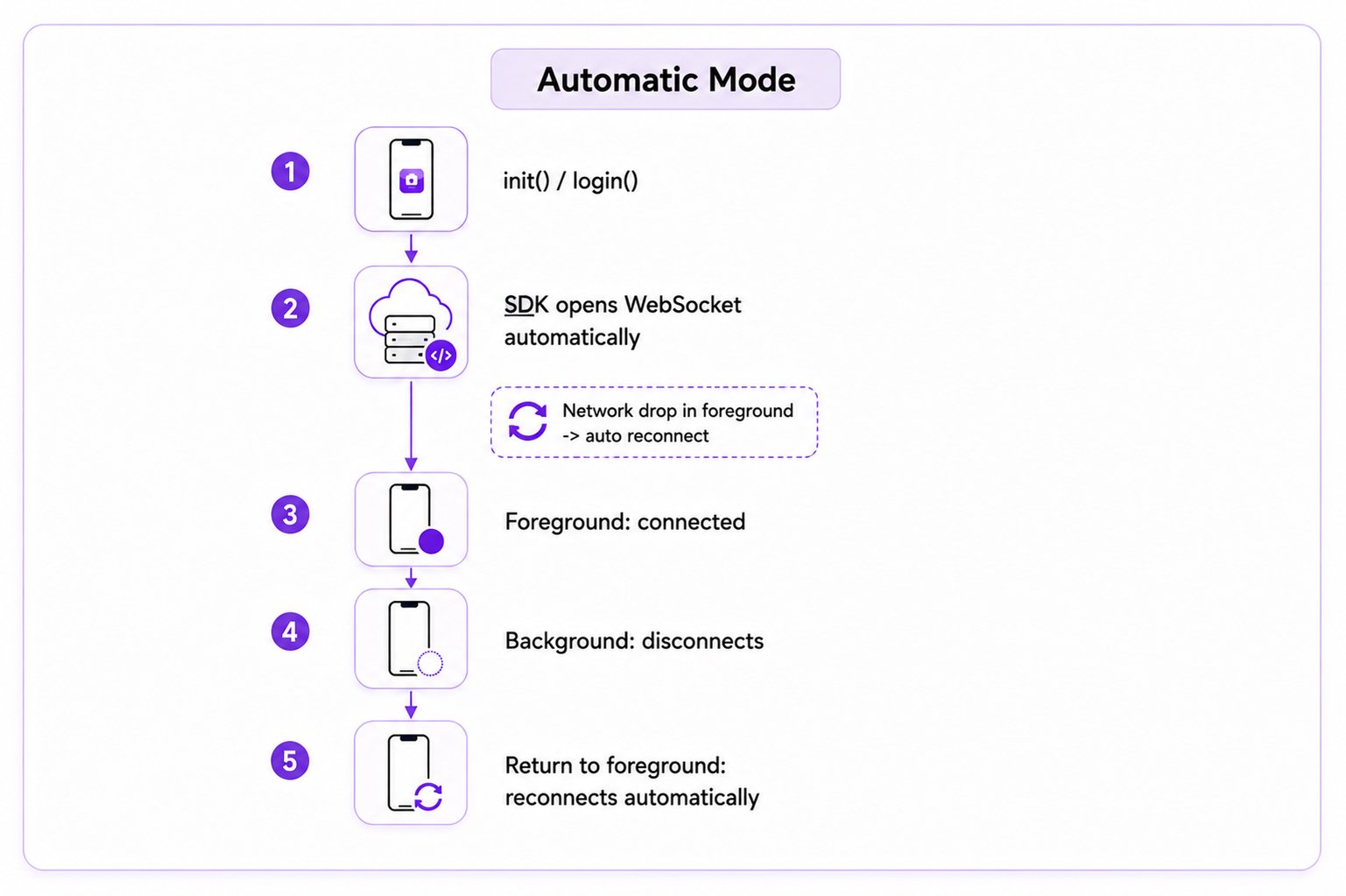 | App State | Behaviour |
| ----------------- | --------------------------------------- |
| App in foreground | Connected with WebSocket |
| App in background | Immediately disconnected with WebSocket |
Reconnection
If the app is in the foreground and there is no internet connection, the SDK will handle the reconnection of the WebSocket in auto mode.
## Manual Mode
In manual mode, you have to explicitly establish and disconnect the WebSocket connection. To do this, you need to set the `autoEstablishSocketConnection()` method to false and then call the `CometChat.connect()` method to establish the connection and the `CometChat.disconnect()` method to disconnect the connection.
By default, if manual mode is activated, the SDK will disconnect the WebSocket connection after 30 seconds if the app goes into the background. This means that the WebSocket connection will remain alive for 30 seconds after the app goes into the background, but it will be disconnected after that time if no pings are received.
To keep the WebSocket connection alive even if your app goes in the background, you need to call the `CometChat.ping()` method from your app within 30 seconds. This method sends a ping message to the CometChat server, which tells the server that the app is still active.
If you do not call the `CometChat.ping()` method within 30 seconds, the SDK will disconnect the WebSocket connection. This means that you will lose any messages that are sent to your app while it is in the background.
| App State | Behaviour |
| ----------------- | --------------------------------------- |
| App in foreground | Connected with WebSocket |
| App in background | Immediately disconnected with WebSocket |
Reconnection
If the app is in the foreground and there is no internet connection, the SDK will handle the reconnection of the WebSocket in auto mode.
## Manual Mode
In manual mode, you have to explicitly establish and disconnect the WebSocket connection. To do this, you need to set the `autoEstablishSocketConnection()` method to false and then call the `CometChat.connect()` method to establish the connection and the `CometChat.disconnect()` method to disconnect the connection.
By default, if manual mode is activated, the SDK will disconnect the WebSocket connection after 30 seconds if the app goes into the background. This means that the WebSocket connection will remain alive for 30 seconds after the app goes into the background, but it will be disconnected after that time if no pings are received.
To keep the WebSocket connection alive even if your app goes in the background, you need to call the `CometChat.ping()` method from your app within 30 seconds. This method sends a ping message to the CometChat server, which tells the server that the app is still active.
If you do not call the `CometChat.ping()` method within 30 seconds, the SDK will disconnect the WebSocket connection. This means that you will lose any messages that are sent to your app while it is in the background.
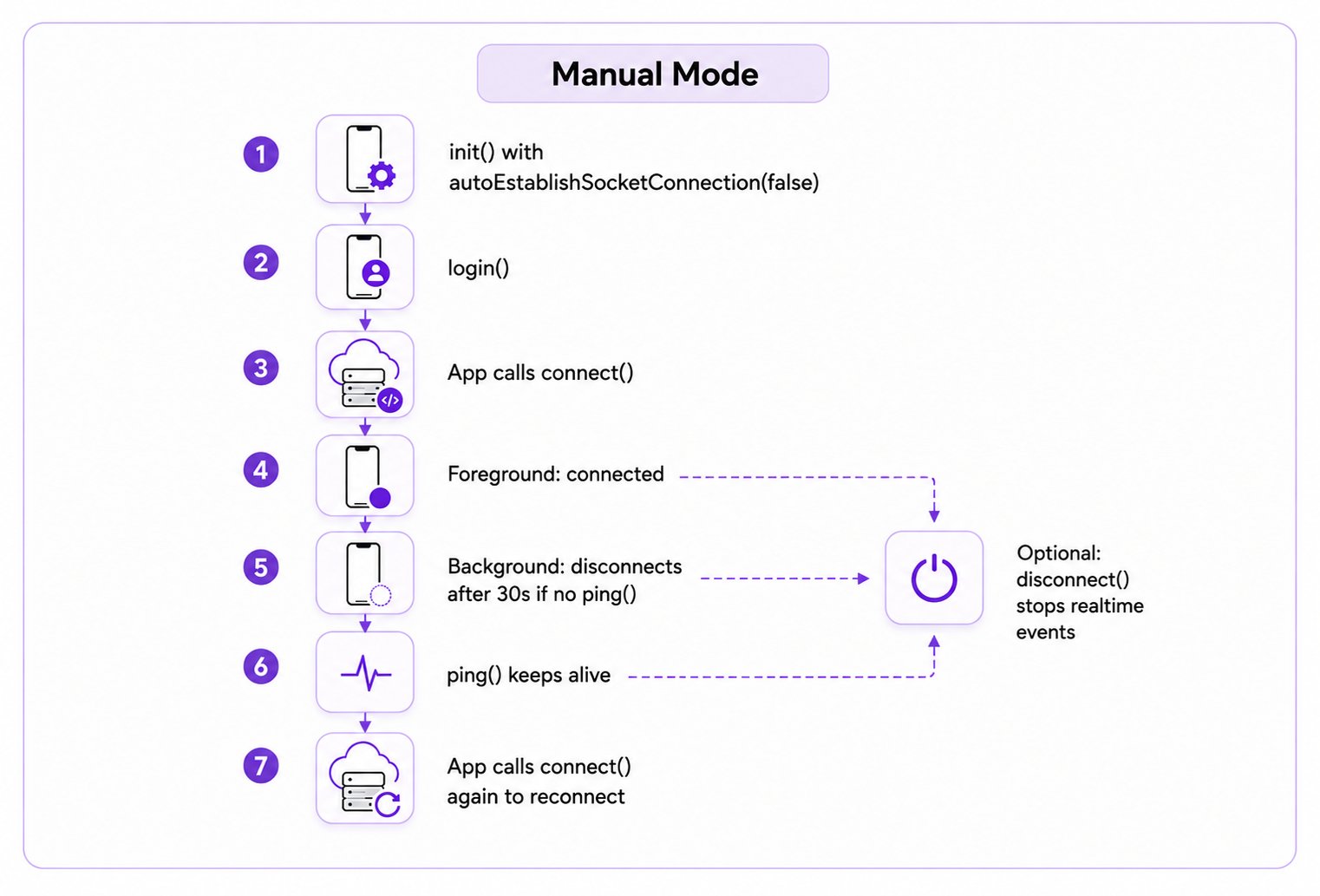 | App State | Behaviour |
| ----------------- | ------------------------------------------------------------------------------------------------------------------ |
| App in foreground | Call `CometChat.connect()` to create the WebSocket connection |
| App in background | Disconnect the WebSocket connection if no ping is received within 30 seconds after the app goes in the background. |
## Managing the Web-socket connections manually
The CometChat SDK also allows you to modify the above default behaviour of the SDK and take the control of the web-socket connection into your own hands. In order to achieve this, you need to follow the below steps:
## Enable Manual Mode
While calling the init() function on the app startup, you need to inform the SDK that you will be managing the web socket connect. You can do so by using the `autoEstablishSocketConnection()` method provided by the `AppSettingsBuilder` class. This method takes a boolean value as an input. If set to `true` , the SDK will manage the web-socket connection internally based on the default behaviour mentioned above. If set to `false` , the web socket connection can will not be managed by the SDK and you will have to handle it manually. You can refer to the below code snippet for the same:
```dart theme={null}
String region = "REGION";
String appId = "APP_ID";
AppSettings appSettings= (AppSettingsBuilder()
..subscriptionType = CometChatSubscriptionType.allUsers
..region= region
..autoEstablishSocketConnection = false
).build();
CometChat.init(appId, appSettings, onSuccess: (String successMessage) {
debugPrint("Initialization completed successfully $successMessage");
}, onError: (CometChatException excep) {
debugPrint("Initialization failed with exception: ${excep.message}");
});
```
**On Success** — A `String` message confirming SDK initialization:
| Parameter | Type | Description | Sample Value |
| --------- | ------ | ---------------------------- | ----------------------------------------- |
| `message` | string | Success confirmation message | `"Initialization completed successfully"` |
| Parameter | Type | Description | Sample Value |
| --------- | ------ | ---------------------------- | --------------------------------------------------------- |
| `code` | string | Error code identifier | `"ERR_CHAT_API_FAILURE"` |
| `message` | string | Human-readable error message | `"SDK initialization failed."` |
| `details` | string | Additional technical details | `"Please verify your App ID and region, then try again."` |
You can manage the connection to the web-socket server using the `connect()` and `disconnect()` methods provided by the SDK.
## Connect to the web-socket server
You need to use the `connect()` method provided by the `CometChat` class to establish the connection to the web-socket server. Please make sure that the user is logged in to the SDK before calling this method. You can use the CometChat.getLoggedInUser() method to check this. Once the connection is established, you will start receiving all the real-time events for the logged in user
```dart theme={null}
CometChat.connect(
onSuccess: (successMessage) {
debugPrint("Web socket connection successful");
},
onError: (e) {
debugPrint("Web socket connection failed ${e.toString()}");
},
);
```
**On Success** — A `String` message confirming the WebSocket connection was established:
| Parameter | Type | Description | Sample Value |
| --------- | ------ | ---------------------------- | ------------------------------------ |
| `message` | string | Success confirmation message | `"Web socket connection successful"` |
| Parameter | Type | Description | Sample Value |
| --------- | ------ | ---------------------------- | ------------------------------------------------------------- |
| `code` | string | Error code identifier | `"ERR_NOT_LOGGED_IN"` |
| `message` | string | Human-readable error message | `"No active user session."` |
| `details` | string | Additional technical details | `"Please log in before establishing a WebSocket connection."` |
## Disconnect from the web-socket server
You can use the `disconnect()` method provided by the `CometChat` class to break the established connection. Once the connection is broken, you will stop receiving all the real-time events for the logged in user.
```dart theme={null}
CometChat.disconnect(
onSuccess: (successMessage) {
debugPrint("Web socket disconnection successful");
},
onError: (e) {
debugPrint("Web socket disconnection failed ${e.toString()}");
},
);
```
**On Success** — A `String` message confirming the WebSocket connection was disconnected:
| Parameter | Type | Description | Sample Value |
| --------- | ------ | ---------------------------- | --------------------------------------- |
| `message` | string | Success confirmation message | `"Web socket disconnection successful"` |
| Parameter | Type | Description | Sample Value |
| --------- | ------ | ---------------------------- | ---------------------------------------------------------------- |
| `code` | string | Error code identifier | `"ERR_NOT_LOGGED_IN"` |
| `message` | string | Human-readable error message | `"No active user session."` |
| `details` | string | Additional technical details | `"Please log in before disconnecting the WebSocket connection."` |
## Maintain long-standing background connection
To ensure that the WebSocket connection is always alive, you can create a service or background service that calls the CometChat.ping() method in a loop. This will ensure that the ping message is sent to the server every 30 seconds, even if the app is not in the foreground.
You can maintain a long-standing background connection event when your app is in the background, call the CometChat.ping() method within 30 seconds of your app entering the background or after the previous ping() call.
```dart theme={null}
CometChat.ping(
onSuccess: () {
debugPrint("ping successful");
},
onError: (e) {
debugPrint("error while ping ${e.toString()}");
}
);
```
**On Success** — A confirmation that the ping was sent successfully (no return value):
| Parameter | Type | Description | Sample Value |
| --------- | ------ | -------------------- | ------------------- |
| `message` | string | Success confirmation | `"ping successful"` |
| Parameter | Type | Description | Sample Value |
| --------- | ------ | ---------------------------- | ------------------------------------------------------ |
| `code` | string | Error code identifier | `"ERR_NOT_LOGGED_IN"` |
| `message` | string | Human-readable error message | `"No active user session."` |
| `details` | string | Additional technical details | `"Please log in before sending a ping to the server."` |
## Reconnection
If manual mode is enabled and the app is in the foreground, the SDK will automatically reconnect the WebSocket if the internet connection is lost. However, if the app is in the background and the WebSocket is disconnected or you called `CometChat.disconnect()`, then you will need to call the `CometChat.connect()` method to create a new WebSocket connection.
***
## Next Steps
Monitor real-time WebSocket connection status with listeners
Configure CometChat SDK initialization and settings
Learn about all available real-time event listeners
Implement user login and logout functionality
| App State | Behaviour |
| ----------------- | ------------------------------------------------------------------------------------------------------------------ |
| App in foreground | Call `CometChat.connect()` to create the WebSocket connection |
| App in background | Disconnect the WebSocket connection if no ping is received within 30 seconds after the app goes in the background. |
## Managing the Web-socket connections manually
The CometChat SDK also allows you to modify the above default behaviour of the SDK and take the control of the web-socket connection into your own hands. In order to achieve this, you need to follow the below steps:
## Enable Manual Mode
While calling the init() function on the app startup, you need to inform the SDK that you will be managing the web socket connect. You can do so by using the `autoEstablishSocketConnection()` method provided by the `AppSettingsBuilder` class. This method takes a boolean value as an input. If set to `true` , the SDK will manage the web-socket connection internally based on the default behaviour mentioned above. If set to `false` , the web socket connection can will not be managed by the SDK and you will have to handle it manually. You can refer to the below code snippet for the same:
```dart theme={null}
String region = "REGION";
String appId = "APP_ID";
AppSettings appSettings= (AppSettingsBuilder()
..subscriptionType = CometChatSubscriptionType.allUsers
..region= region
..autoEstablishSocketConnection = false
).build();
CometChat.init(appId, appSettings, onSuccess: (String successMessage) {
debugPrint("Initialization completed successfully $successMessage");
}, onError: (CometChatException excep) {
debugPrint("Initialization failed with exception: ${excep.message}");
});
```
**On Success** — A `String` message confirming SDK initialization:
| Parameter | Type | Description | Sample Value |
| --------- | ------ | ---------------------------- | ----------------------------------------- |
| `message` | string | Success confirmation message | `"Initialization completed successfully"` |
| Parameter | Type | Description | Sample Value |
| --------- | ------ | ---------------------------- | --------------------------------------------------------- |
| `code` | string | Error code identifier | `"ERR_CHAT_API_FAILURE"` |
| `message` | string | Human-readable error message | `"SDK initialization failed."` |
| `details` | string | Additional technical details | `"Please verify your App ID and region, then try again."` |
You can manage the connection to the web-socket server using the `connect()` and `disconnect()` methods provided by the SDK.
## Connect to the web-socket server
You need to use the `connect()` method provided by the `CometChat` class to establish the connection to the web-socket server. Please make sure that the user is logged in to the SDK before calling this method. You can use the CometChat.getLoggedInUser() method to check this. Once the connection is established, you will start receiving all the real-time events for the logged in user
```dart theme={null}
CometChat.connect(
onSuccess: (successMessage) {
debugPrint("Web socket connection successful");
},
onError: (e) {
debugPrint("Web socket connection failed ${e.toString()}");
},
);
```
**On Success** — A `String` message confirming the WebSocket connection was established:
| Parameter | Type | Description | Sample Value |
| --------- | ------ | ---------------------------- | ------------------------------------ |
| `message` | string | Success confirmation message | `"Web socket connection successful"` |
| Parameter | Type | Description | Sample Value |
| --------- | ------ | ---------------------------- | ------------------------------------------------------------- |
| `code` | string | Error code identifier | `"ERR_NOT_LOGGED_IN"` |
| `message` | string | Human-readable error message | `"No active user session."` |
| `details` | string | Additional technical details | `"Please log in before establishing a WebSocket connection."` |
## Disconnect from the web-socket server
You can use the `disconnect()` method provided by the `CometChat` class to break the established connection. Once the connection is broken, you will stop receiving all the real-time events for the logged in user.
```dart theme={null}
CometChat.disconnect(
onSuccess: (successMessage) {
debugPrint("Web socket disconnection successful");
},
onError: (e) {
debugPrint("Web socket disconnection failed ${e.toString()}");
},
);
```
**On Success** — A `String` message confirming the WebSocket connection was disconnected:
| Parameter | Type | Description | Sample Value |
| --------- | ------ | ---------------------------- | --------------------------------------- |
| `message` | string | Success confirmation message | `"Web socket disconnection successful"` |
| Parameter | Type | Description | Sample Value |
| --------- | ------ | ---------------------------- | ---------------------------------------------------------------- |
| `code` | string | Error code identifier | `"ERR_NOT_LOGGED_IN"` |
| `message` | string | Human-readable error message | `"No active user session."` |
| `details` | string | Additional technical details | `"Please log in before disconnecting the WebSocket connection."` |
## Maintain long-standing background connection
To ensure that the WebSocket connection is always alive, you can create a service or background service that calls the CometChat.ping() method in a loop. This will ensure that the ping message is sent to the server every 30 seconds, even if the app is not in the foreground.
You can maintain a long-standing background connection event when your app is in the background, call the CometChat.ping() method within 30 seconds of your app entering the background or after the previous ping() call.
```dart theme={null}
CometChat.ping(
onSuccess: () {
debugPrint("ping successful");
},
onError: (e) {
debugPrint("error while ping ${e.toString()}");
}
);
```
**On Success** — A confirmation that the ping was sent successfully (no return value):
| Parameter | Type | Description | Sample Value |
| --------- | ------ | -------------------- | ------------------- |
| `message` | string | Success confirmation | `"ping successful"` |
| Parameter | Type | Description | Sample Value |
| --------- | ------ | ---------------------------- | ------------------------------------------------------ |
| `code` | string | Error code identifier | `"ERR_NOT_LOGGED_IN"` |
| `message` | string | Human-readable error message | `"No active user session."` |
| `details` | string | Additional technical details | `"Please log in before sending a ping to the server."` |
## Reconnection
If manual mode is enabled and the app is in the foreground, the SDK will automatically reconnect the WebSocket if the internet connection is lost. However, if the app is in the background and the WebSocket is disconnected or you called `CometChat.disconnect()`, then you will need to call the `CometChat.connect()` method to create a new WebSocket connection.
***
## Next Steps
Monitor real-time WebSocket connection status with listeners
Configure CometChat SDK initialization and settings
Learn about all available real-time event listeners
Implement user login and logout functionality