> ## Documentation Index
> Fetch the complete documentation index at: https://cometchat-22654f5b-docs-rn-guide-message-privately.mintlify.site/llms.txt
> Use this file to discover all available pages before exploring further.
# Setup
> Install, configure, initialize, and log in users with the CometChat Flutter SDK using app keys and region.
### Get your Application Keys
[Signup for CometChat](https://app.cometchat.com/) and then:
1. Create a new app
2. Head over to the **API Keys** section and note the **Auth Key**, **App ID** & **Region**
Minimum Requirement
* Android API Level 21
* AndroidX Compatibility
* iOS 11 or higher
* Flutter SDK 1.2 or higher
### Add the CometChat Dependency
```yaml theme={null}
dependencies:
cometchat_sdk: ^5.0.5
```
Then run:
```bash theme={null}
flutter pub get
```
**Upgrading from v4?**
If you're migrating an existing app from CometChat SDK v4, check out the [Upgrading from v4](/sdk/flutter/upgrading-from-v4-guide) guide for breaking changes, deprecated methods, and migration instructions.
2. Add following code to podfile inside iOS section of your app
```ruby theme={null}
post_install do |installer|
installer.pods_project.targets.each do |target|
flutter_additional_ios_build_settings(target)
//Copy from here------->
target.build_configurations.each do |build_configuration|
build_configuration.build_settings['EXCLUDED_ARCHS[sdk=iphonesimulator*]'] = 'arm64 i386'
end
//Copy TILL here------->
end
end
```
**Apple Silicon (M1/M2/M3) users:** Excluding `arm64` from the simulator build prevents the app from running natively on Apple Silicon Macs. If you are developing on an Apple Silicon Mac, consider excluding only `i386` instead of `arm64 i386` to enable native simulator builds.
3. For iOS, change the deployment target to `11` or higher.
4. For iOS, navigate to your iOS folder in terminal or CMD and do `pod install` . For apple chip system use rosetta terminal.
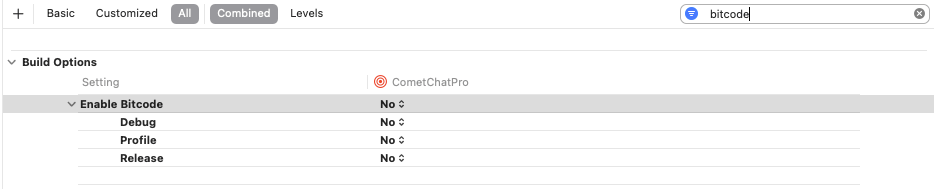
5. For iOS you can set the Enabled Bitcode settings to **NO** present in build settings of XCODE project
 Import CometChat SDK using following code in dart
```dart theme={null}
import 'package:cometchat_sdk/cometchat_sdk.dart';
```
## Initialise CometChat
The `init()` method initialises the settings required for CometChat. The `init()` method takes the below parameters:
1. appID - You CometChat App ID
2. appSettings - An object of the AppSettings class can be created using the AppSettingsBuilder class. The region field is mandatory and can be set using the `setRegion()` method.
The `AppSettings` class allows you to configure three settings:
* **Region**: The region where you app was created.
* **[Presence Subscription](/sdk/flutter/user-presence):** Represents the subscription type for user presence (real-time online/offline status)
* **autoEstablishSocketConnection(boolean value)**: This property takes a boolean value which when set to true informs the SDK to manage the web-socket connection internally. If set to false, it informs the SDK that the web-socket connection will be managed manually. The default value for this parameter is true. For more information on this, please check the [Connection Behaviour](/sdk/flutter/connection-behaviour) section. The default value for this property is **true.**
* **adminHost(adminHost: string)**: This method takes the admin URL as input and uses this admin URL instead of the default admin URL. This can be used in case of dedicated deployment of CometChat.
* **clientHost(clientHost: string)**: This method takes the client URL as input and uses this client URL instead of the default client URL. This can be used in case of dedicated deployment of CometChat.
```dart theme={null}
String region = "REGION";
String appId = "APP_ID";
AppSettings appSettings= (AppSettingsBuilder()
..subscriptionType = CometChatSubscriptionType.allUsers
..region= region
..adminHost = "" //optional
..clientHost = "" //optional
..autoEstablishSocketConnection = true
).build();
CometChat.init(appId, appSettings,
onSuccess: (String successMessage) {
debugPrint("Initialization completed successfully $successMessage");
}, onError: (CometChatException excep) {
debugPrint("Initialization failed with exception: ${excep.message}");
}
);
```
We suggest you call the `init()` method on app startup.
## Auto Mode Connection
Know more about auto mode connection [click here](/sdk/flutter/connection-behaviour)
| App State | Behaviour |
| ----------------- | --------------------------------------- |
| App in foreground | Connected with WebSocket |
| App in background | Immediately disconnected with WebSocket |
## Manual Mode Connection
Know more about manual mode connection [click here](/sdk/flutter/connection-behaviour)
| App State | Behaviour |
| ----------------- | ------------------------------------------------------------------------------------------------------------------ |
| App in foreground | Call `CometChat.connect()` to create the WebSocket connection |
| App in background | Disconnect the WebSocket connection if no ping is received within 30 seconds after the app goes in the background. |
Import CometChat SDK using following code in dart
```dart theme={null}
import 'package:cometchat_sdk/cometchat_sdk.dart';
```
## Initialise CometChat
The `init()` method initialises the settings required for CometChat. The `init()` method takes the below parameters:
1. appID - You CometChat App ID
2. appSettings - An object of the AppSettings class can be created using the AppSettingsBuilder class. The region field is mandatory and can be set using the `setRegion()` method.
The `AppSettings` class allows you to configure three settings:
* **Region**: The region where you app was created.
* **[Presence Subscription](/sdk/flutter/user-presence):** Represents the subscription type for user presence (real-time online/offline status)
* **autoEstablishSocketConnection(boolean value)**: This property takes a boolean value which when set to true informs the SDK to manage the web-socket connection internally. If set to false, it informs the SDK that the web-socket connection will be managed manually. The default value for this parameter is true. For more information on this, please check the [Connection Behaviour](/sdk/flutter/connection-behaviour) section. The default value for this property is **true.**
* **adminHost(adminHost: string)**: This method takes the admin URL as input and uses this admin URL instead of the default admin URL. This can be used in case of dedicated deployment of CometChat.
* **clientHost(clientHost: string)**: This method takes the client URL as input and uses this client URL instead of the default client URL. This can be used in case of dedicated deployment of CometChat.
```dart theme={null}
String region = "REGION";
String appId = "APP_ID";
AppSettings appSettings= (AppSettingsBuilder()
..subscriptionType = CometChatSubscriptionType.allUsers
..region= region
..adminHost = "" //optional
..clientHost = "" //optional
..autoEstablishSocketConnection = true
).build();
CometChat.init(appId, appSettings,
onSuccess: (String successMessage) {
debugPrint("Initialization completed successfully $successMessage");
}, onError: (CometChatException excep) {
debugPrint("Initialization failed with exception: ${excep.message}");
}
);
```
We suggest you call the `init()` method on app startup.
## Auto Mode Connection
Know more about auto mode connection [click here](/sdk/flutter/connection-behaviour)
| App State | Behaviour |
| ----------------- | --------------------------------------- |
| App in foreground | Connected with WebSocket |
| App in background | Immediately disconnected with WebSocket |
## Manual Mode Connection
Know more about manual mode connection [click here](/sdk/flutter/connection-behaviour)
| App State | Behaviour |
| ----------------- | ------------------------------------------------------------------------------------------------------------------ |
| App in foreground | Call `CometChat.connect()` to create the WebSocket connection |
| App in background | Disconnect the WebSocket connection if no ping is received within 30 seconds after the app goes in the background. |